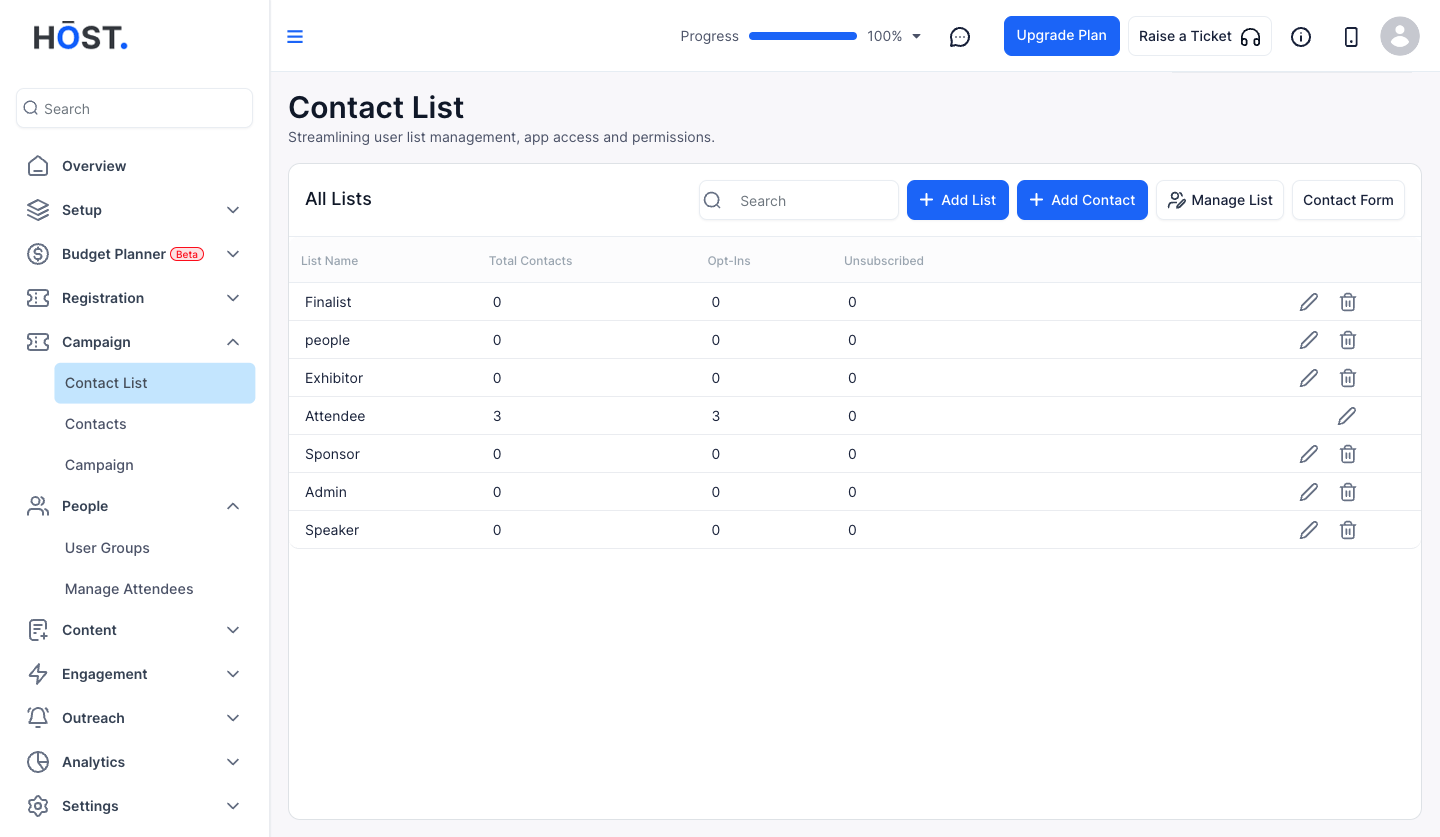
Easily update the contact form within your campaign to collect the right information.
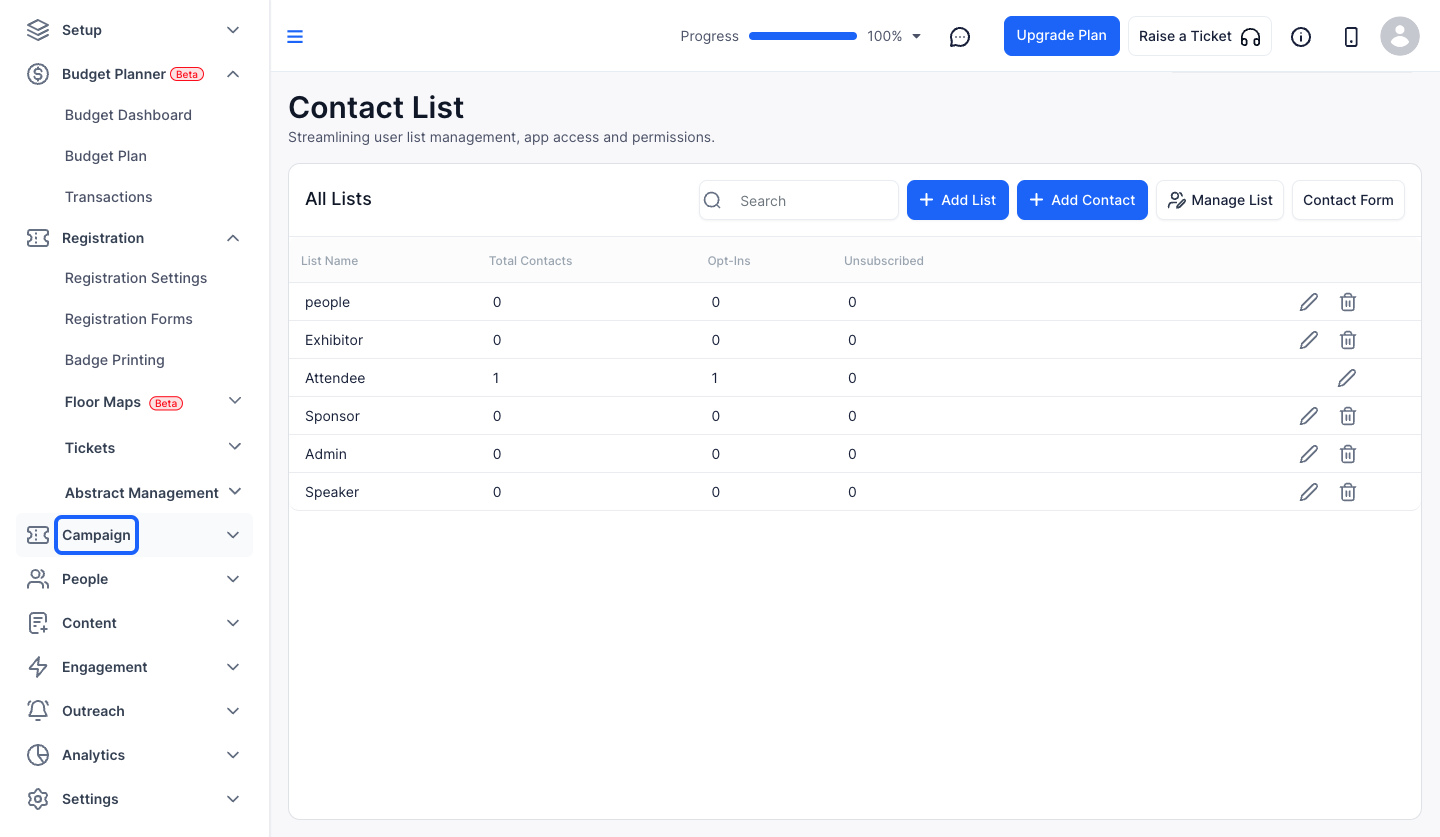
1: Access the HOST Admin Panel and navigate to Campaign
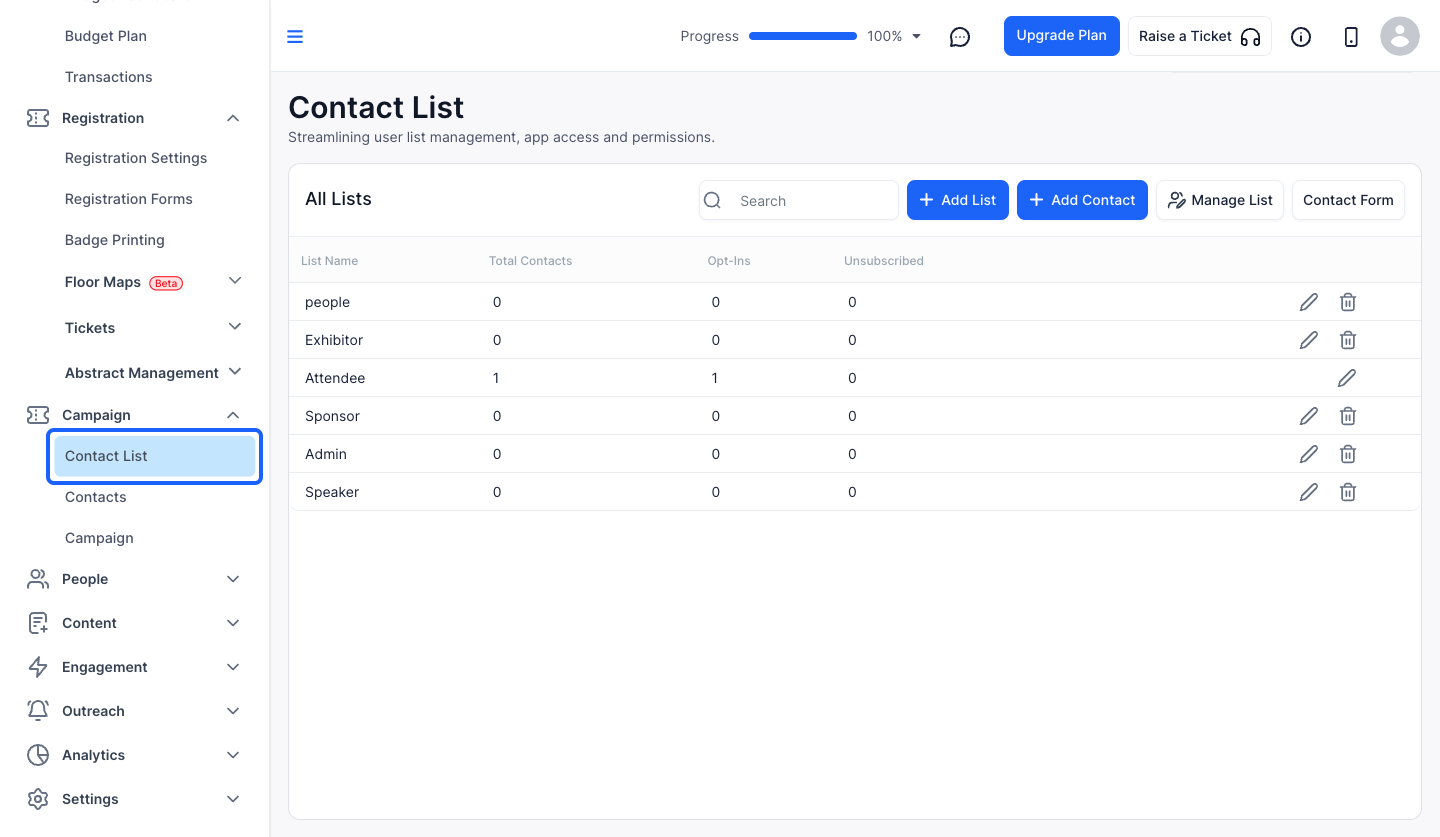
2: Click on Contact List
3: Click on Contact Form to customize the form
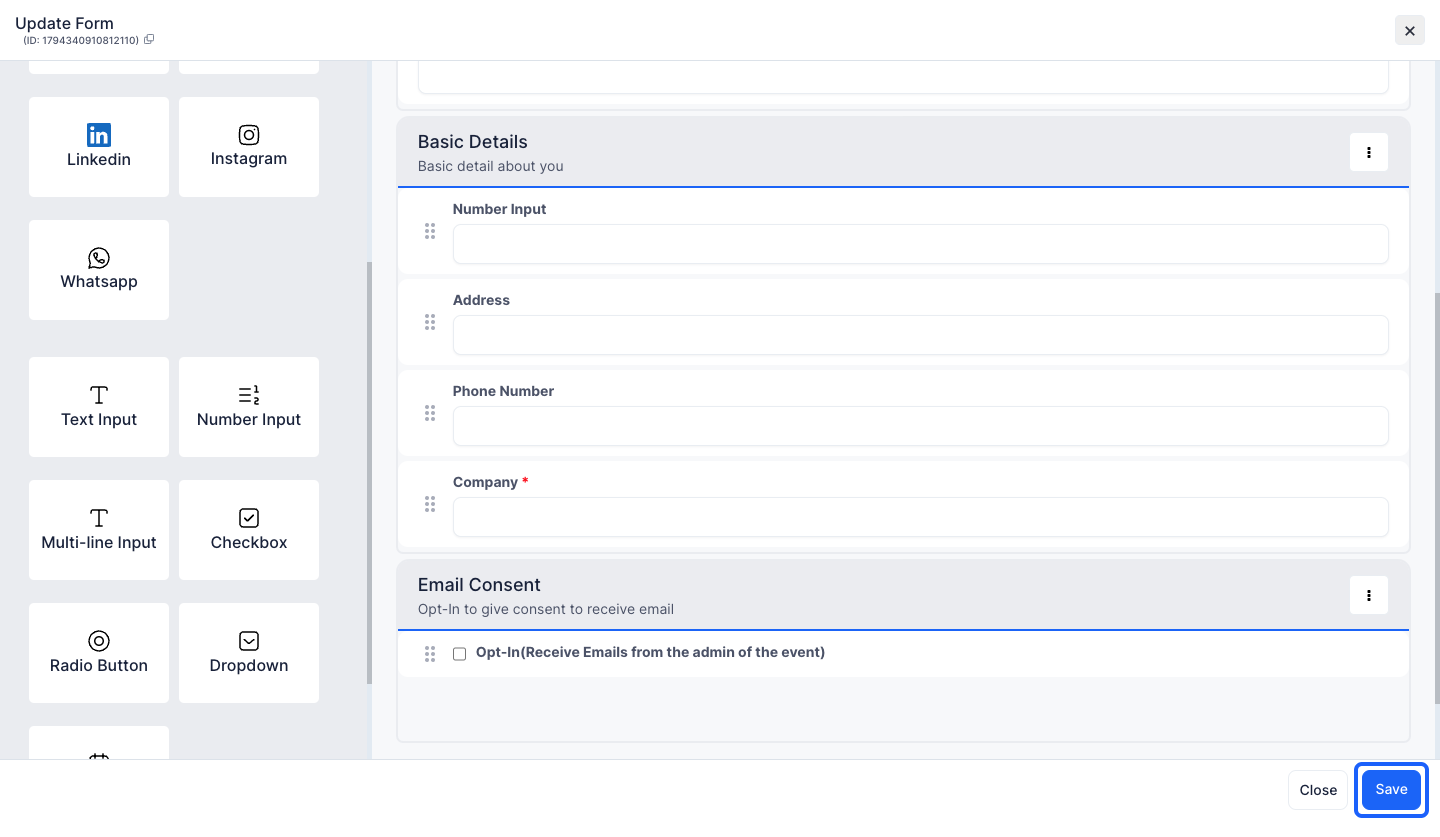
4: You can Drag & Drop the Form Components to add them
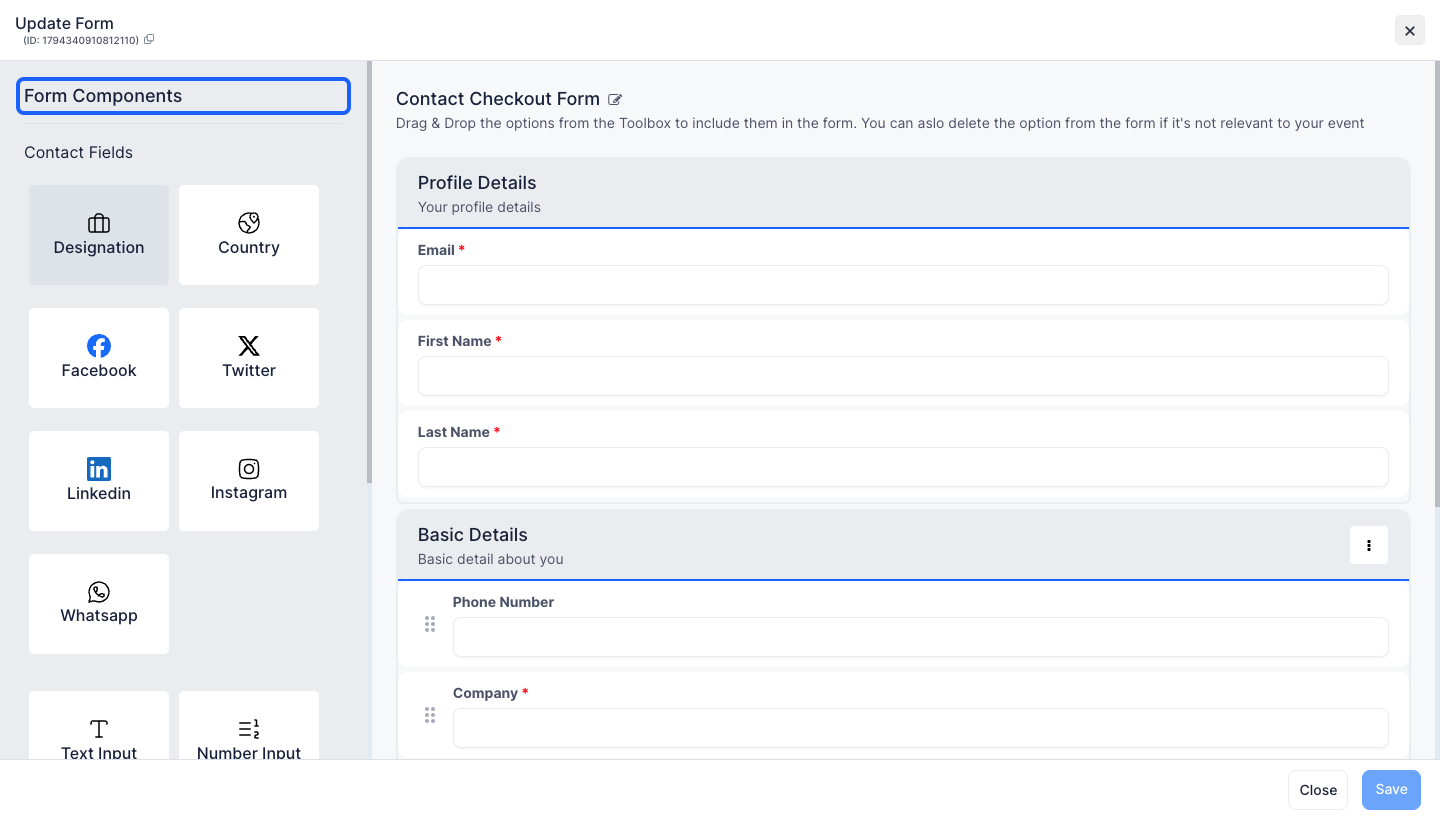
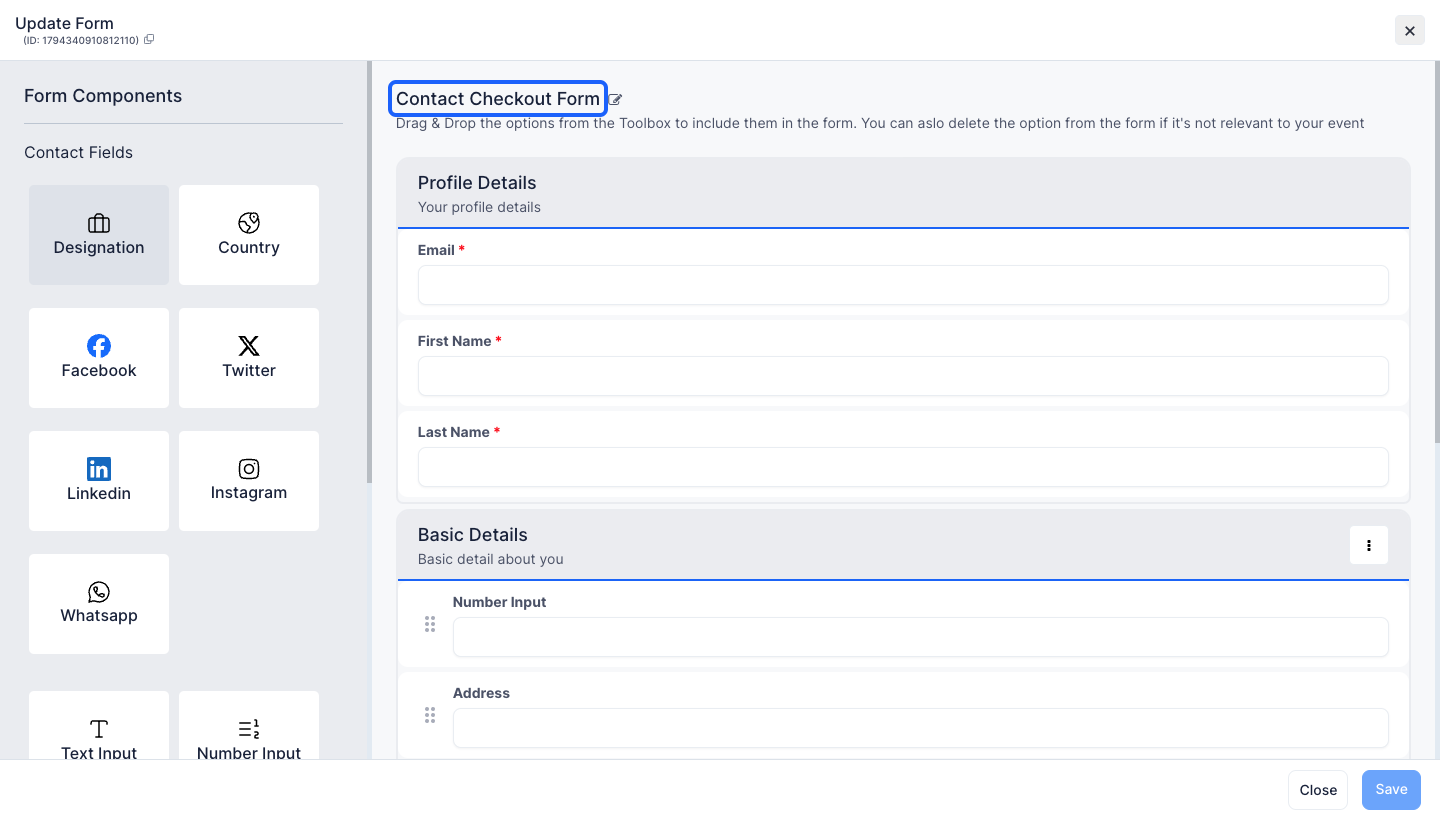
5: You can change the form name
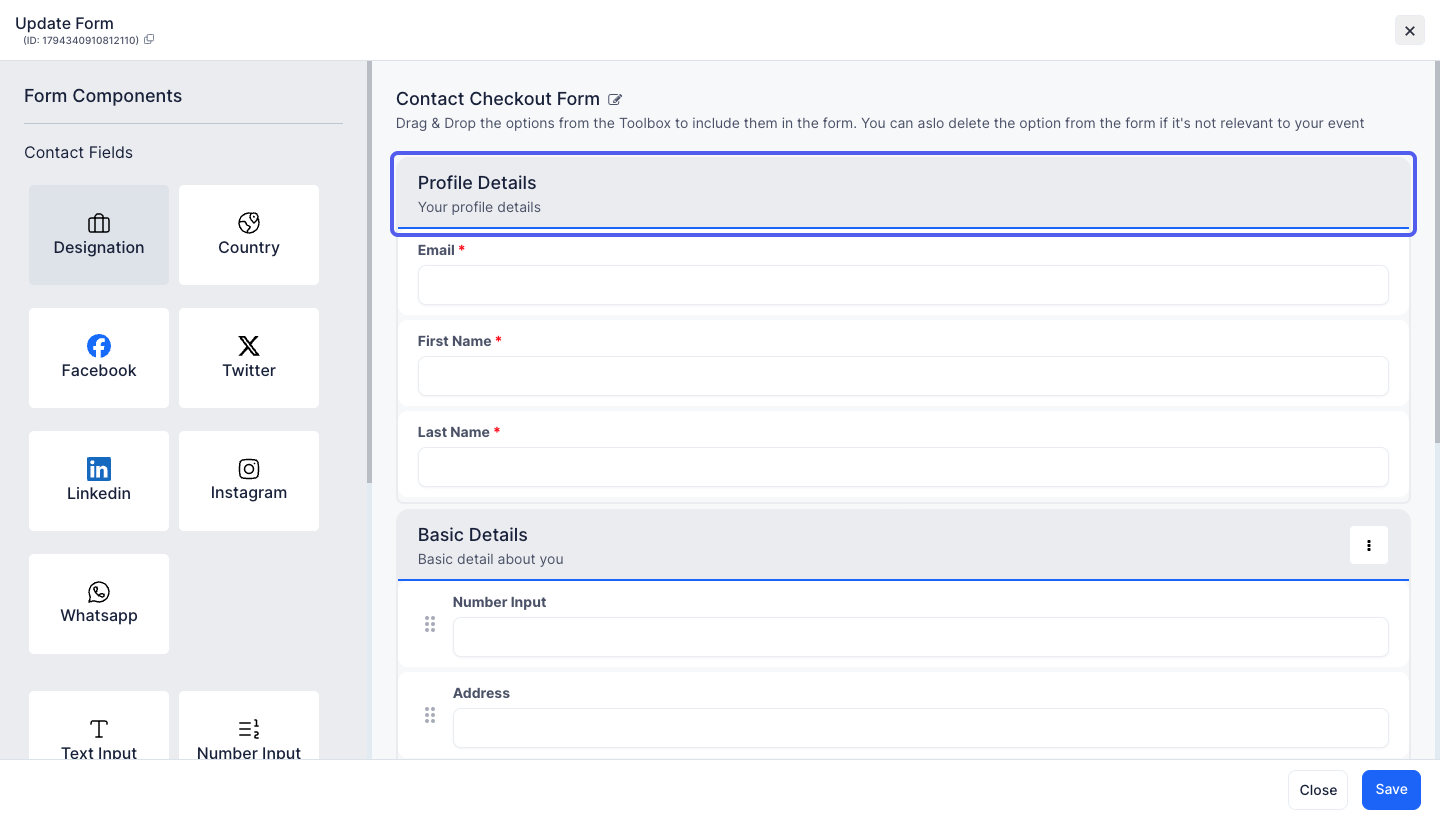
6: Note: You cannot edit or delete the Profile Details section
7: Customize the basic details section by adding or removing form components
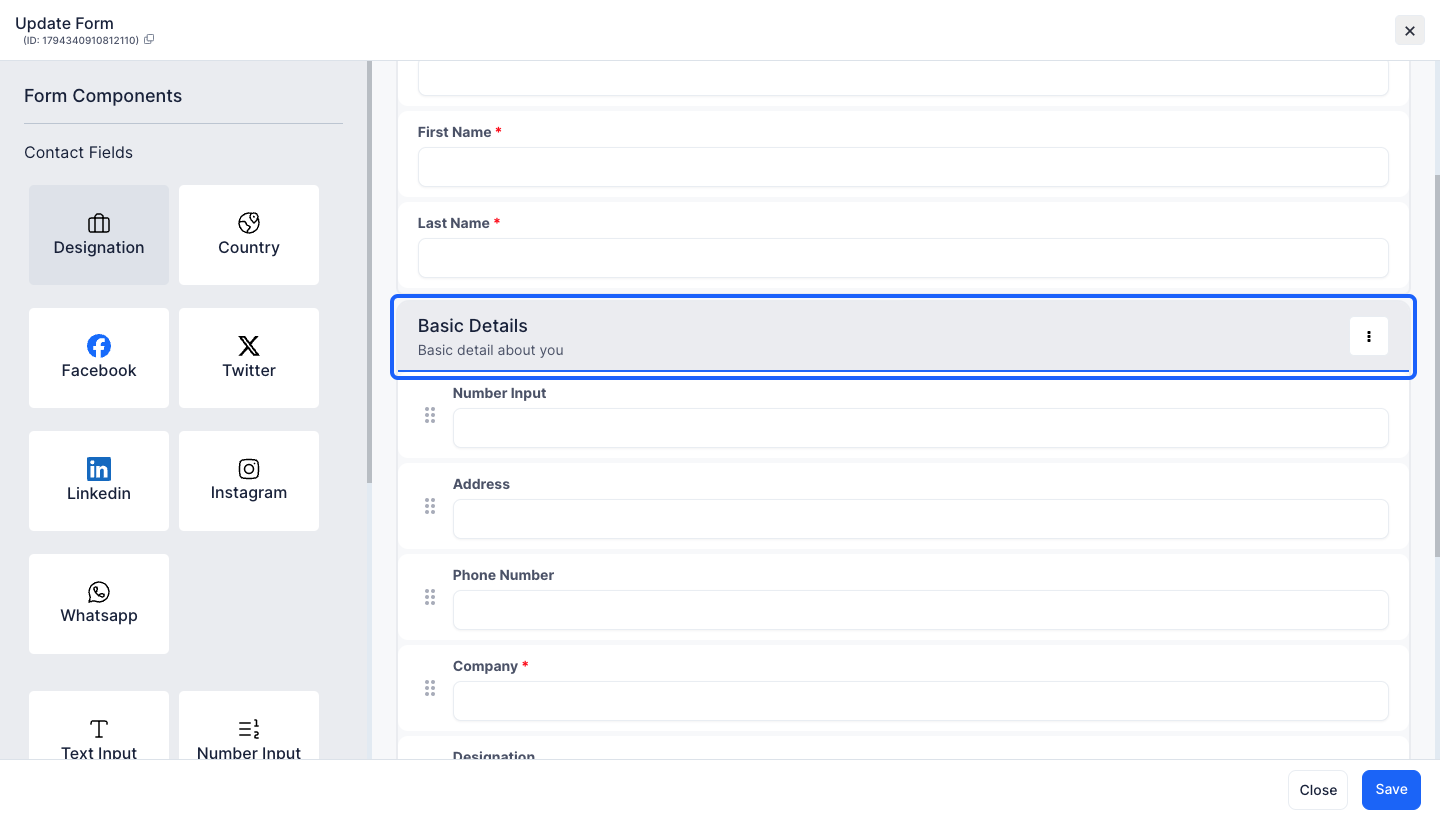
8: You can add or remove multiple form components in this section too
Note: You cannot delete Opt-In field
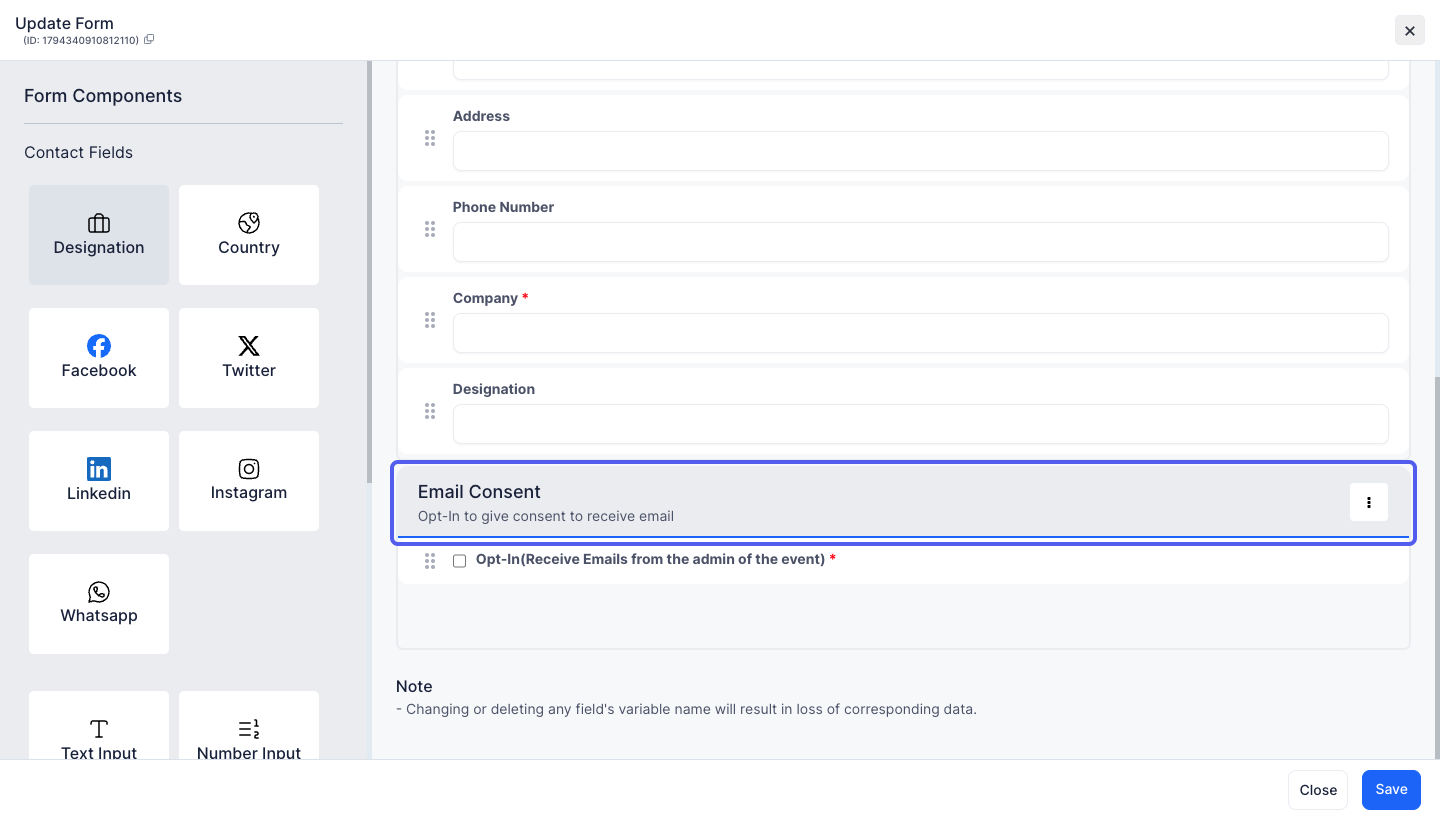
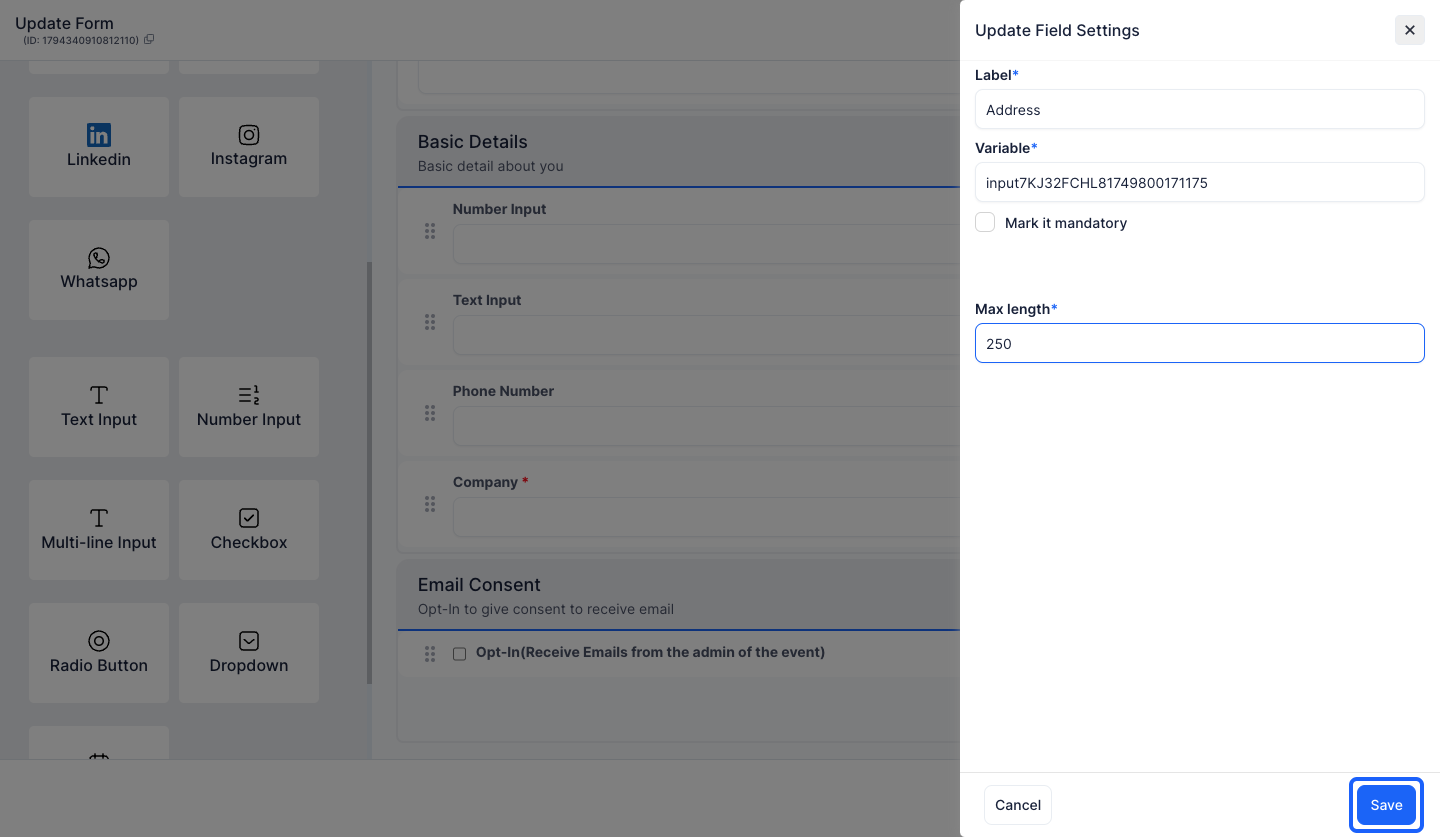
9: You can also edit individual component
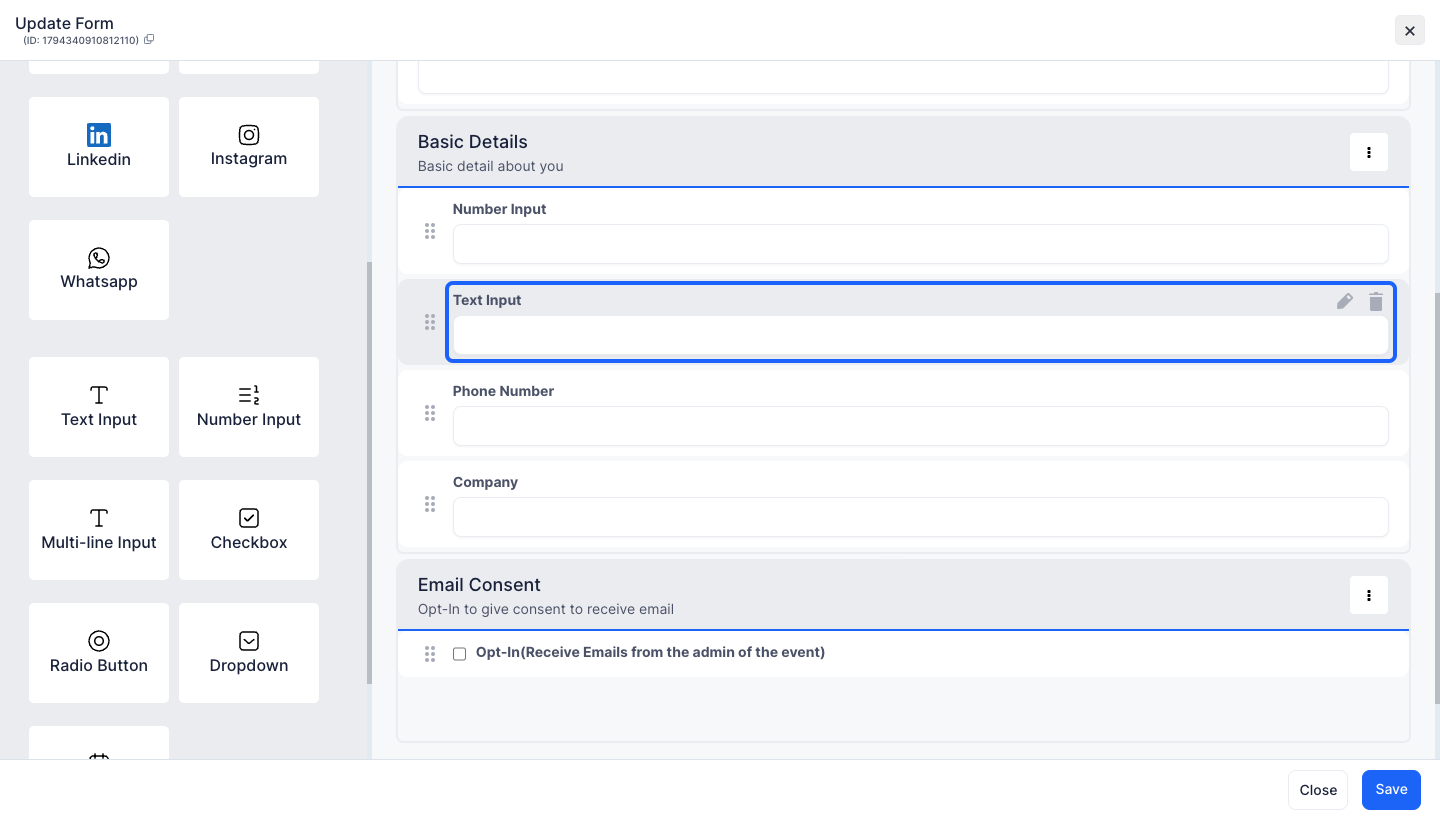
10: Click the "pencil" icon to edit
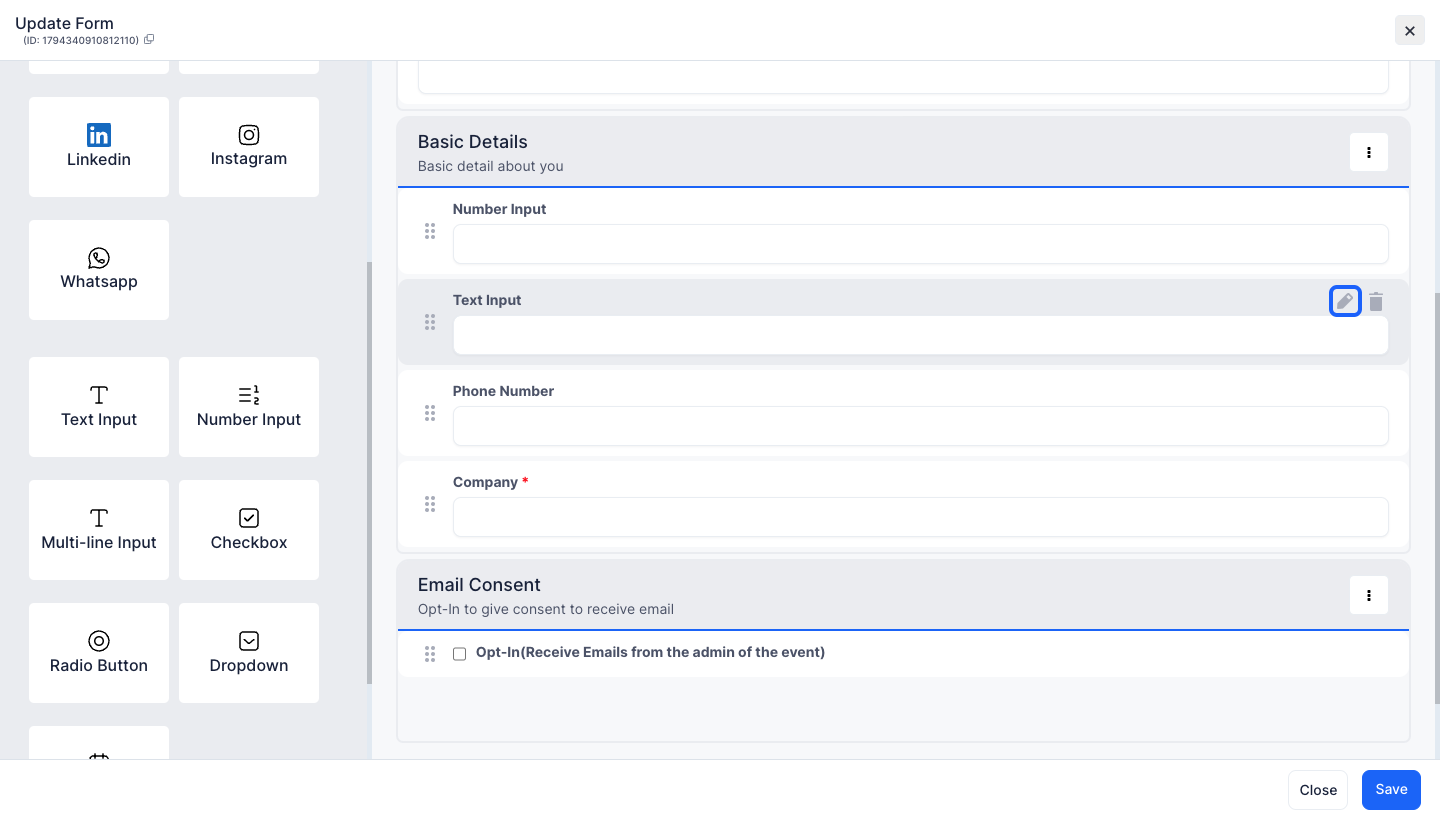
11: You can edit the component's name
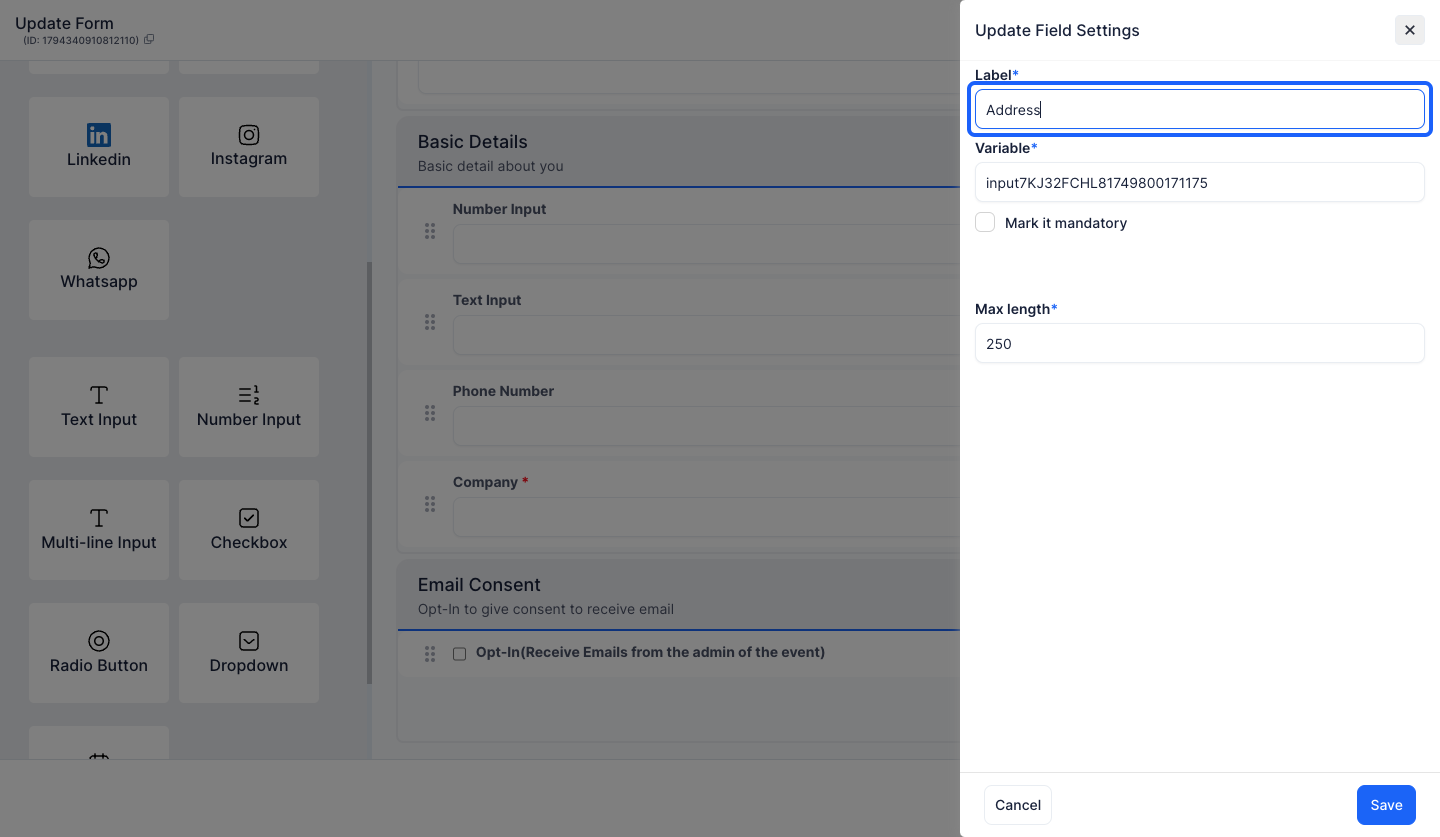
12: The variable can be changed too
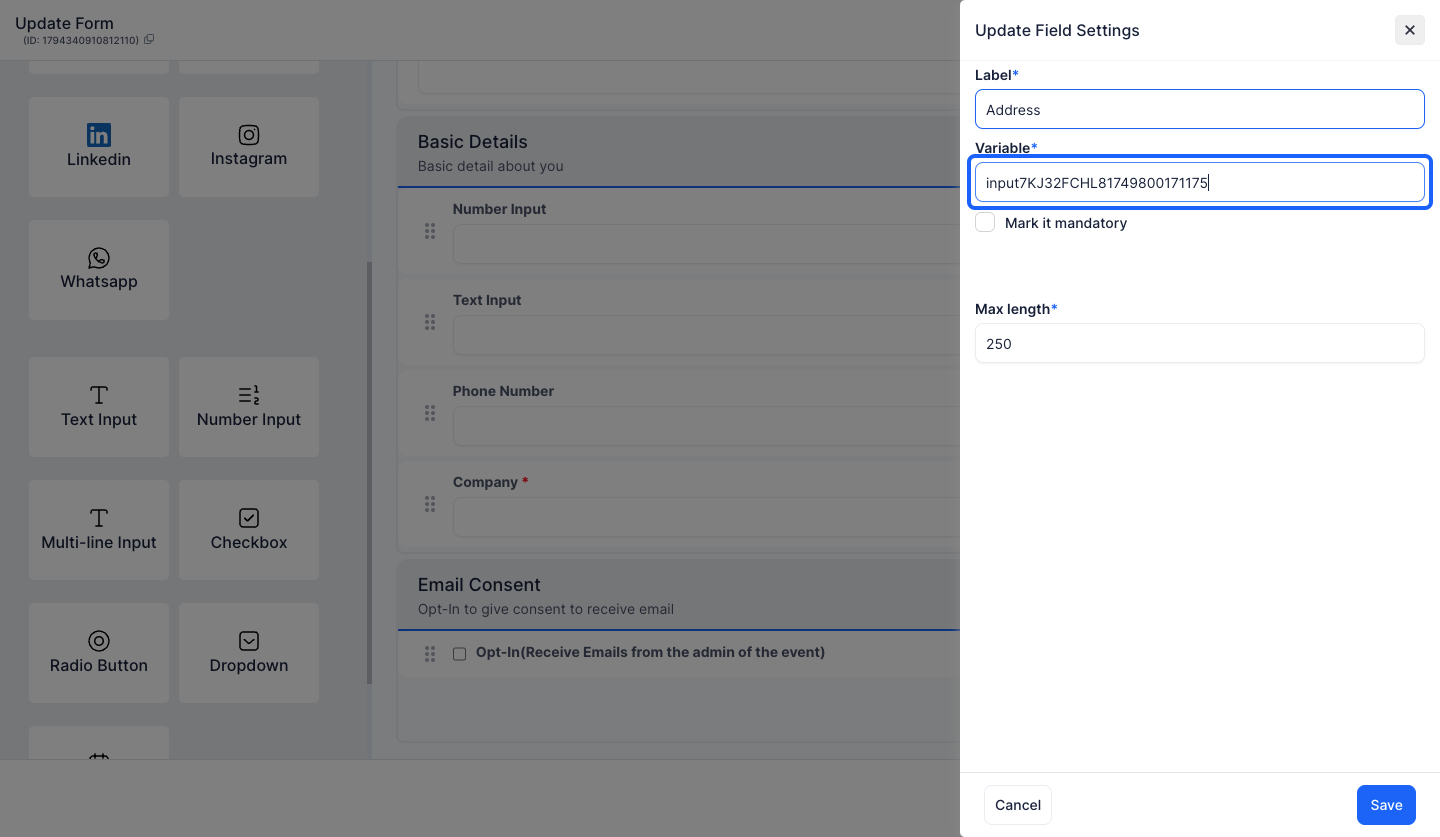
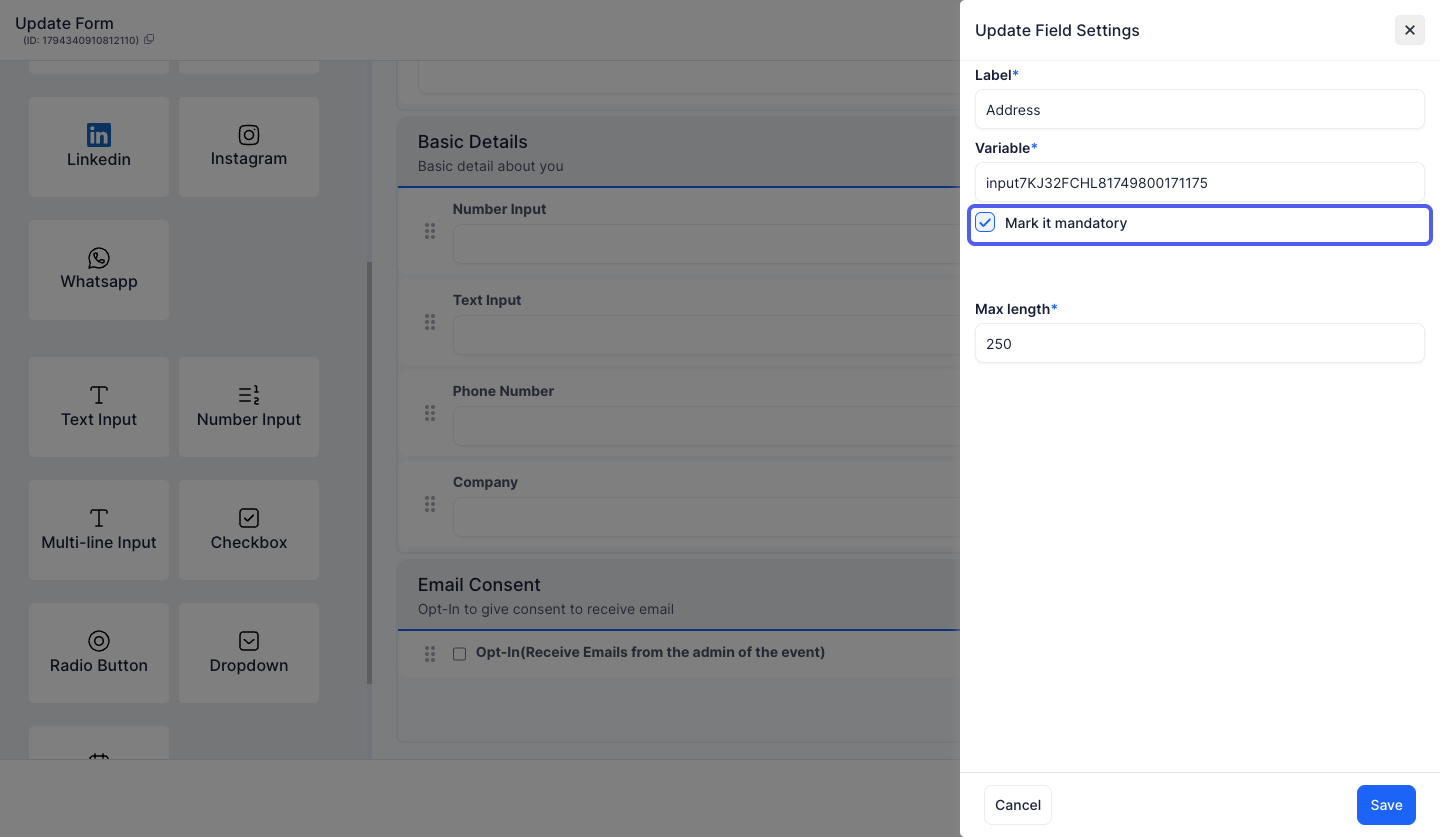
13: To make the field mandatory, keep it checked
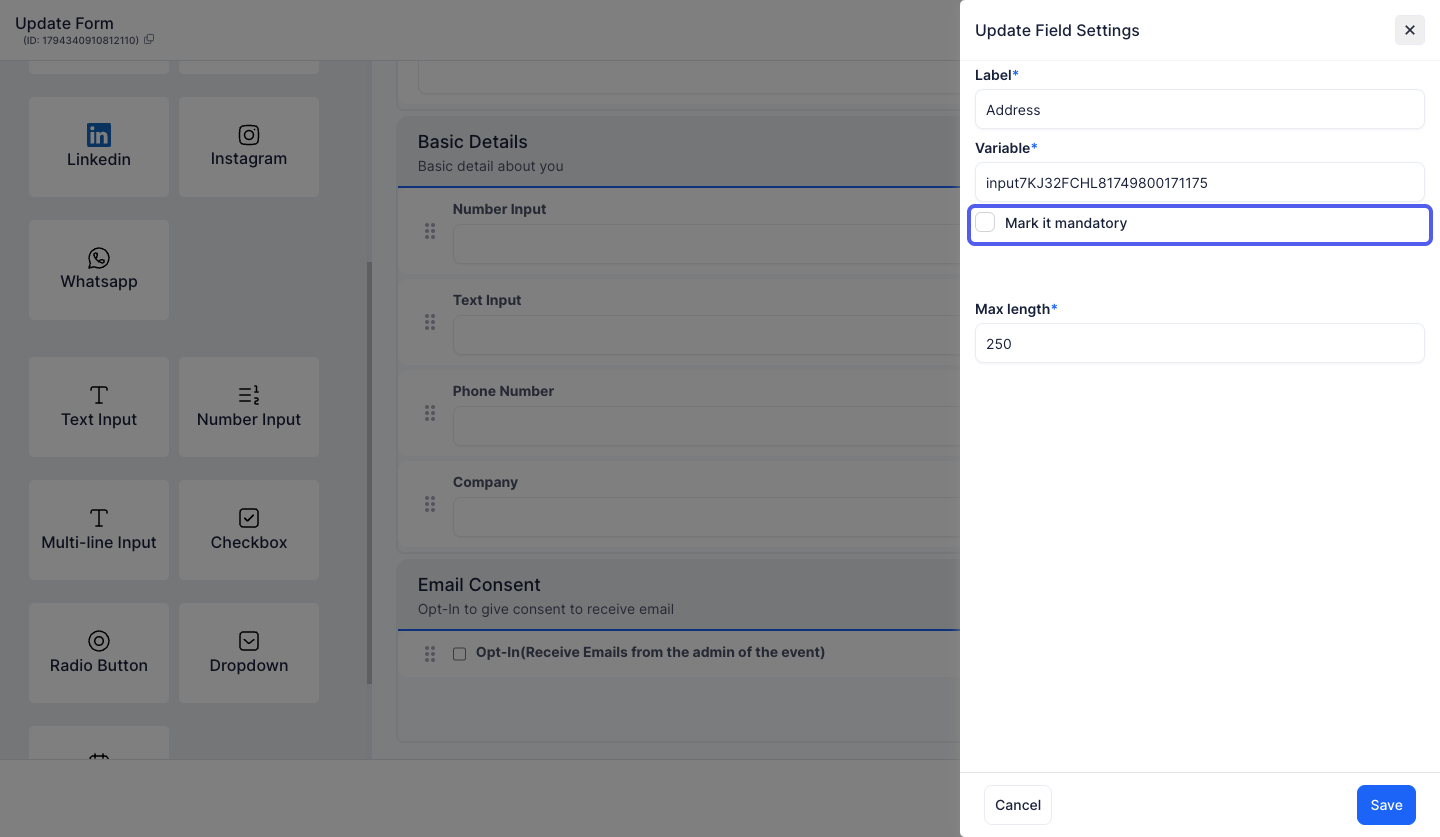
14: Keep it unchecked if you don't want to make the field mandatory
15: Change the Maximum Length if required
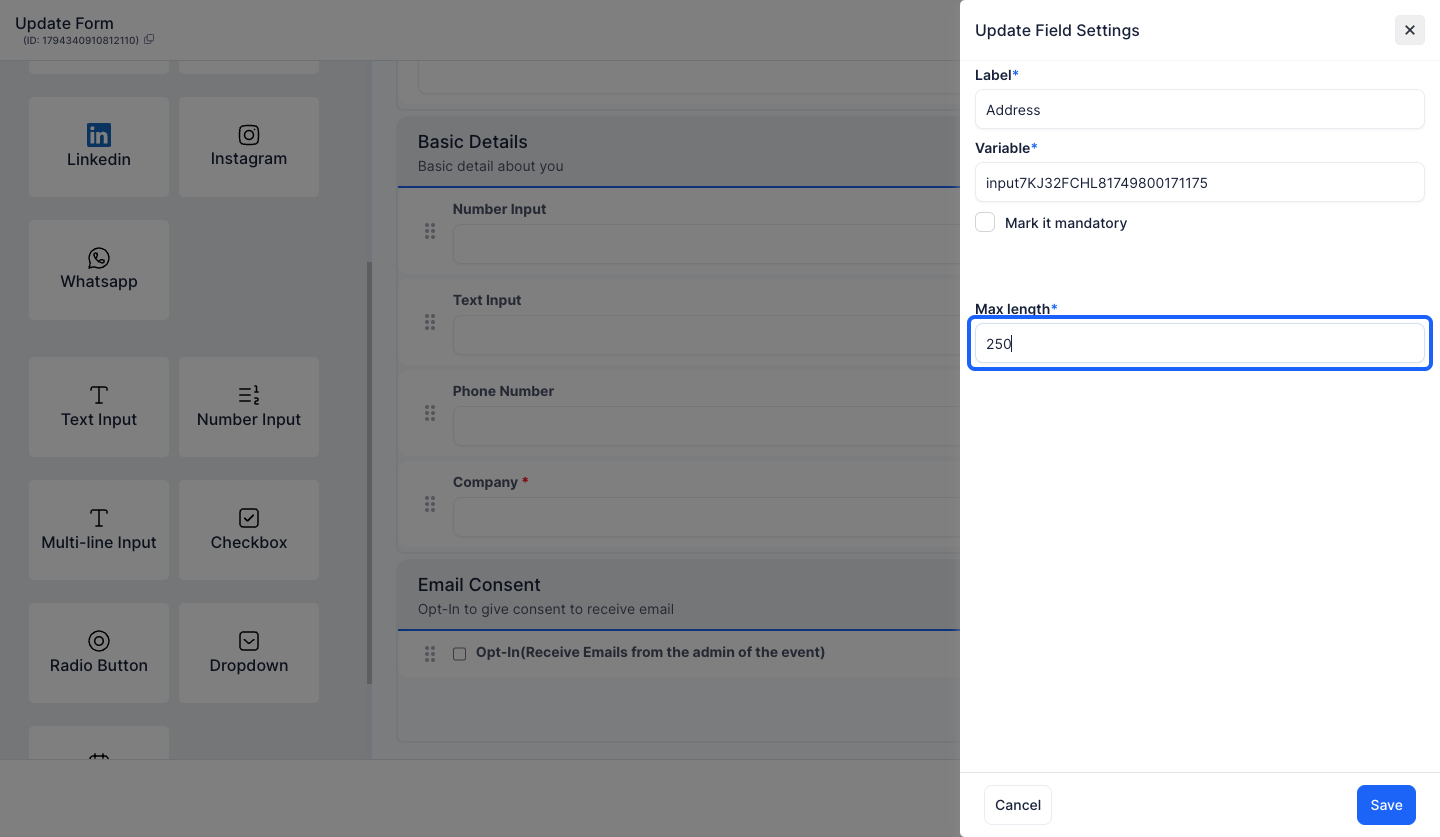
16: Click the “Save” button to save the changes
17: To delete a component, click the “delete” icon
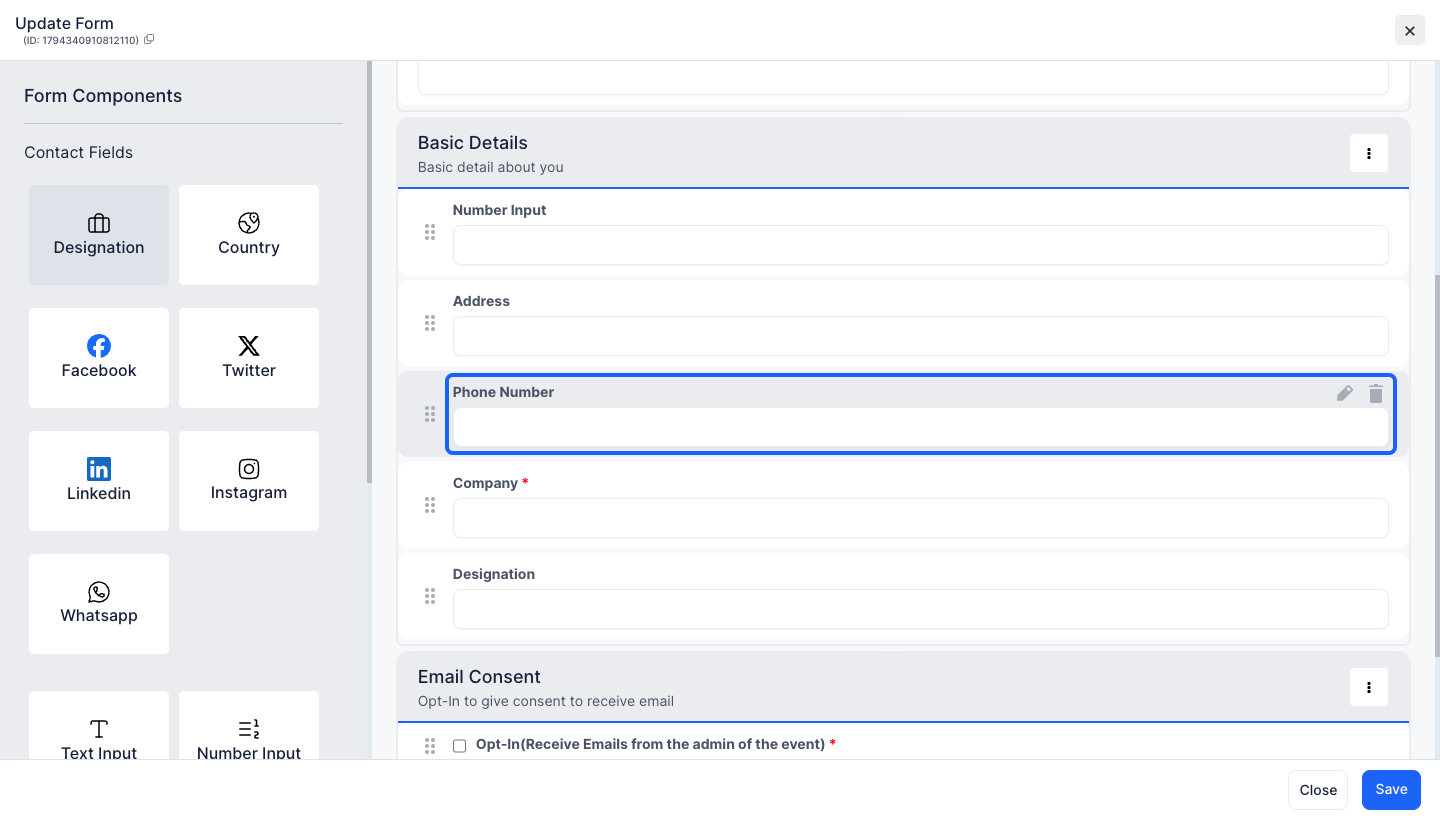
18: Click the “Save” button to save the updated form