Creating a community within your event provides a platform for attendees to engage with one another and with the event itself. This feature includes discussions about event updates, networking opportunities, shared interests, goals, job postings, and activities related to the event.
Interactive Guide
Or check the step-by-step guide
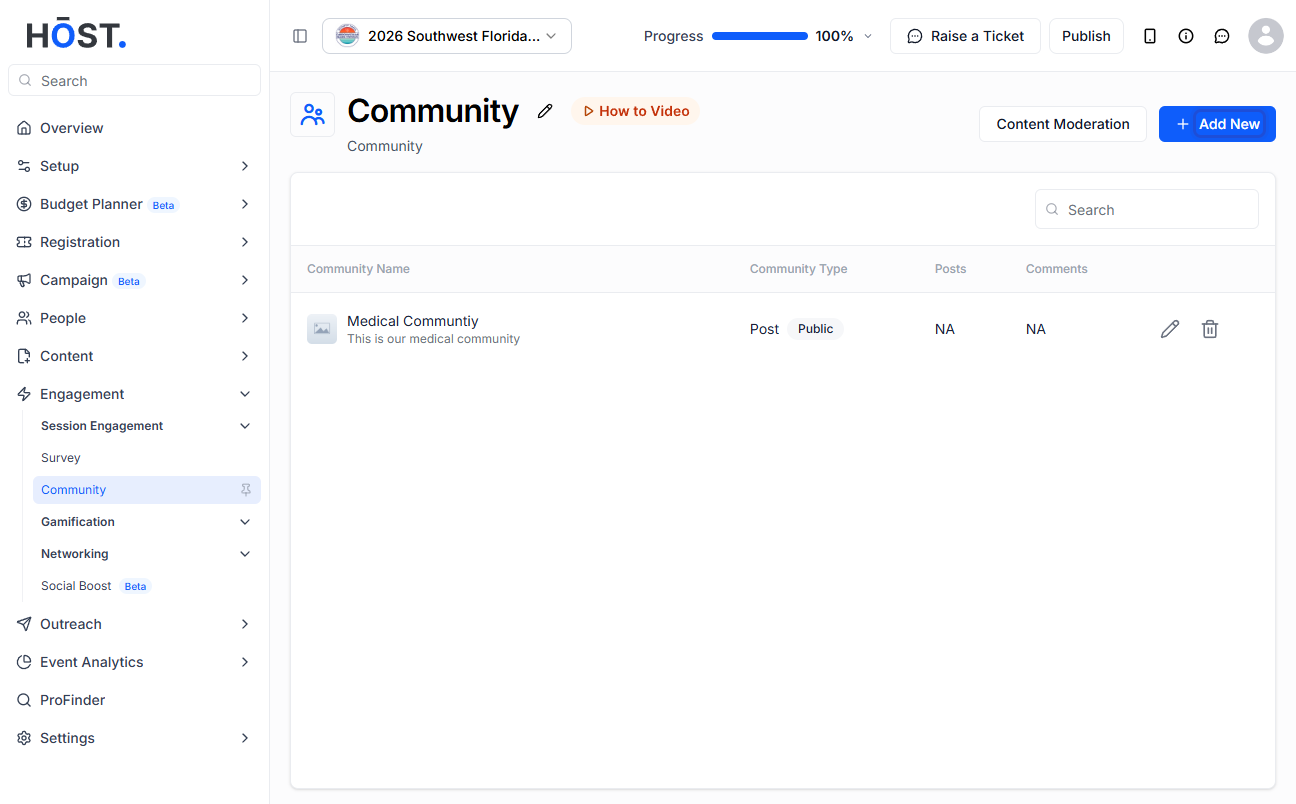
1: Access the HOST Admin Panel and navigate to Engagement > Community
2: Here are some predefined communities that have already been created, which the admin can delete or edit.
3: To create a new community, click the "Add New" button.
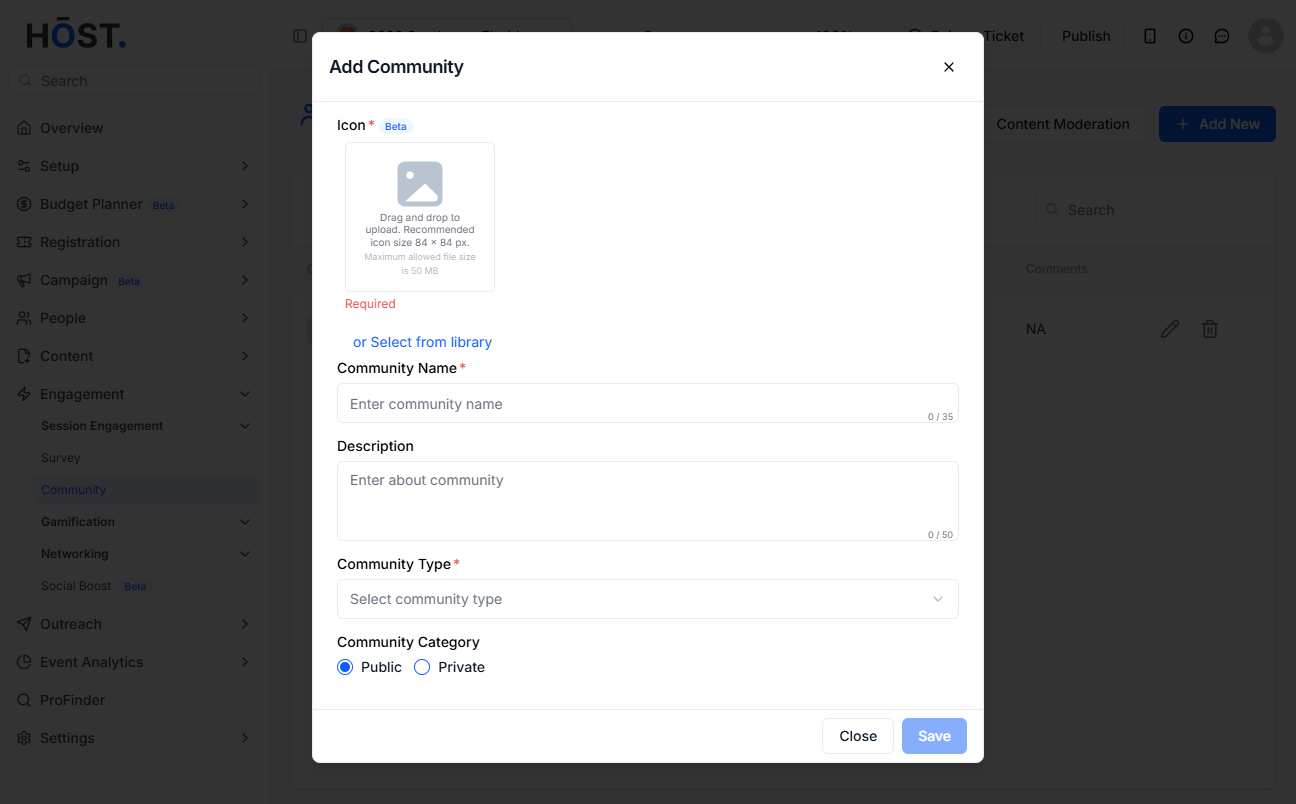
4: Upload a community icon or image, or select one from the library. The recommended icon size is 84 x 84 pixels.
5: Enter a community name of your choice.
6: Enter the purpose of the community in the Description field.
7: Select a community type from the drop-down menu.
8: HOST has 5 type of communities: A. Post type
9: B. Group type
10: C. Ice Breaker type
11: The admin can add questions here and select a color for them.
12: D. Meetup Type
13: Job Type
14: For Post/Group types, use the "Attendee can also post / comment" toggles to restrict attendees from posting or commenting
15: Public / Private community
16: The admin can select private community members from the "View/Manage Users" section.
17: Use Filters (or search) to narrow by user group, then check the users to add
18: Once users are selected, click the "Save" button to add them as members of that community.
19: Once you’ve completed the setup, click the "Save" button to create the new community.
Community for the Event App
In the app, attendees can access the community section from the side menu or quick links.
Once it is open, a popup will appear to allow them to follow some interesting community groups.
All community groups will appear if posts are public. If posts are private, then private posts will only be visible to those who are added to that community group.
Attendees can open and start posting in any of the community groups.
All posts will appear, allowing attendees to react to and comment on each other's posts. Additionally, they can enable the bell icon in the settings to receive notifications for that community post.