
Last updated: April 2026 | Applies to: Event Admins, Session Organisers
Session check-in lets you track which registered attendees attended a specific session at your event, separate from event-level entry check-in. Each session can have its own check-in method, set individually when creating or editing the session via the Checkin Type field.
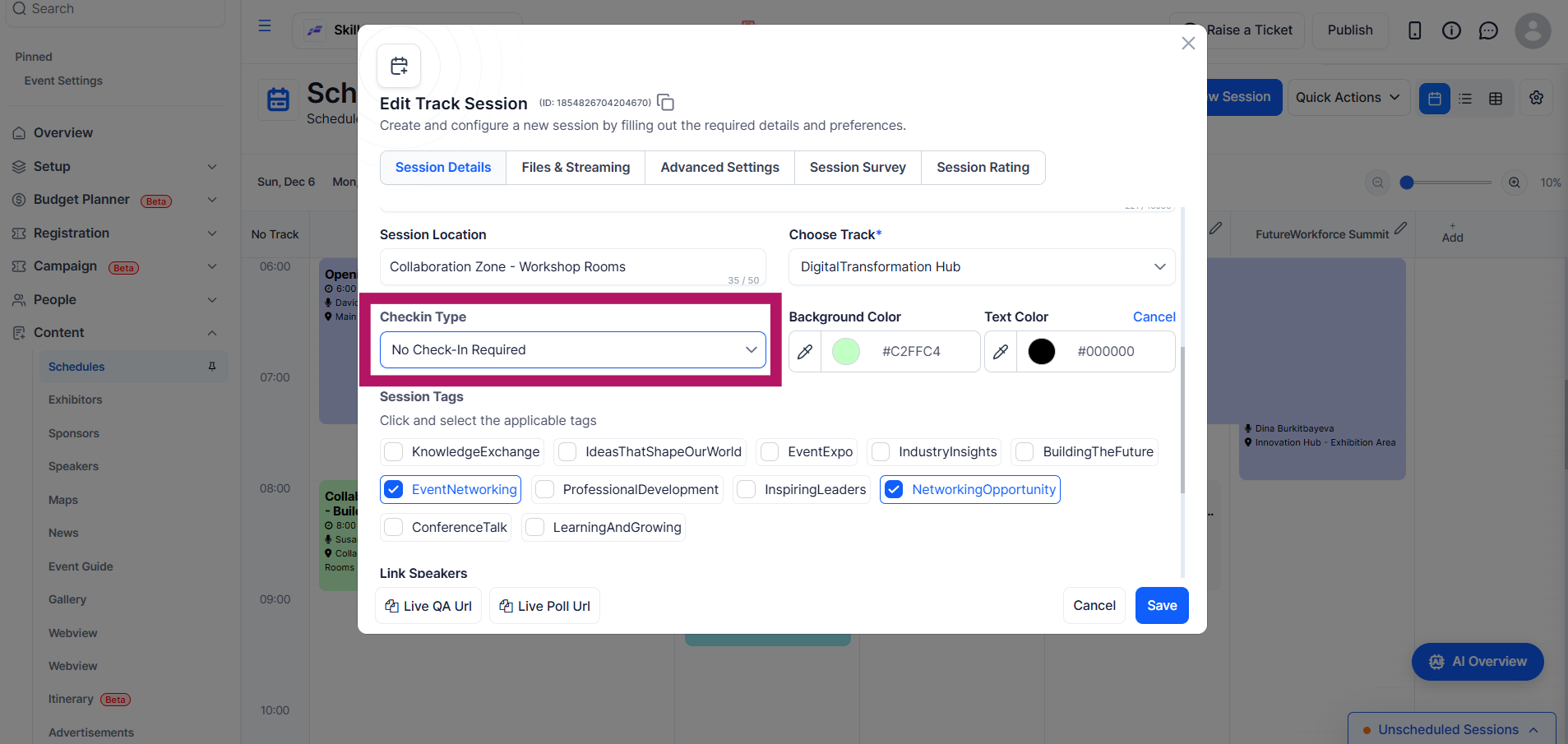
Best for: Open sessions, keynotes, plenaries
Attendance is not tracked and nothing appears to attendees in the app for this session. Use this when you do not need session-level attendance data.
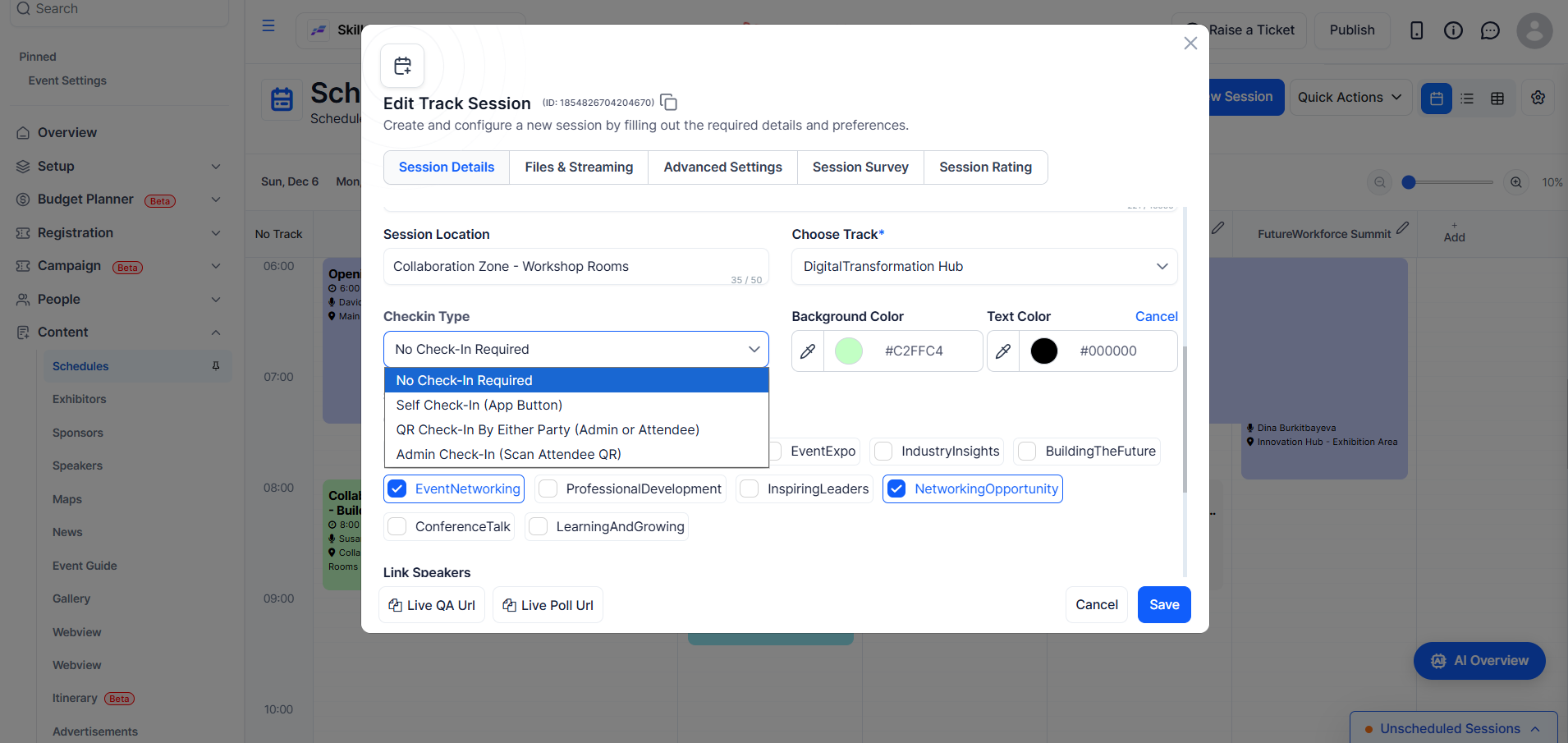
Best for: Optional workshops, breakouts, informal sessions
A Check-In button appears in the attendee's mobile app on the session detail page. Attendees tap it to record their own attendance. No QR code or staff involvement is required.
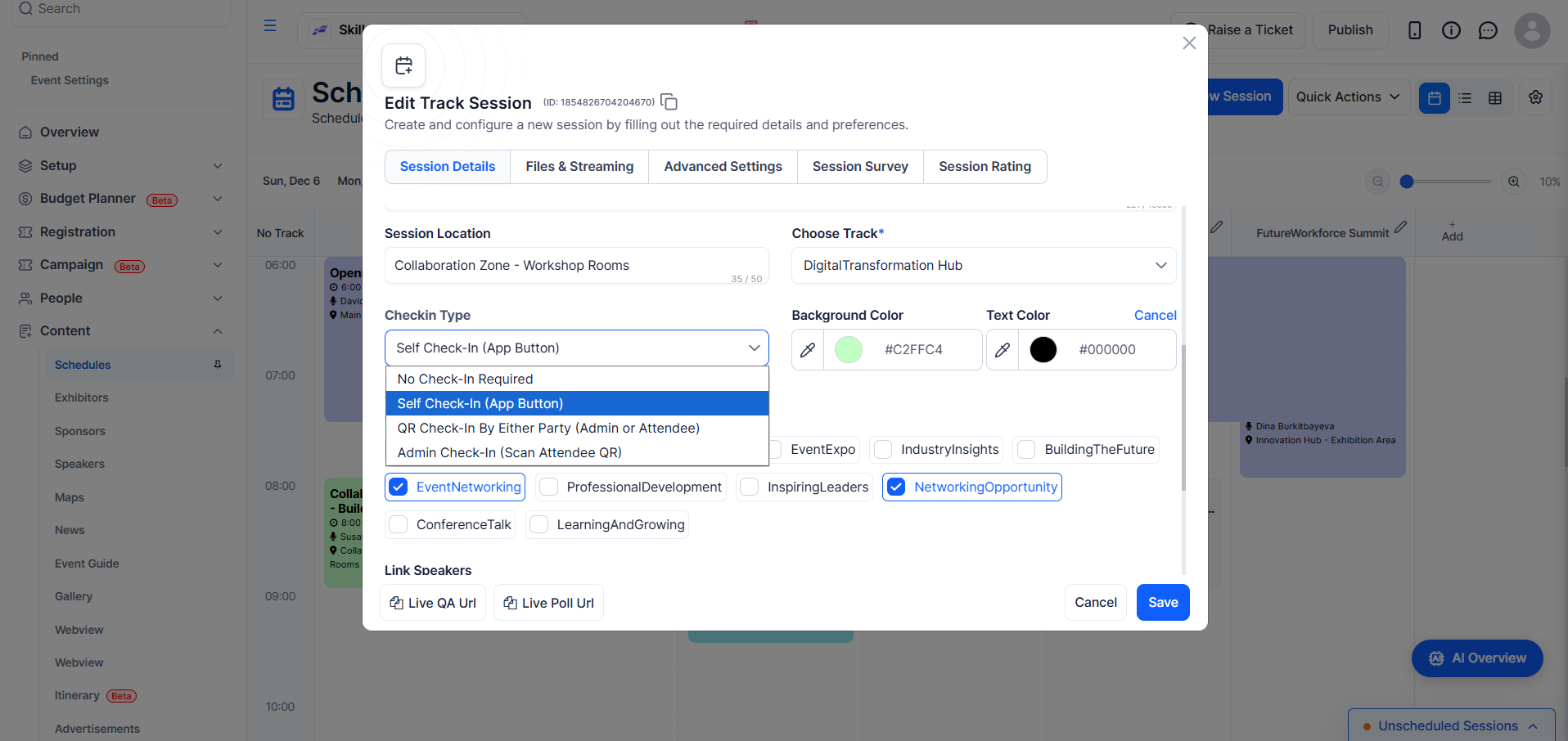
Best for: Sessions where attendees scan a room QR code with their app
A unique QR code is generated for each session and check-in can happen from either side:
Use the Download Session QR button (visible on the session edit form when this type is selected) to export a printable PDF for display at the room entrance or on-screen.
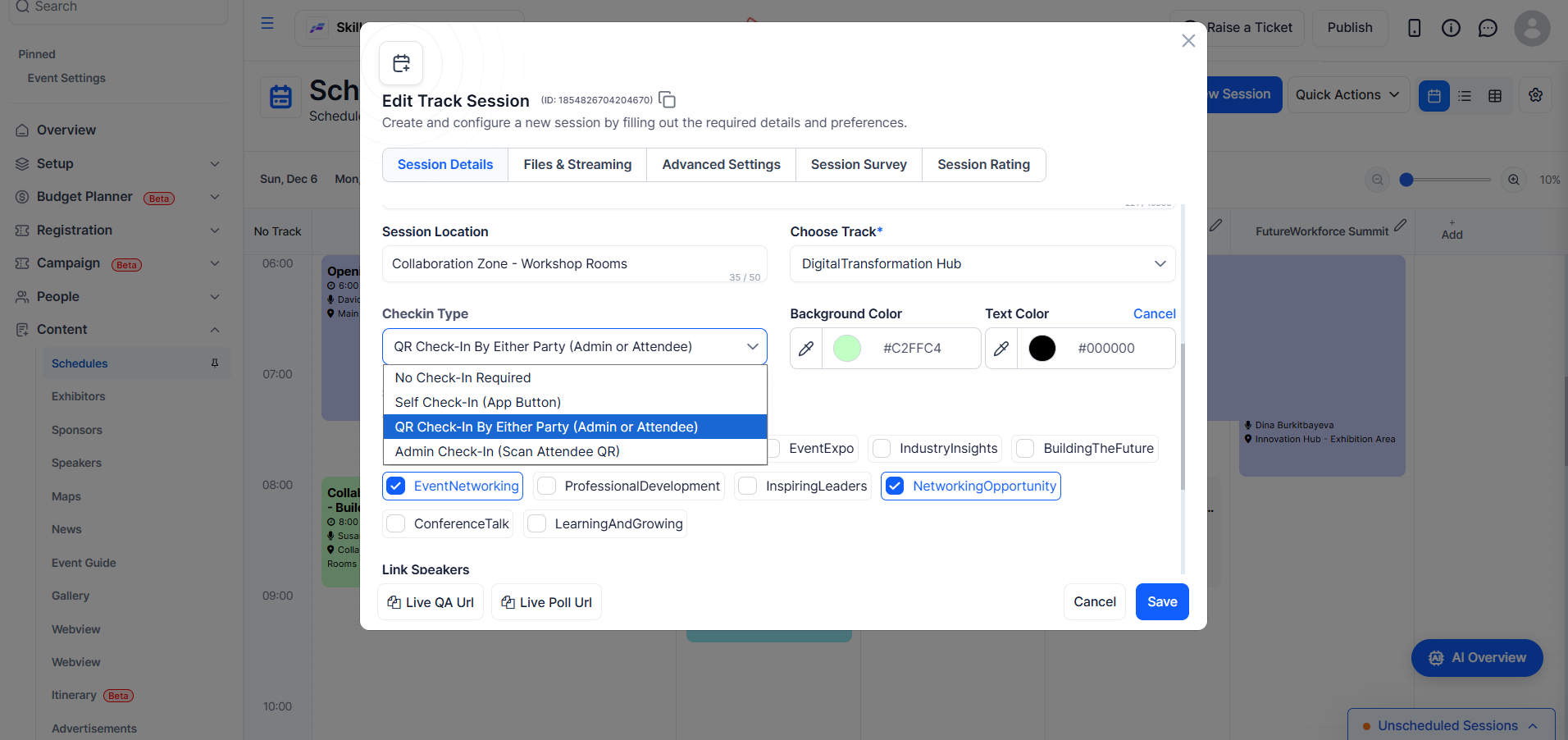
Best for: Controlled-access sessions, VIP rooms, seated dinners
A staff member scans the attendee's personal QR code (visible in their app profile) to check them into the session. Attendees simply present their QR code at the door and do not scan anything themselves.
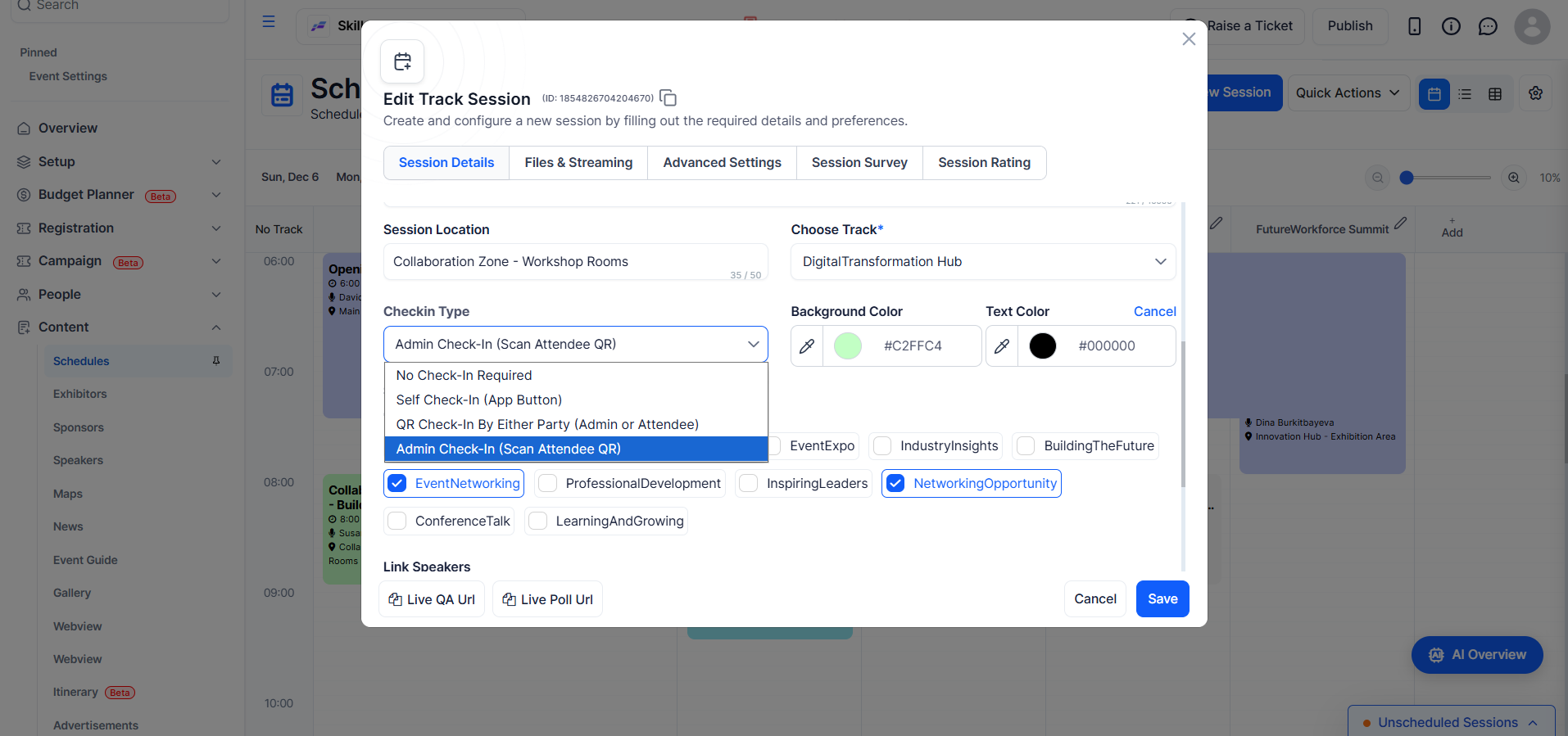
No Check-In Required involves no tracking and requires no action from anyone; Self Check-In (App Button) is initiated by the attendee directly in the app with no QR code or staff needed; QR Check-In By Either Party allows either the attendee or staff to scan a session QR code, with staff involvement optional; and Admin Check-In requires staff to scan the attendee’s personal QR code to complete check-in.
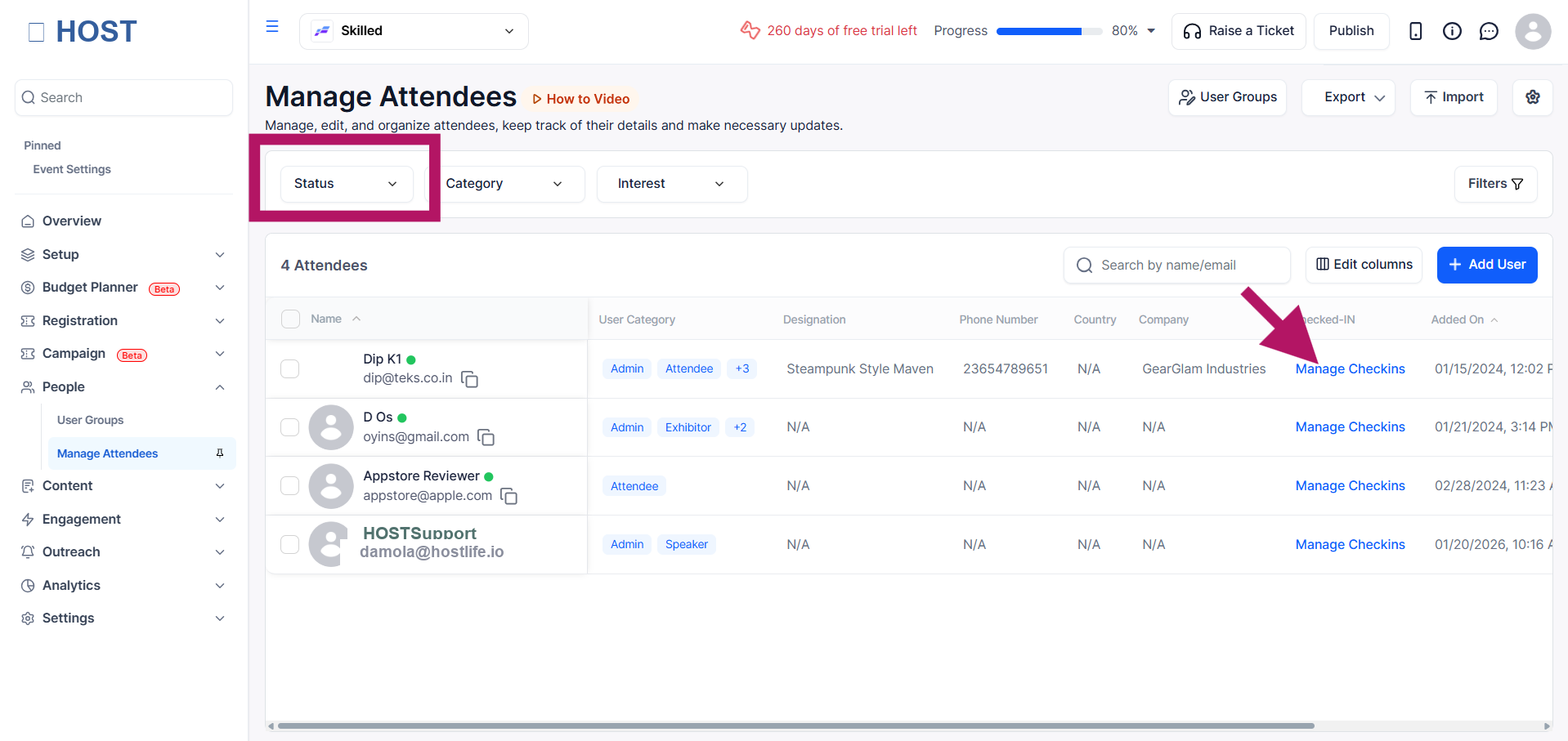
Regardless of the check-in type on a session, admins can manage attendance manually from the Manage Check-Ins panel at any time. The panel lets you check in or check out individual attendees, reset a record entirely (clearing all check-in and checkout timestamps), and run bulk actions across multiple attendees in one step. The list can be filtered by status (All, Checked-In, or Not Yet Checked-In) and searched by name or email.
Use QR Check-In By Either Party. It generates a per-session QR code you can download and print for display at the room. Attendees scan it in the app and are checked in immediately, with no staff needed at the door.
Open the session in edit mode. When QR Check-In By Either Party is selected, a Download Session QR button appears at the top of the form and exports a printable PDF.
Yes. Check-in type is configured per session, so you could have a keynote with no check-in, workshops on QR, and a gala dinner on Admin Check-In, all within the same event.
The difference is that QR Check-In By Either Party uses a session QR code that can be scanned by either the attendee or staff, while Admin Check-In uses each attendee’s personal QR code and can only be performed by staff.
Yes. Open the session, go to the user list, and click Manage Check-Ins. Find the attendee and click Check In. Bulk selection is available if several attendees need to be added at once.
Yes. From Manage Check-Ins, each checked-in attendee has a Reset button that clears their check-in and checkout record for that session. A confirmation prompt appears before anything is deleted.
Once an attendee is checked in, you can also record when they left by checking them out. The system stores both timestamps and the attendee can be checked back in afterwards if needed.
Yes, you can set the check-in type by adding a check-in type column to your import file and using the supported values, where leaving the field blank sets it to No Check-In Required, self check-in sets it to Self Check-In (App Button), scanqr sets it to QR Check-In By Either Party, and showqr sets it to Admin Check-In (Scan Attendee QR).
Session check-in requires a plan that includes the Session Attendance feature. Contact your HOST account manager to upgrade.
For event-level entry check-in and kiosk setup, see the Event Check-In guide.
