The Registration Forms section lets you build custom checkout and registration forms using a drag-and-drop editor. Forms collect attendee information during ticket purchase and are assigned to specific attendee categories (e.g., general attendees, exhibitors).
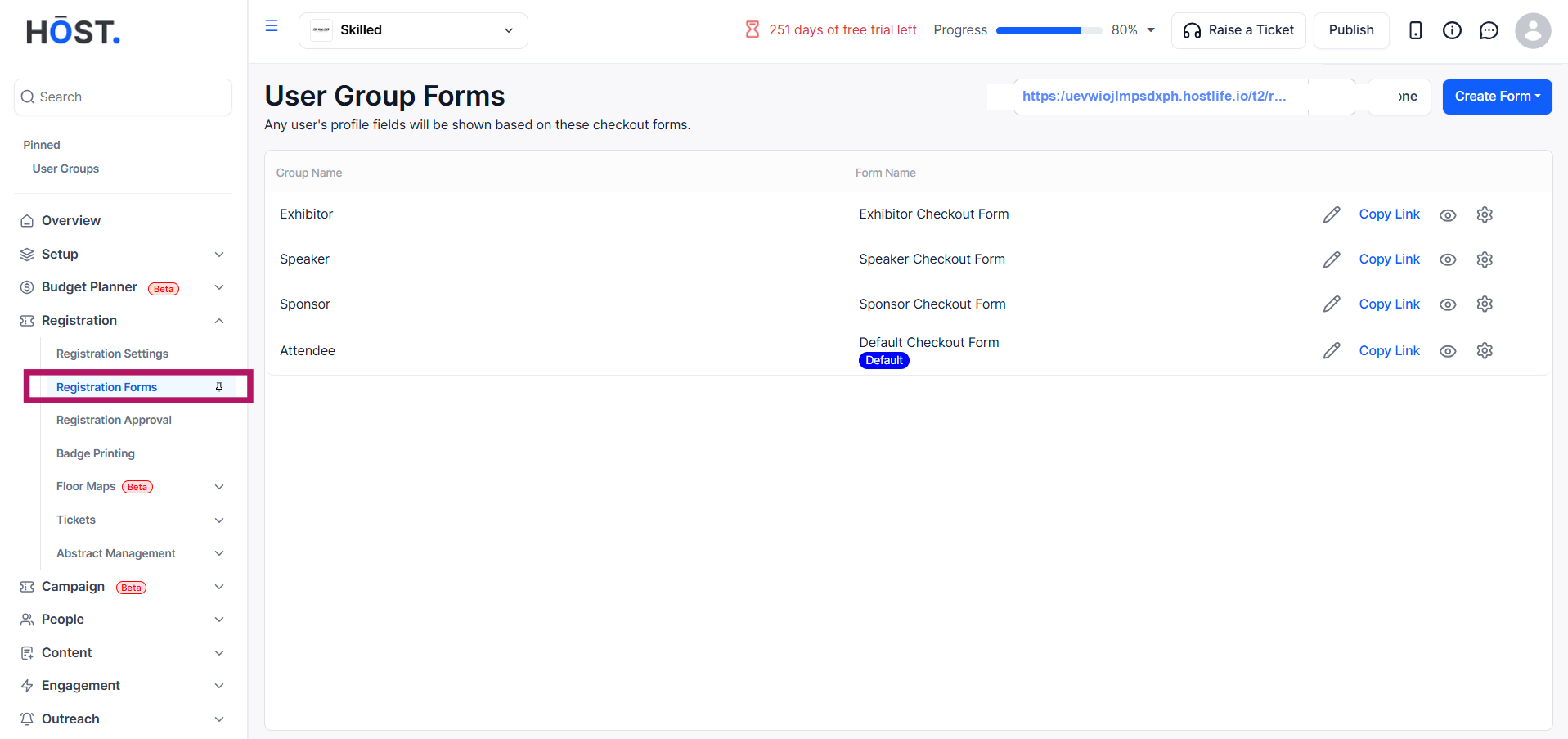
Go to Registration → Registration Forms in the sidebar.
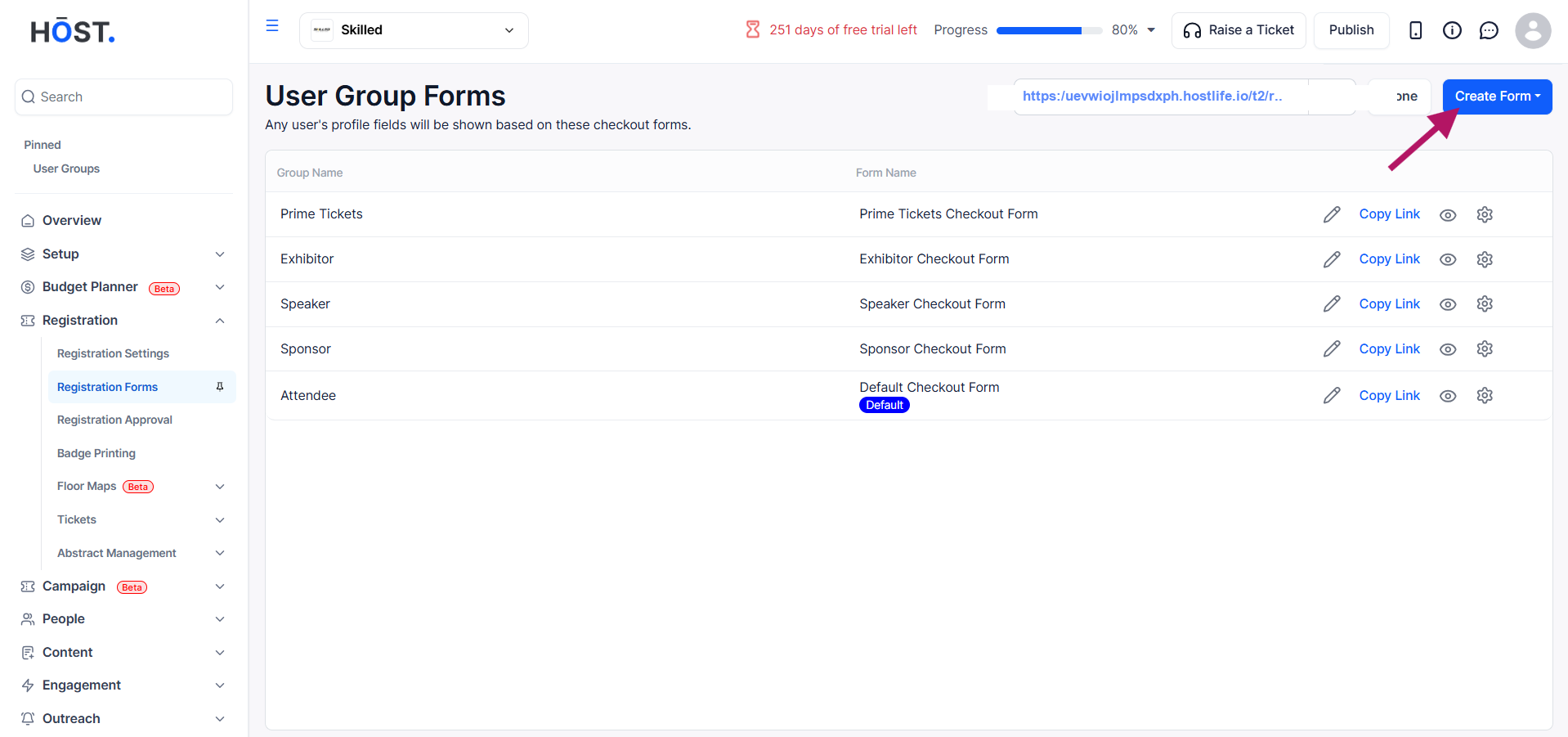
Click on Create Form to create a new form.
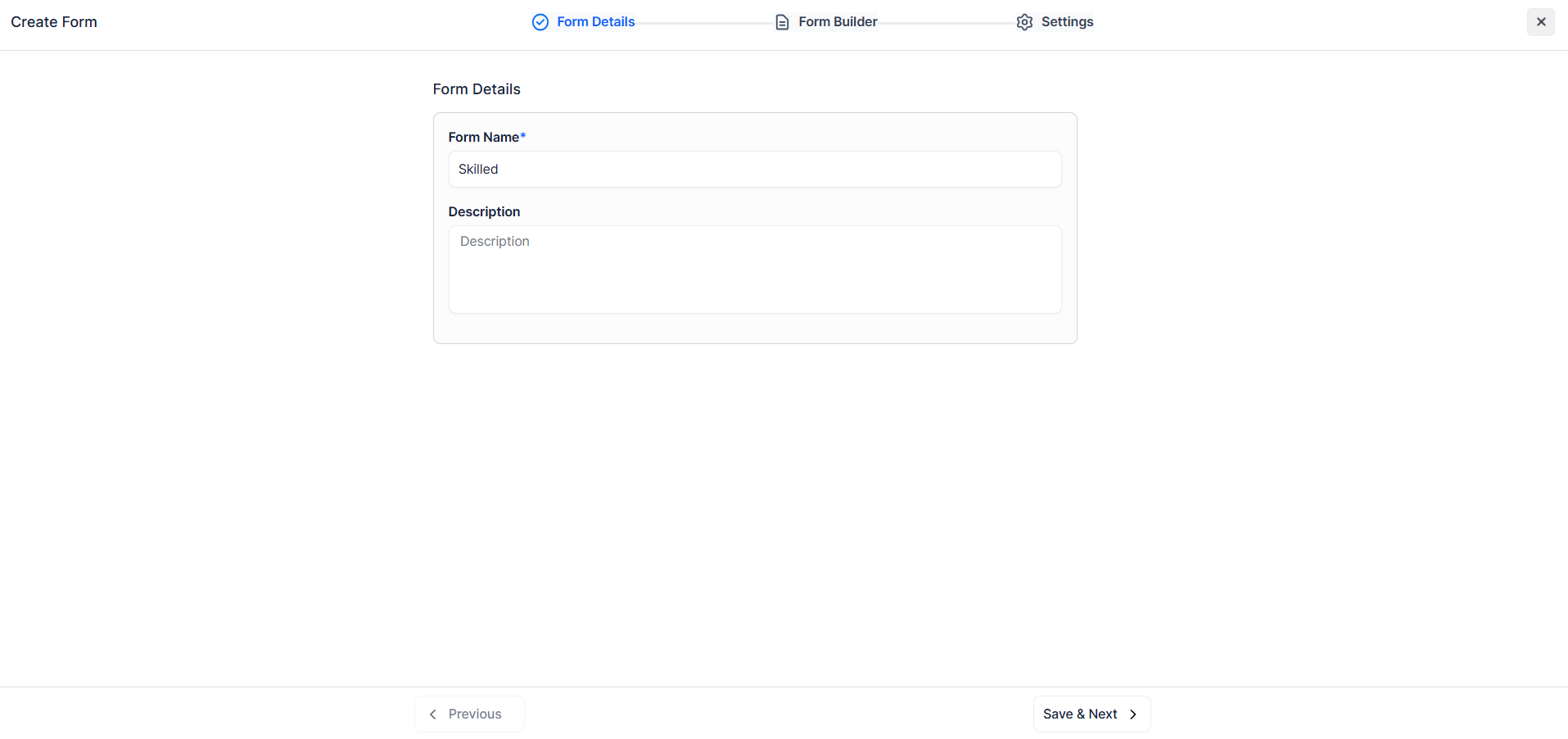
Input the form name. You can also input the form description (which is optional).
Each form comes with default fields such as name, email, and profile details, which are automatically included and cannot be removed.
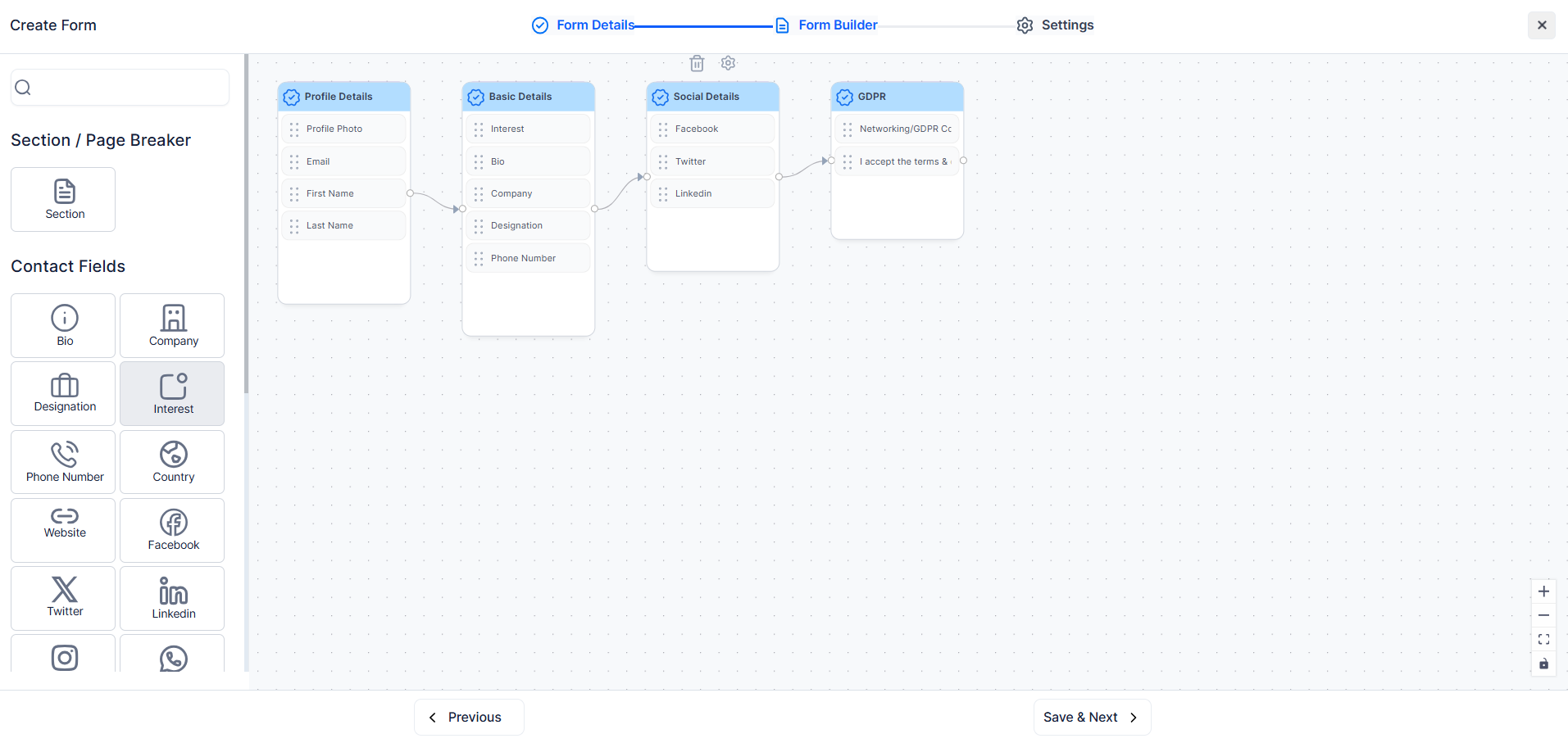
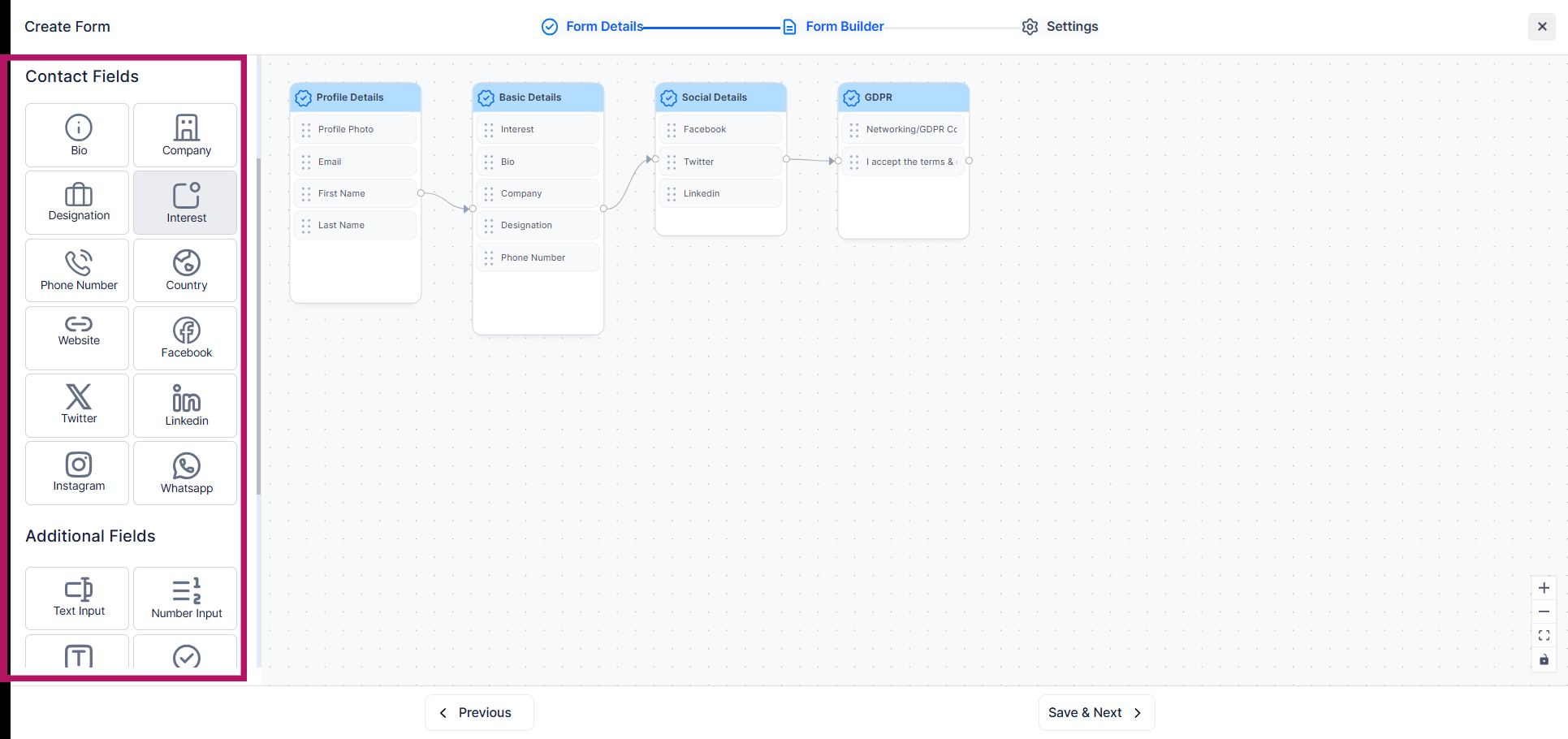
Add additional fields by dragging them from the toolbox into the form canvas, including text inputs, dropdowns, radio buttons, checkboxes, etc.
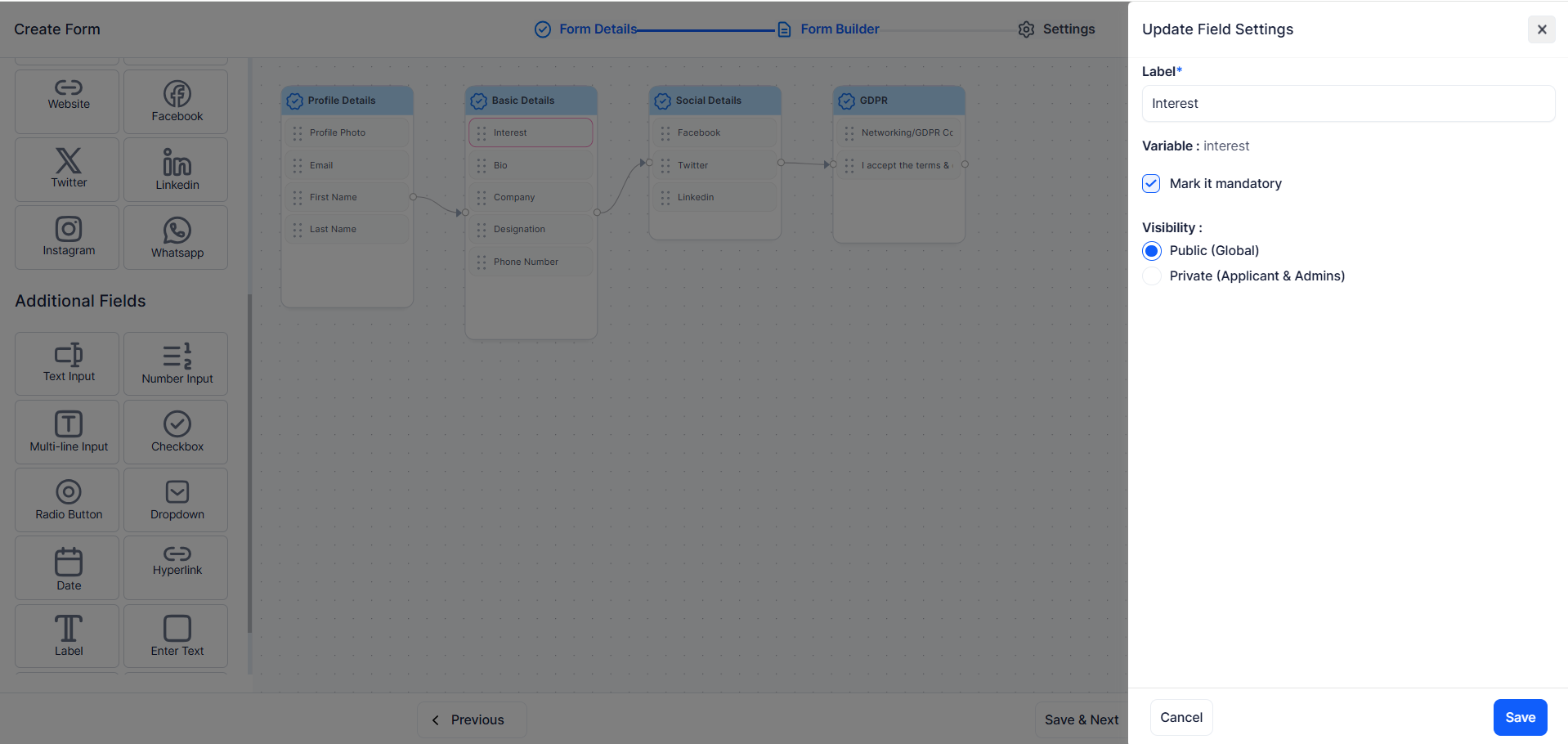
Click any field on the canvas to open its settings panel:
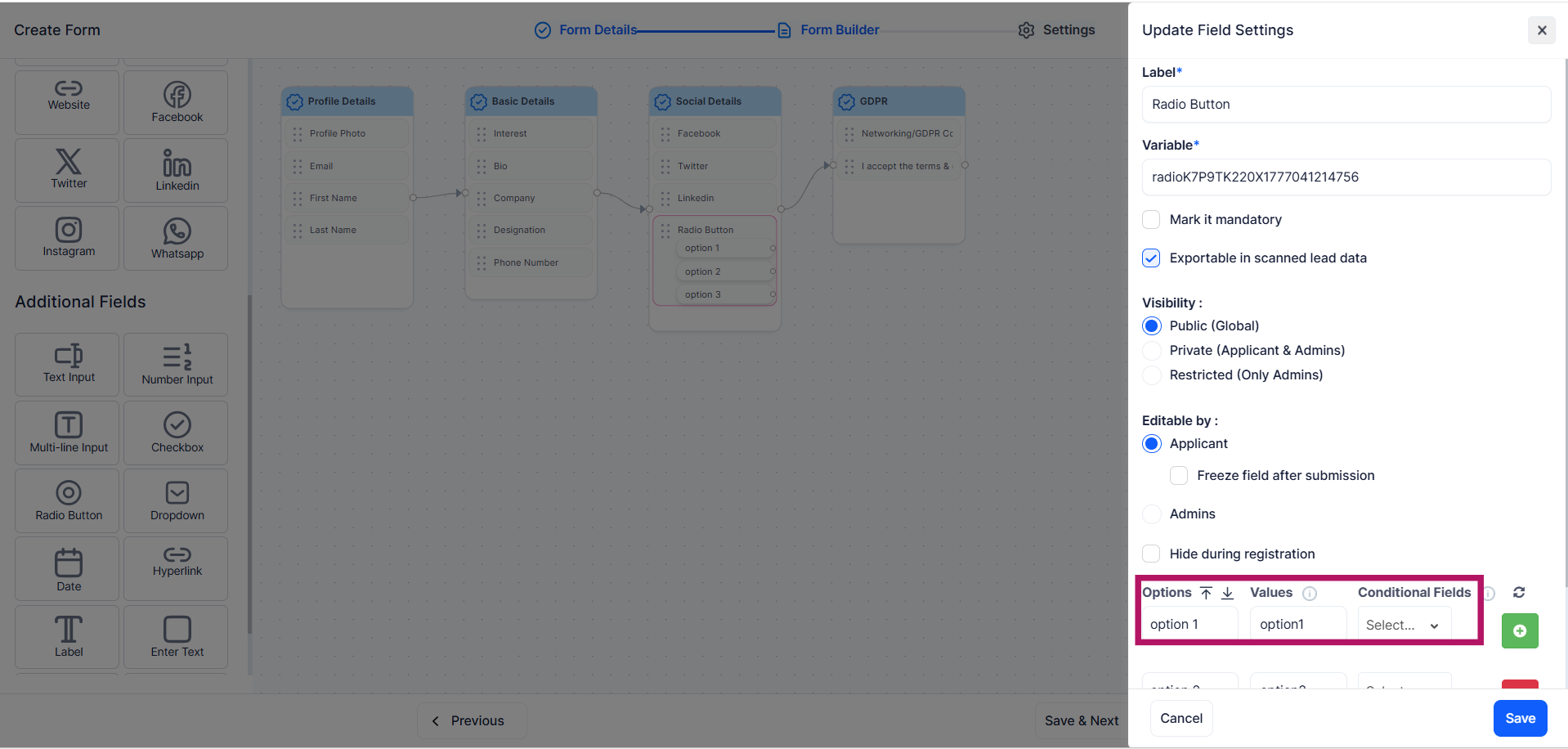
Radio, checkbox, and dropdown fields support conditional visibility. For each option in the field, you can specify which other fields should appear when that option is selected. This creates a branching form where attendees only see questions relevant to their choices.
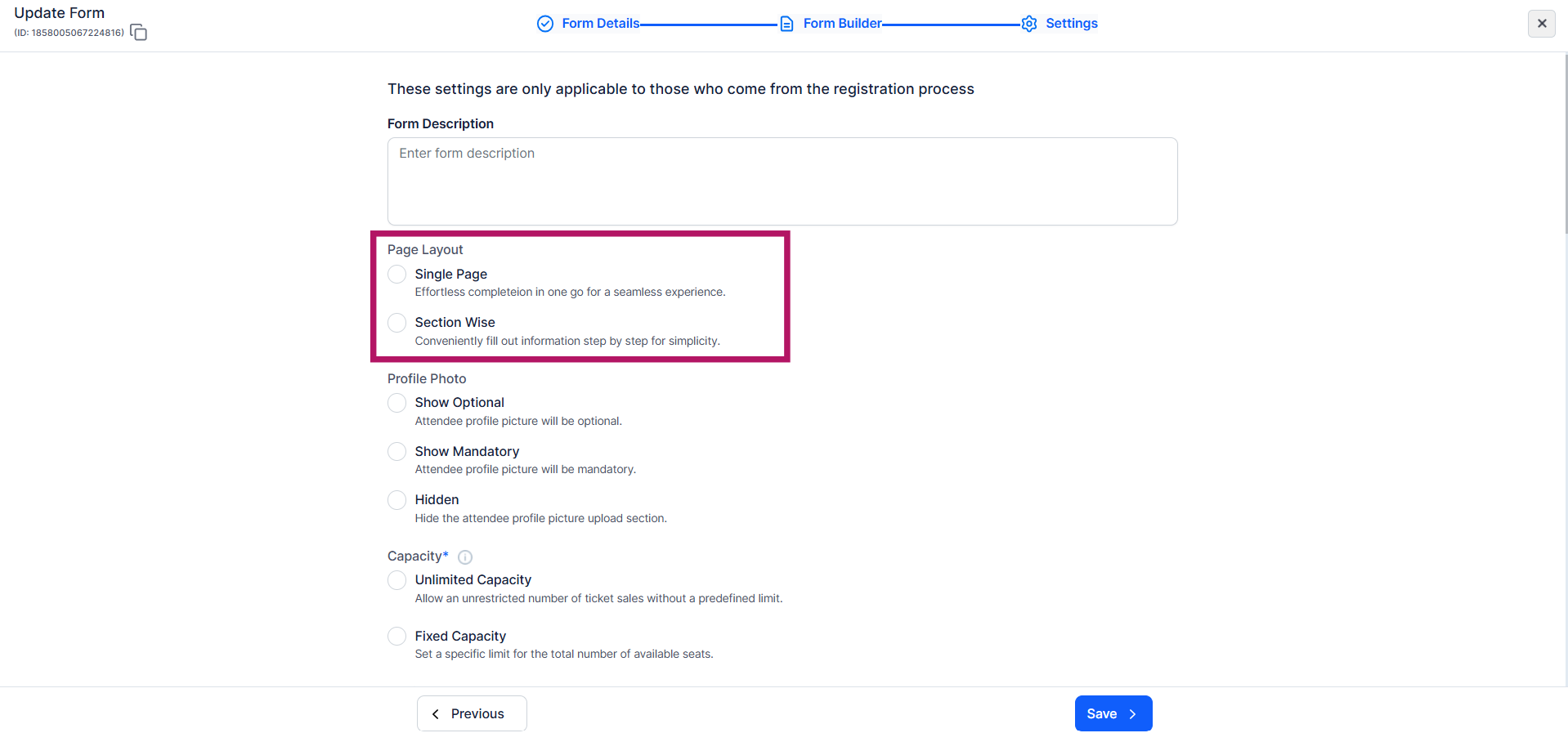
Choose between a single-page layout or a section-wise layout to control how the form is presented to users during registration.
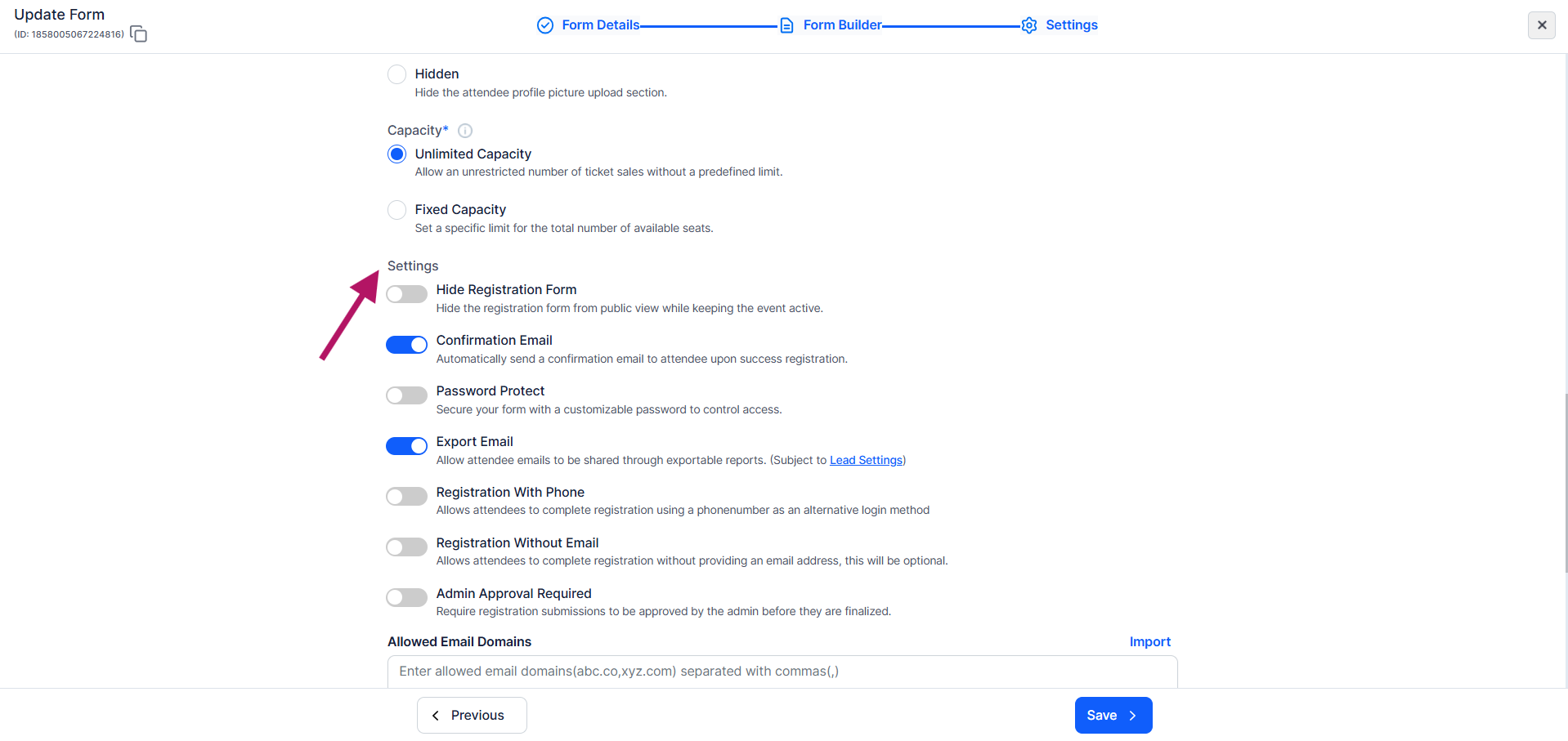
Additional options available for checkout forms: hide registration form, enable confirmation emails, apply password protection, allow email export, enable registration with phone, allow registration without email, and enable admin approval.
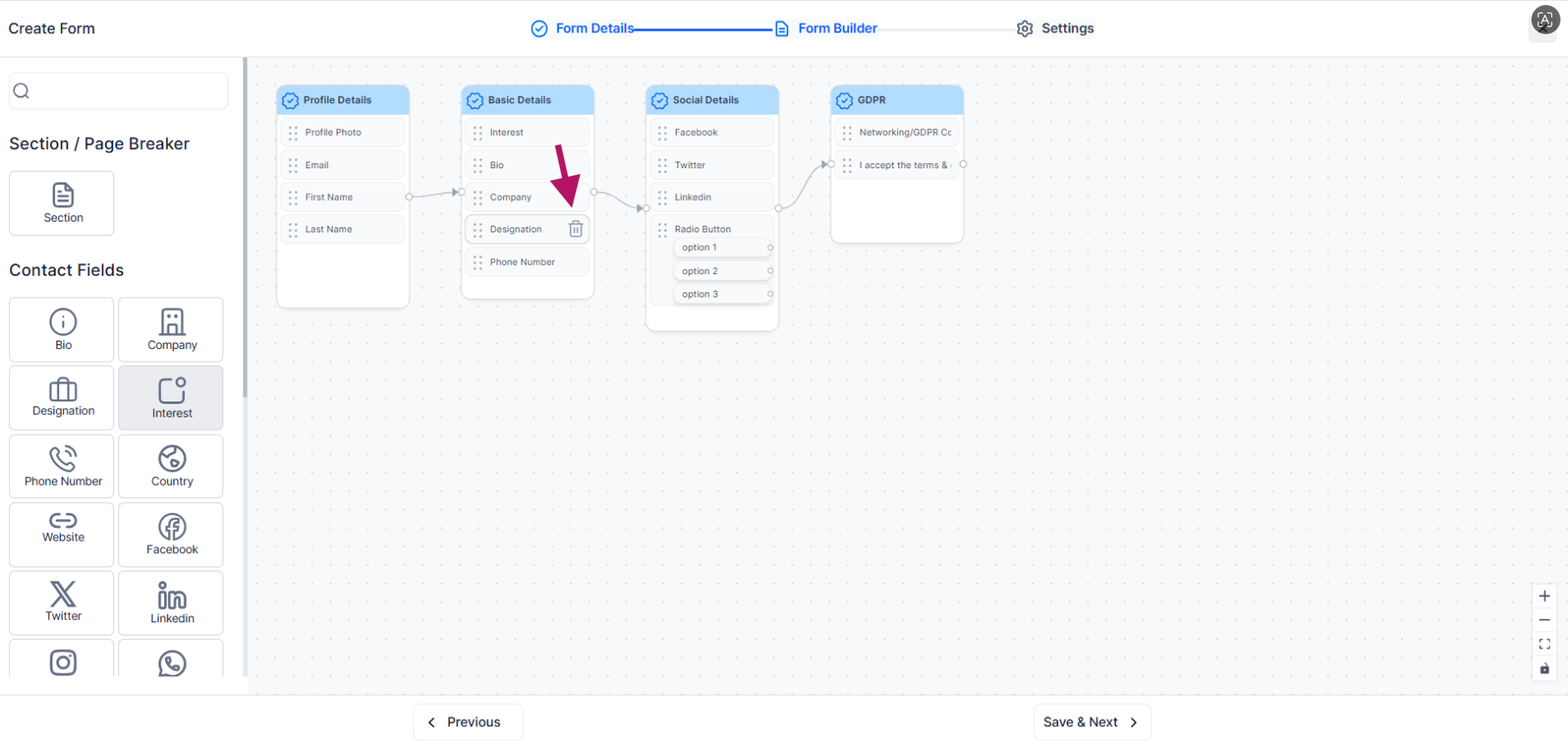
Drag fields up or down on the canvas to reorder them. Click the delete icon on a field to remove it (default contact fields cannot be removed).
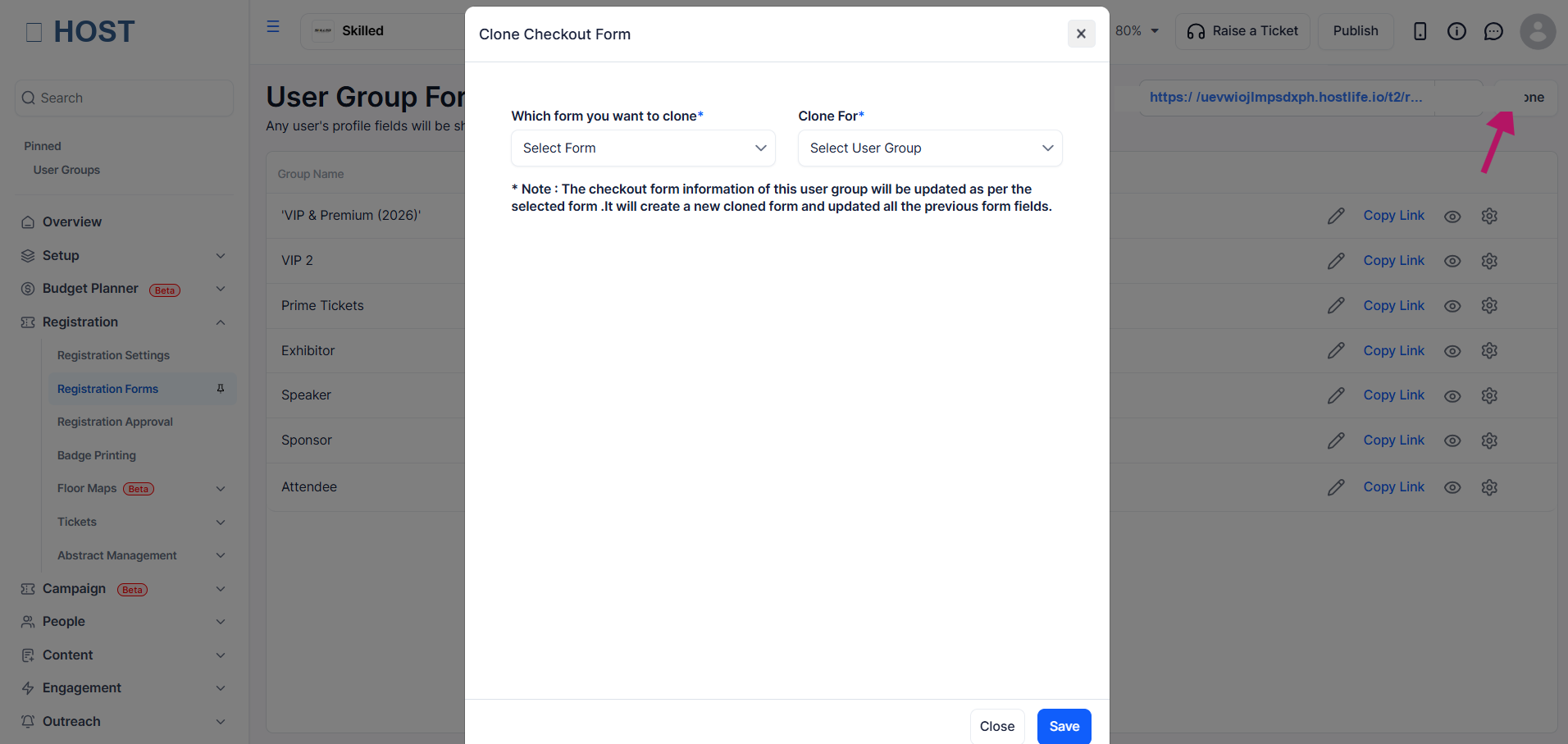
From the form list, use the Clone action to duplicate a form.