Quests let you combine multiple challenges into a single interactive experience for users. Follow the steps below to add a Quest Challenge to your gamification module
Interactive Guide
Or check the step-by-step guide
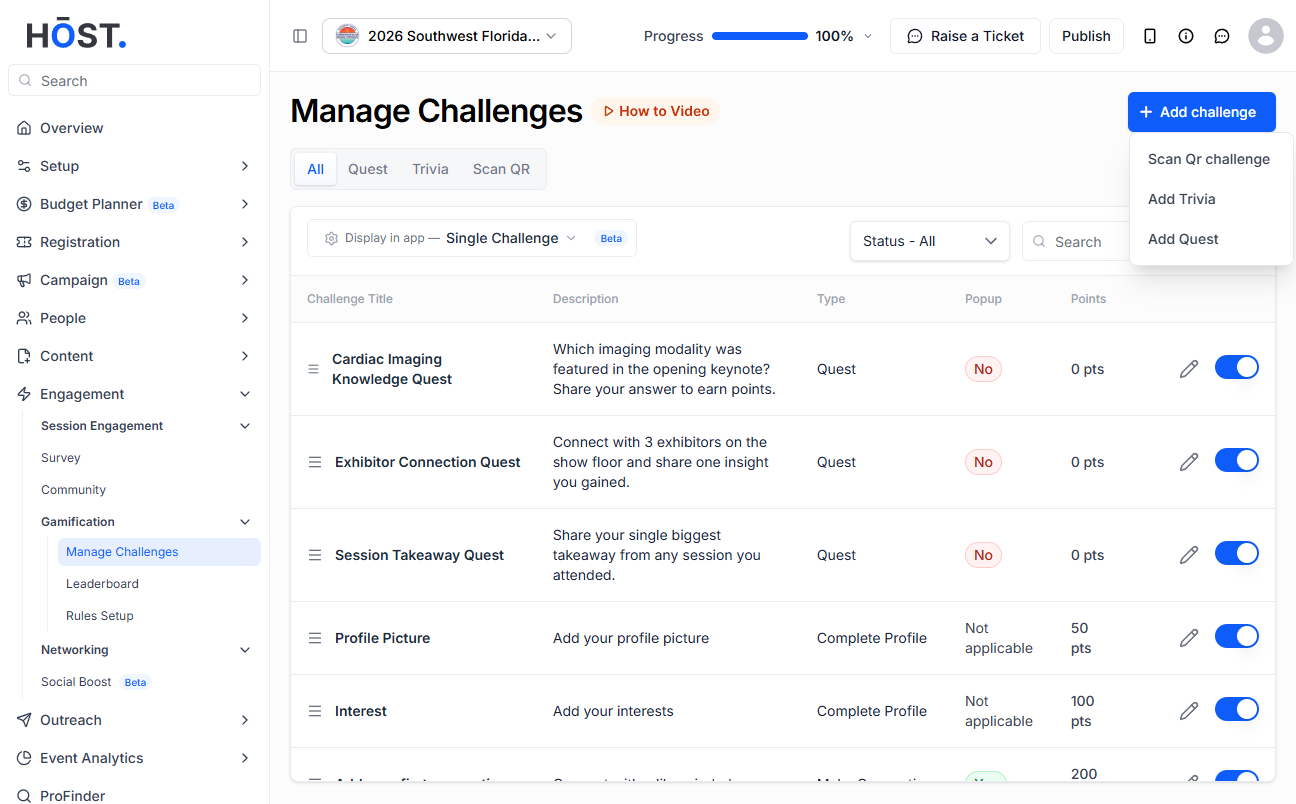
1: Login to HOST Admin panel and go to Engagement > Gamification

2: Click on "Add Challenge" button

3: Select "Add Quest" to add a quest challenge

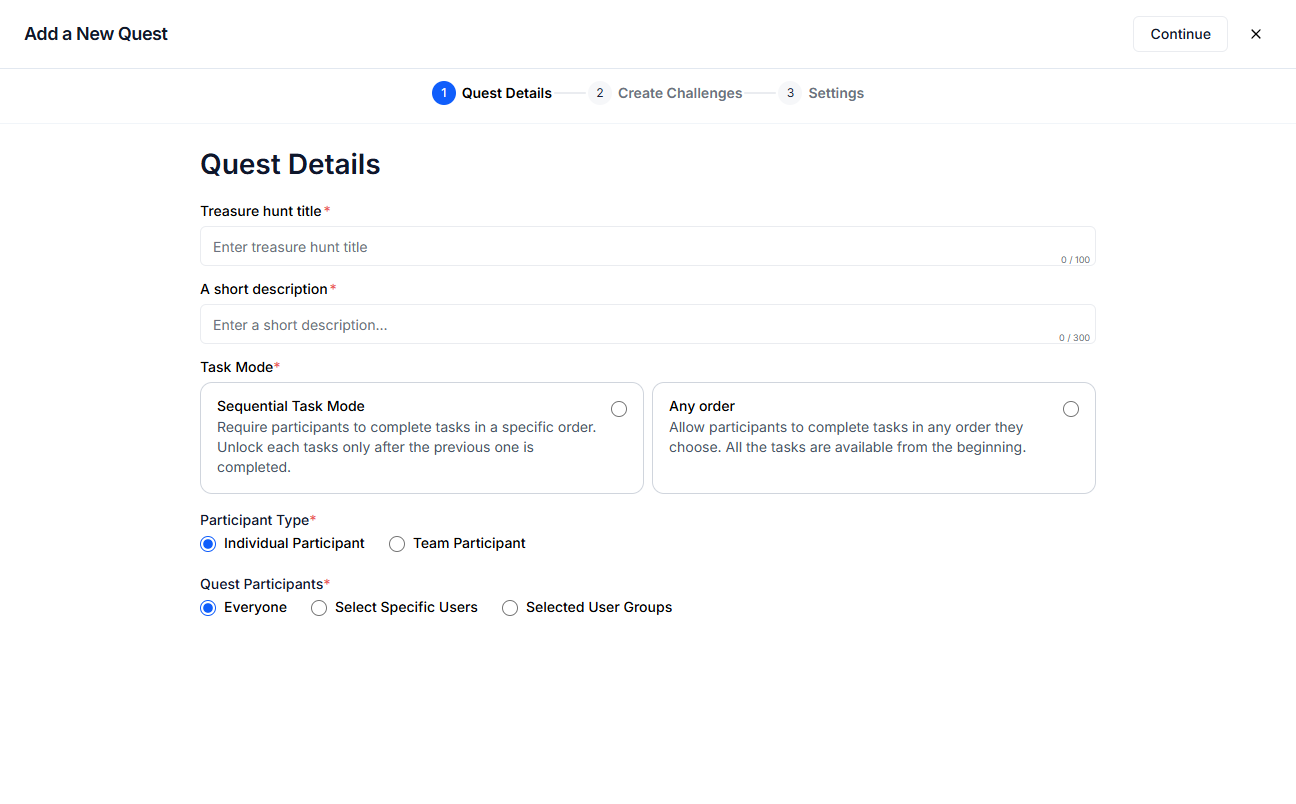
4: Enter a title for Treasure Hunt

5: Give a short description

6: You can set the Task Mode to either Sequential or Any Order

7: You can choose the participant type as individual or team participant

8: If the Participant Type is selected as "Individual Participant" then Quest participants can be either Everyone or Specific Users or Selected User Groups

9: If you select "Specific Users", then you have to select specific users from the dropdown

10: If you select "Selected User Groups" then you have to select specific user groups from the dropdown

11: If the Participant Type is selected as Team Participant then Quest Participants can be either "Selected User Group" or "Custom Team"

12: Click the "Create Custom Team" button to customize the quest team

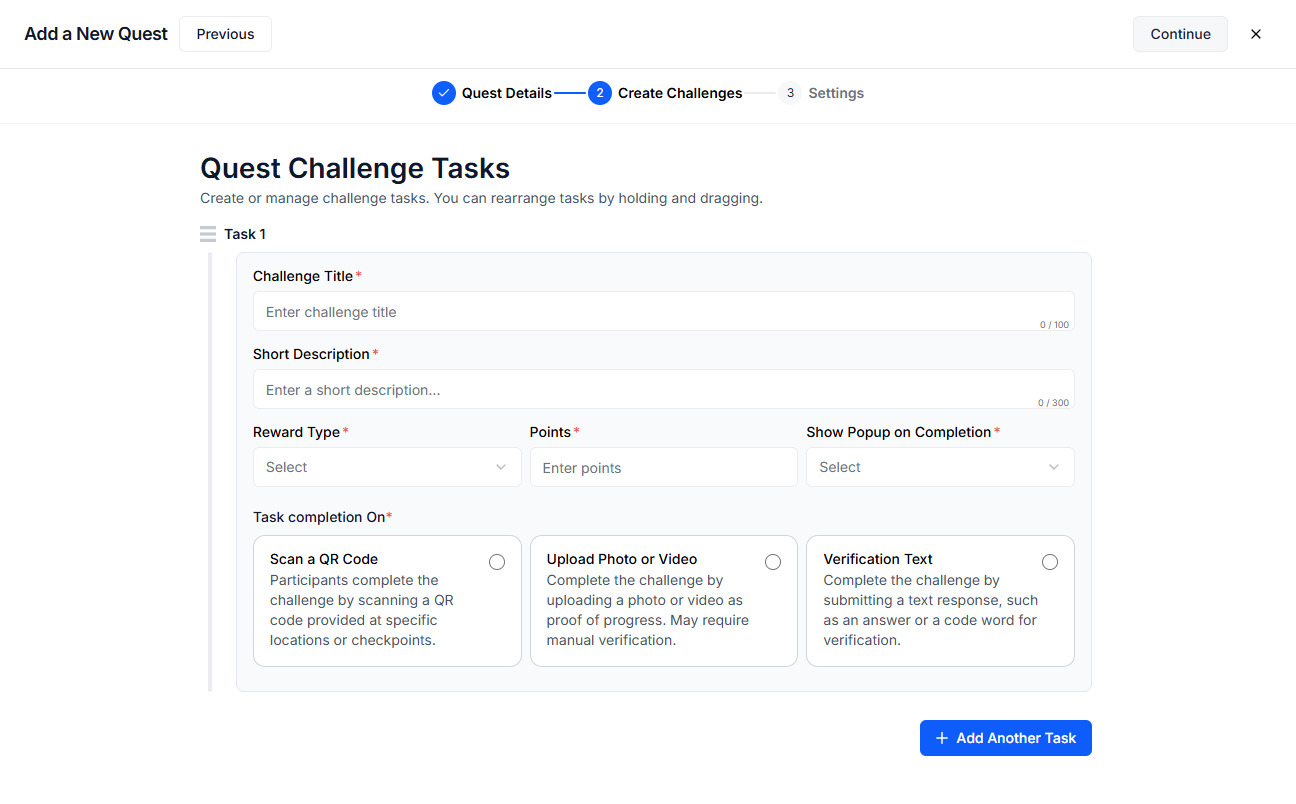
13: Enter the title of the challenge

14: Enter a short description

15: Choose the reward type from the dropdown

16: If you choose the reward type as "Points", enter the reward points

17: If you choose the reward type as "Award", select the "Upload Image" option to upload an image of the certificate

18: Or, select the "Choose Template" option to use the built-in certificate template instead

19: You can choose how participants must complete the task using the Task Completion On setting

20: Participants can complete the challenge by scanning a QR code

21: You can enter a code to generate the Qr code or leave this field blank to automatically generate the Qr code

22: Or, you can link a sponsor or exhibitor with the task

23: Users are required to upload a photo or video as proof of task completion. This method is useful for visual confirmation and may involve manual verification by the admin

24: Keep this checked if you want host verification before crediting points otherwise keep this unchecked

25: Participants complete the challenge by submitting a text response — such as an answer to a question or a specific code word provided by the organizer

26: Enter the verification text

27: Keep this checked if you want host verification before crediting points otherwise keep this unchecked

28: Click the “Add Another Task” button to add a new task

29: Click the “Continue” button to proceed to the next step

30: Enter the rules for the challenge

31: Enter the maximum number of winners

32: Select the start date of the challenge from the calendar

33: Select the end date of the challenge from the calendar

34: Click the “Save” button to add the challenge

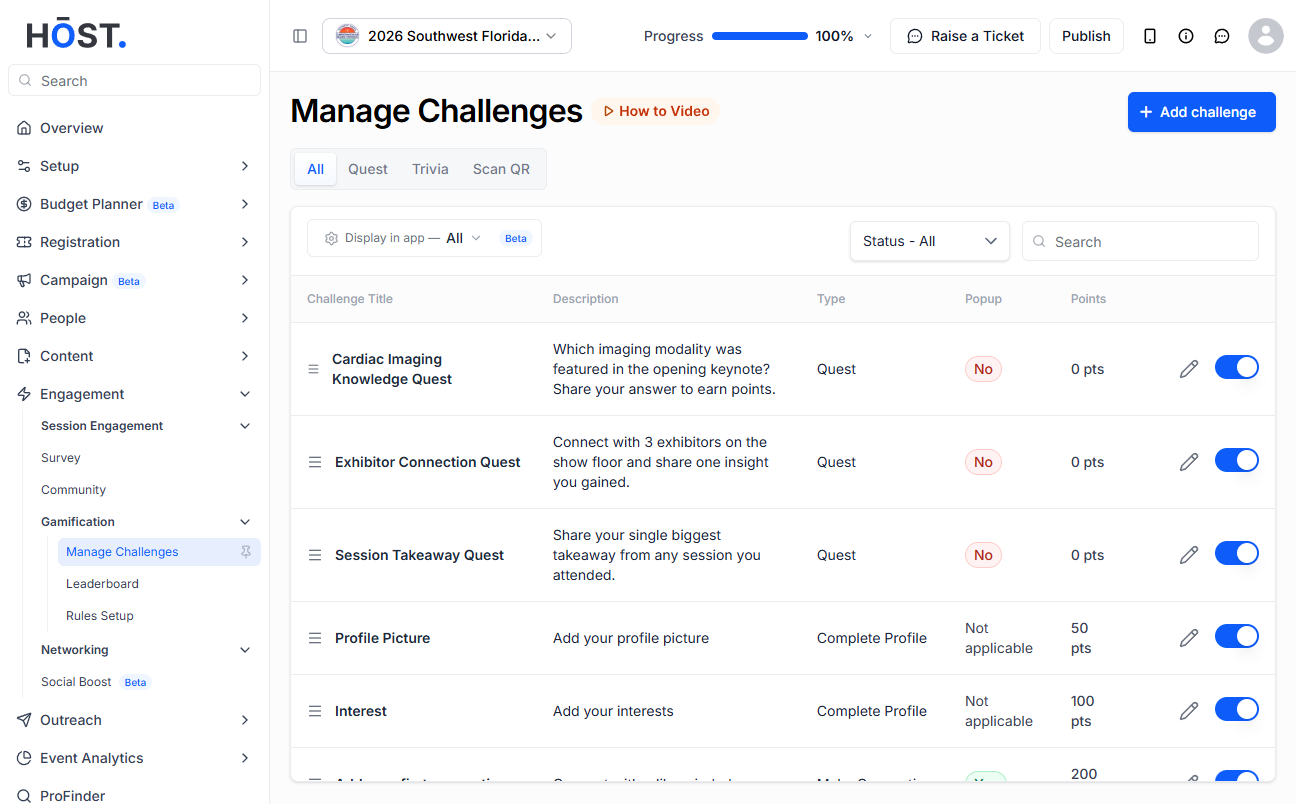
35: Click the pencil icon to edit existing challenges

36: Enable or disable this button to activate or deactivate the challenge respectively