Learn how to add contacts to your campaign for targeted communication.
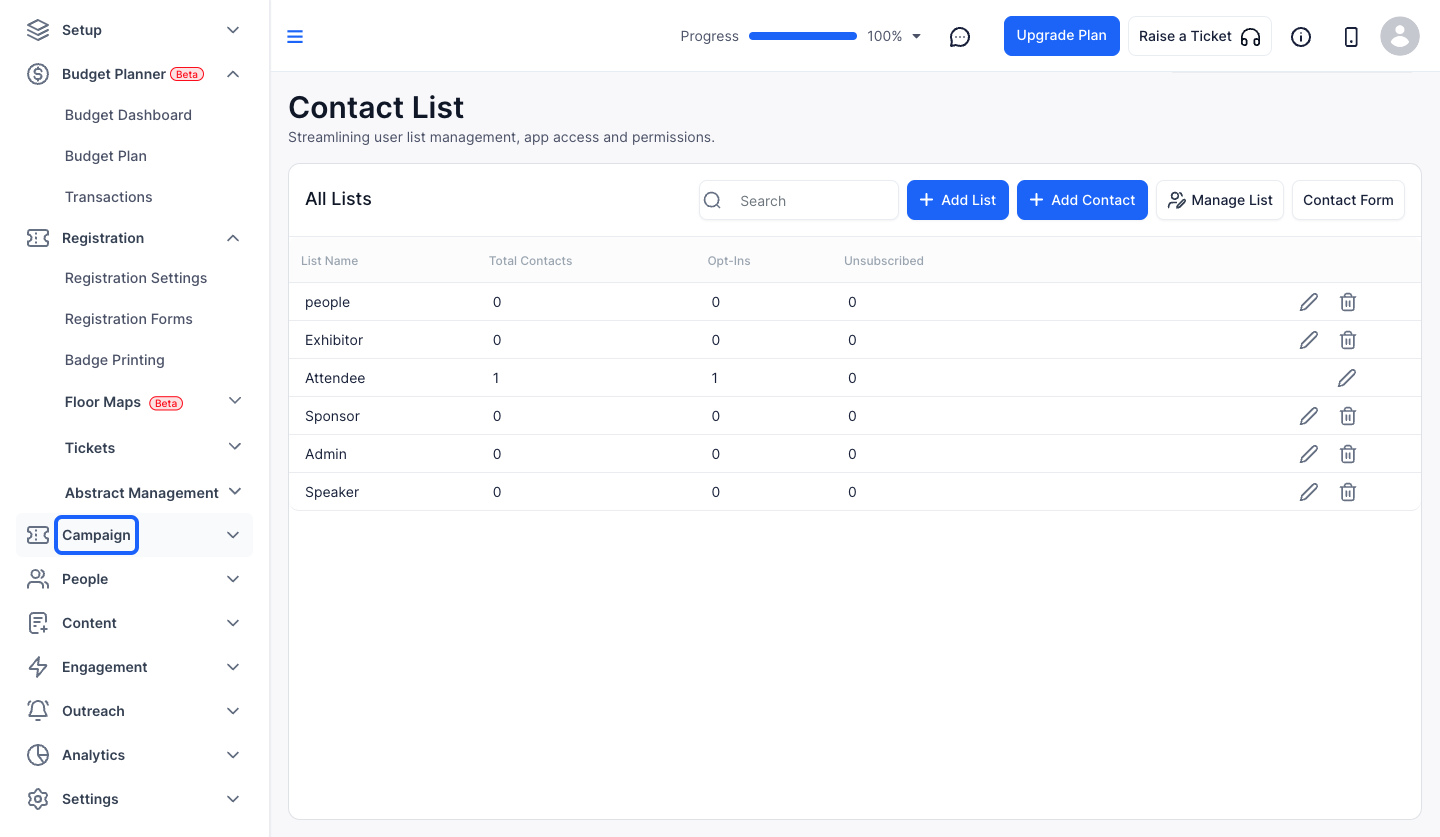
1: Access the HOST Admin Panel and navigate to Campaign
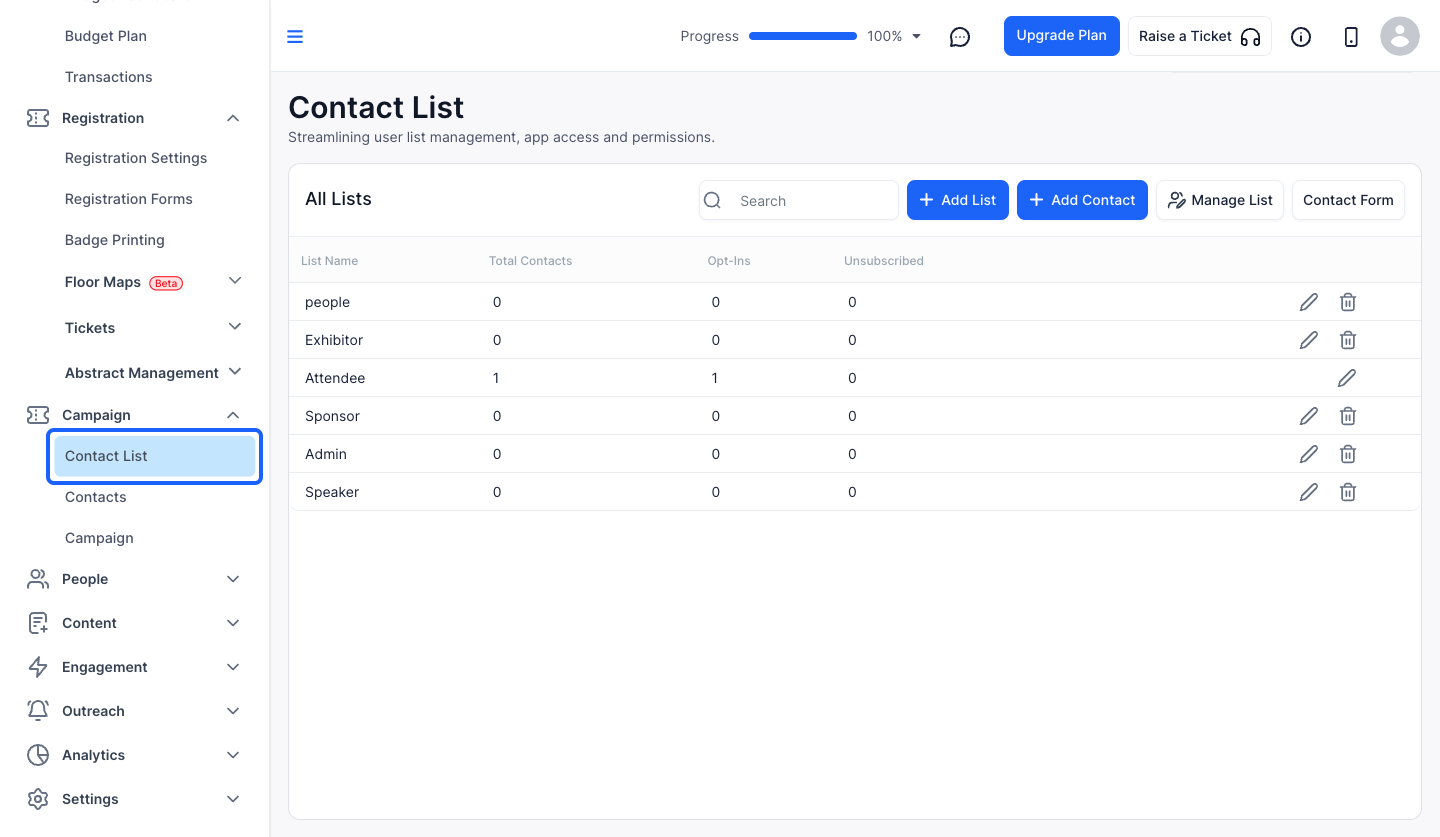
2: Click on Contact List
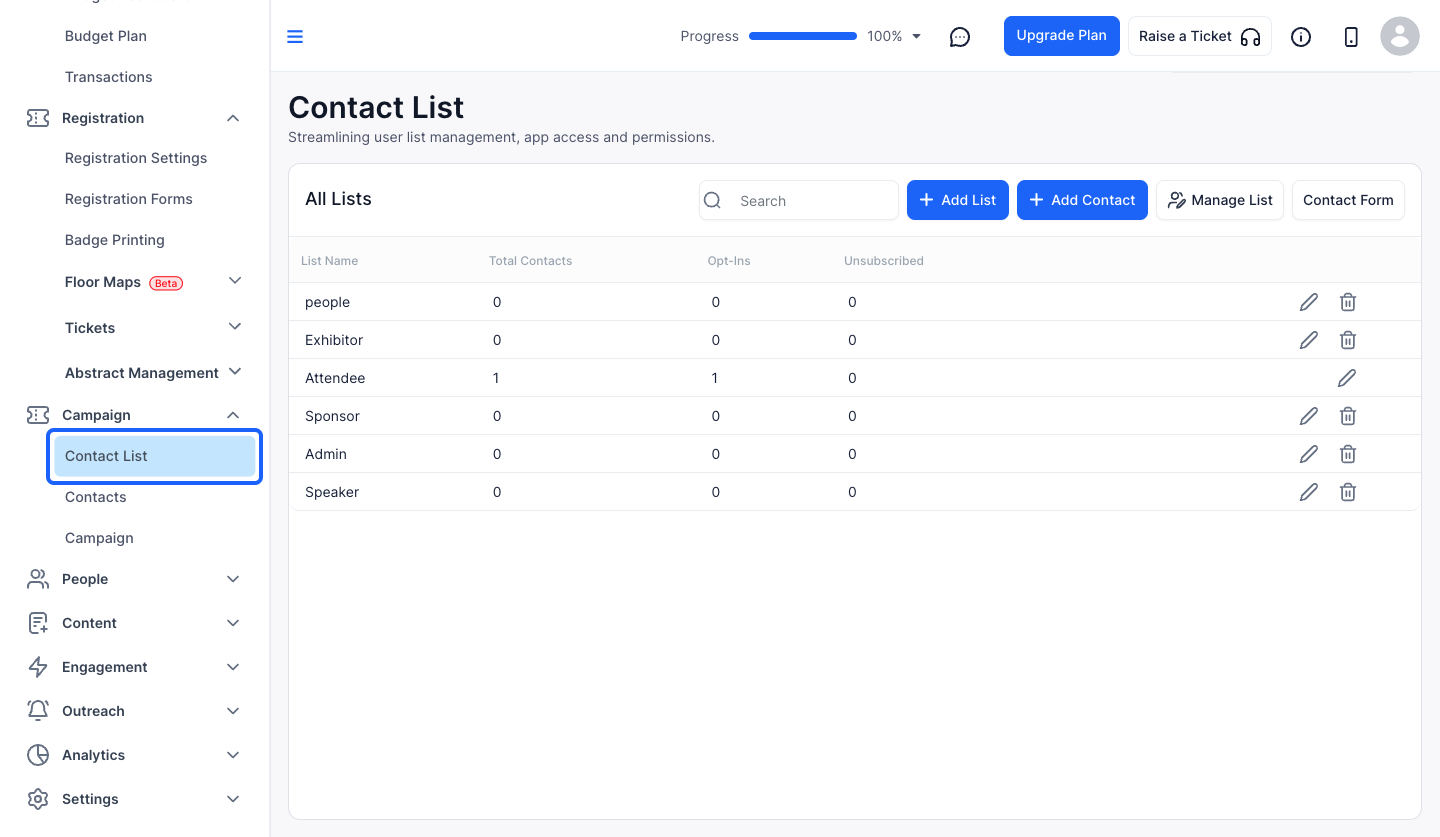
3: Click on "Add List" button to add a new list
4: Enter the List Name
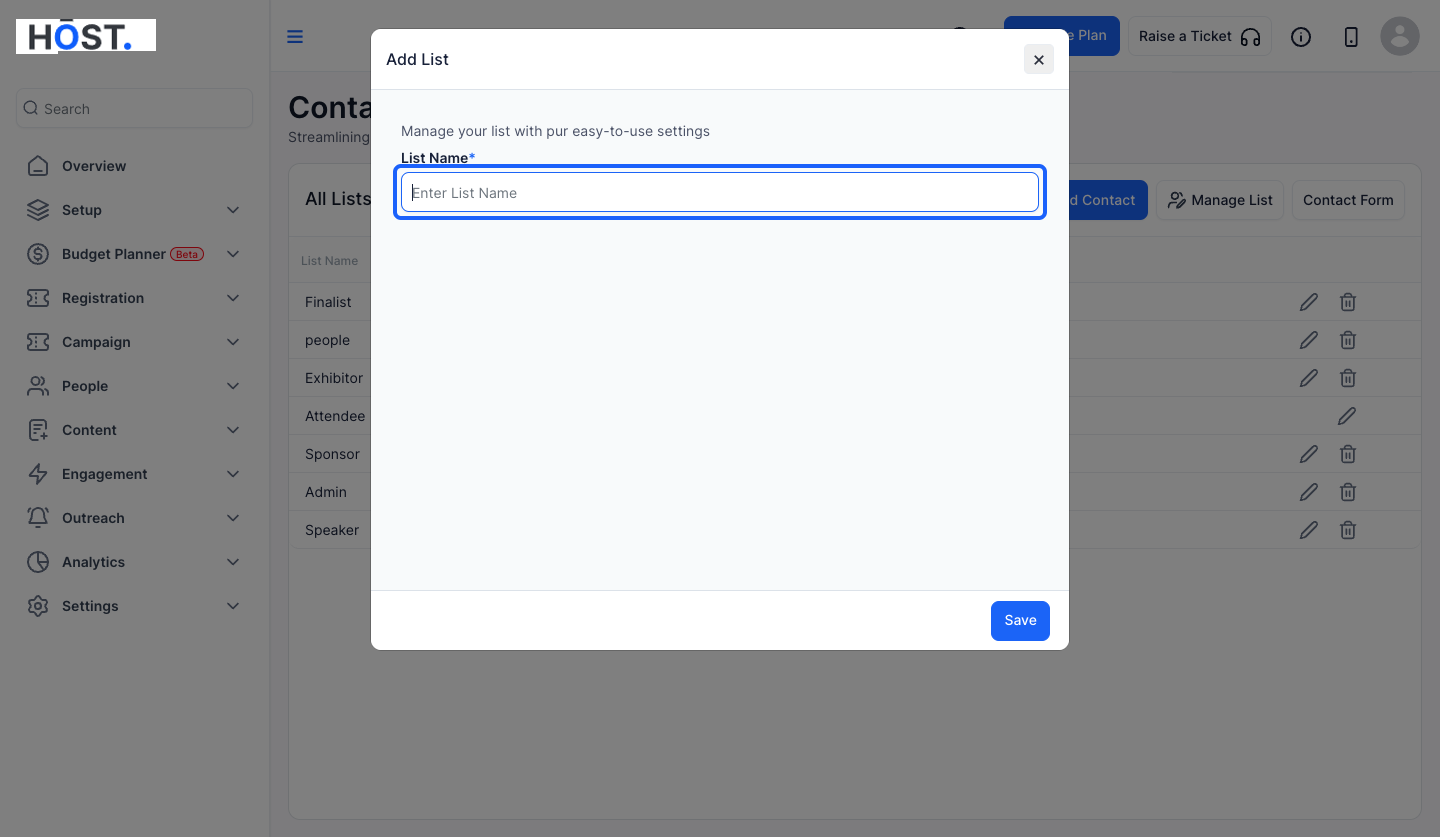
5: Click the “Save” button to save the list created
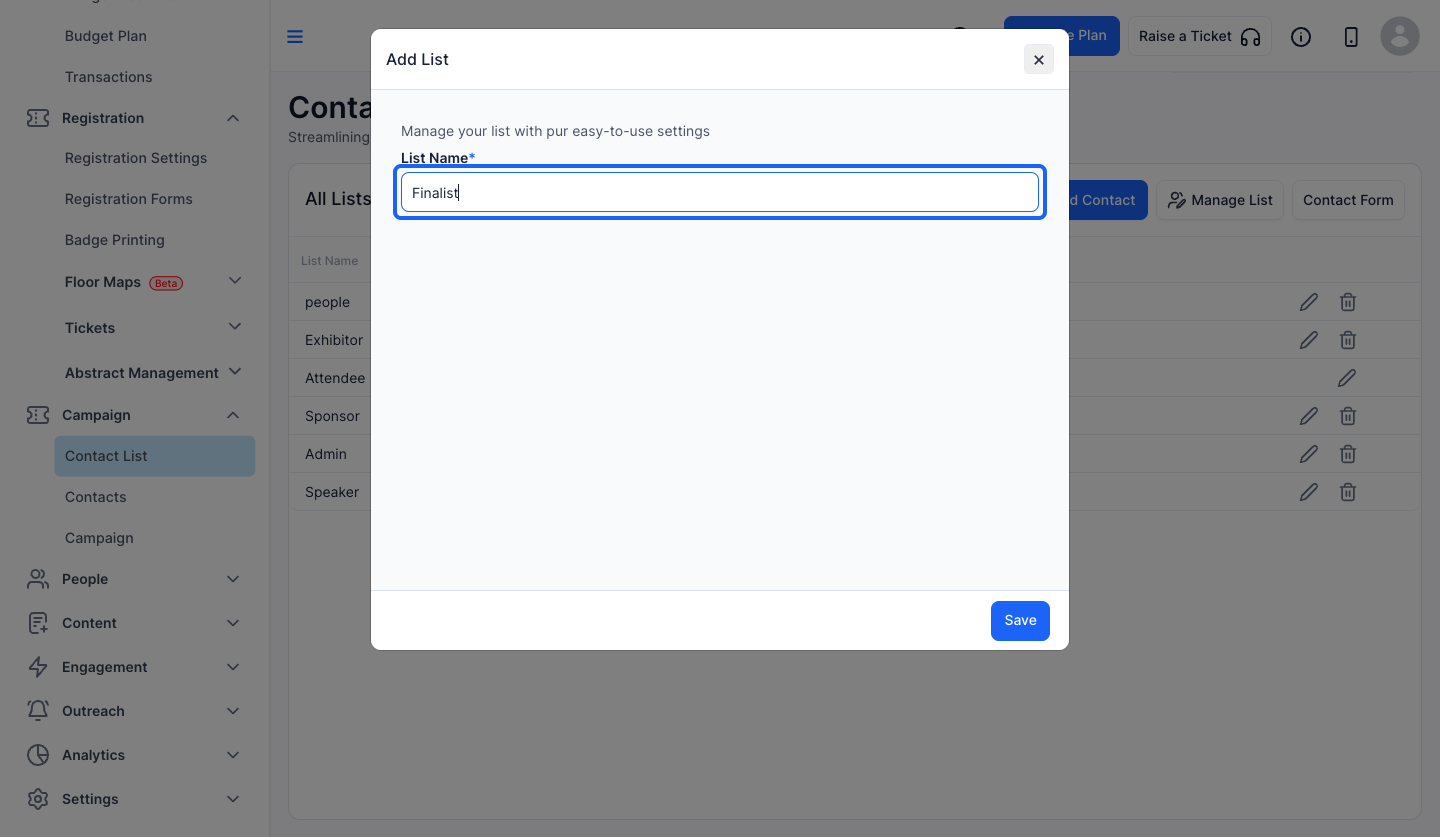
6: To edit an existing list, click the "pencil" icon corresponding to that list
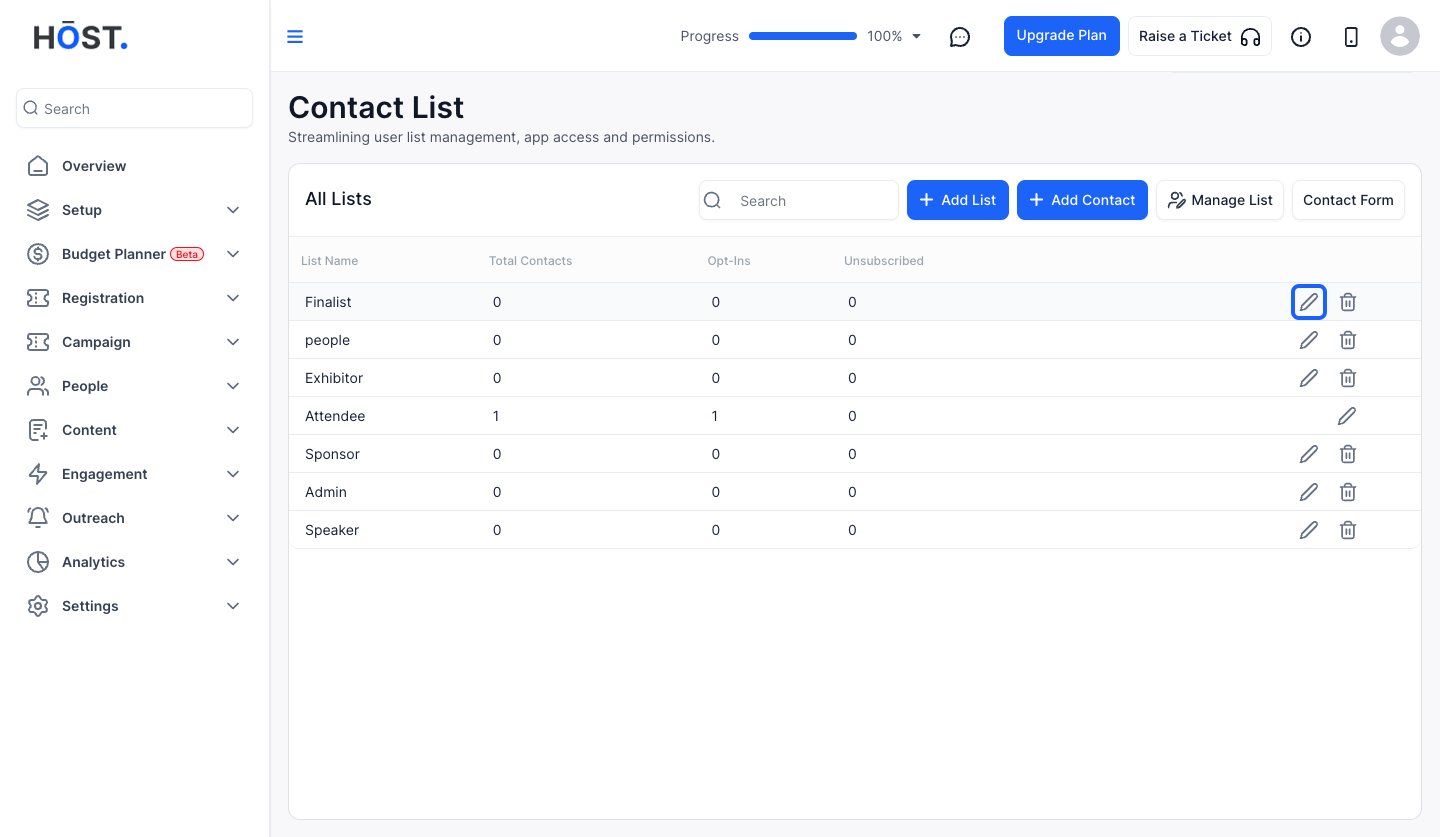
7: Make the necessary changes and click the "save" button
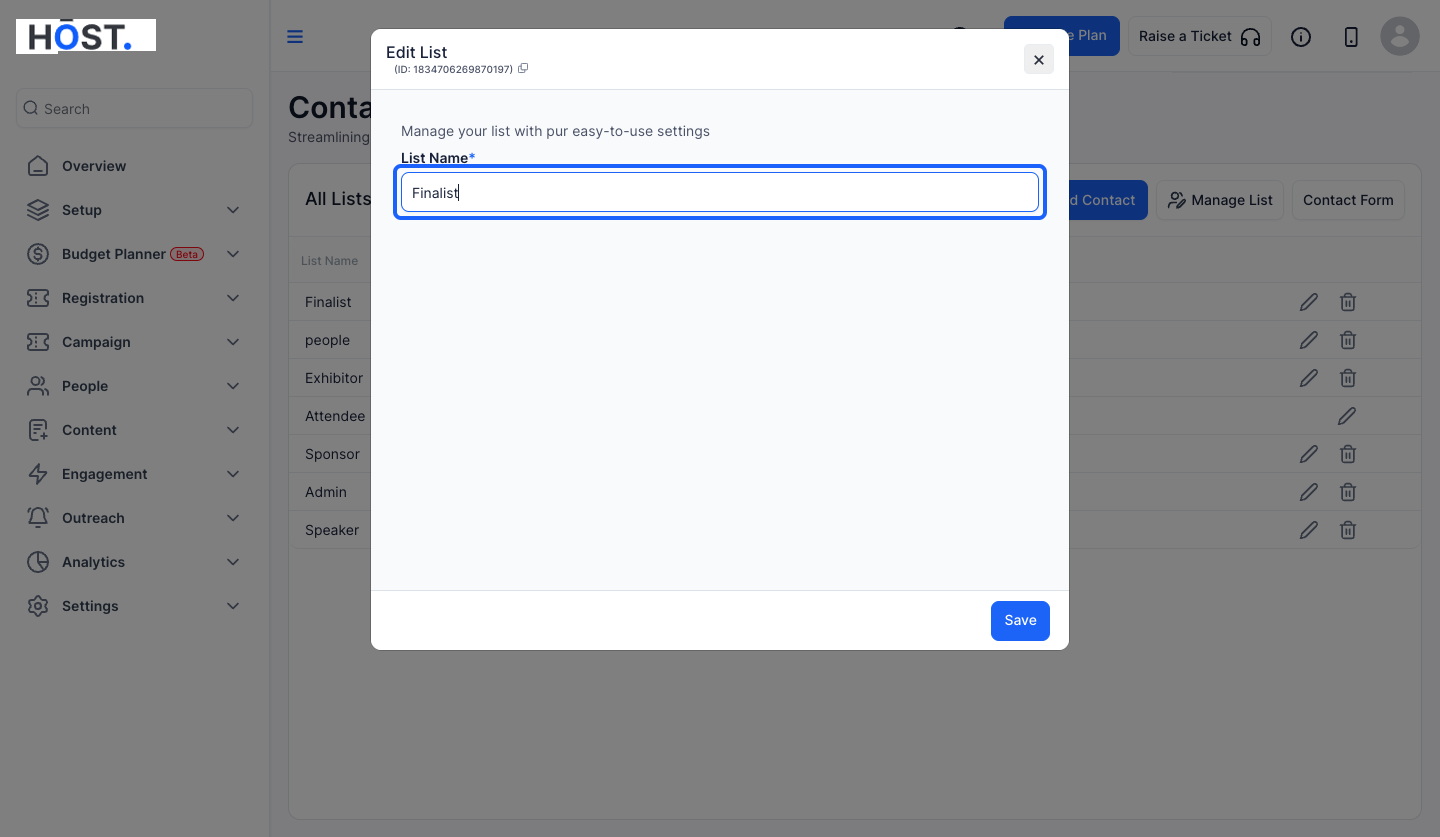
8: To delete an existing list, click the "bin" icon corresponding to that list
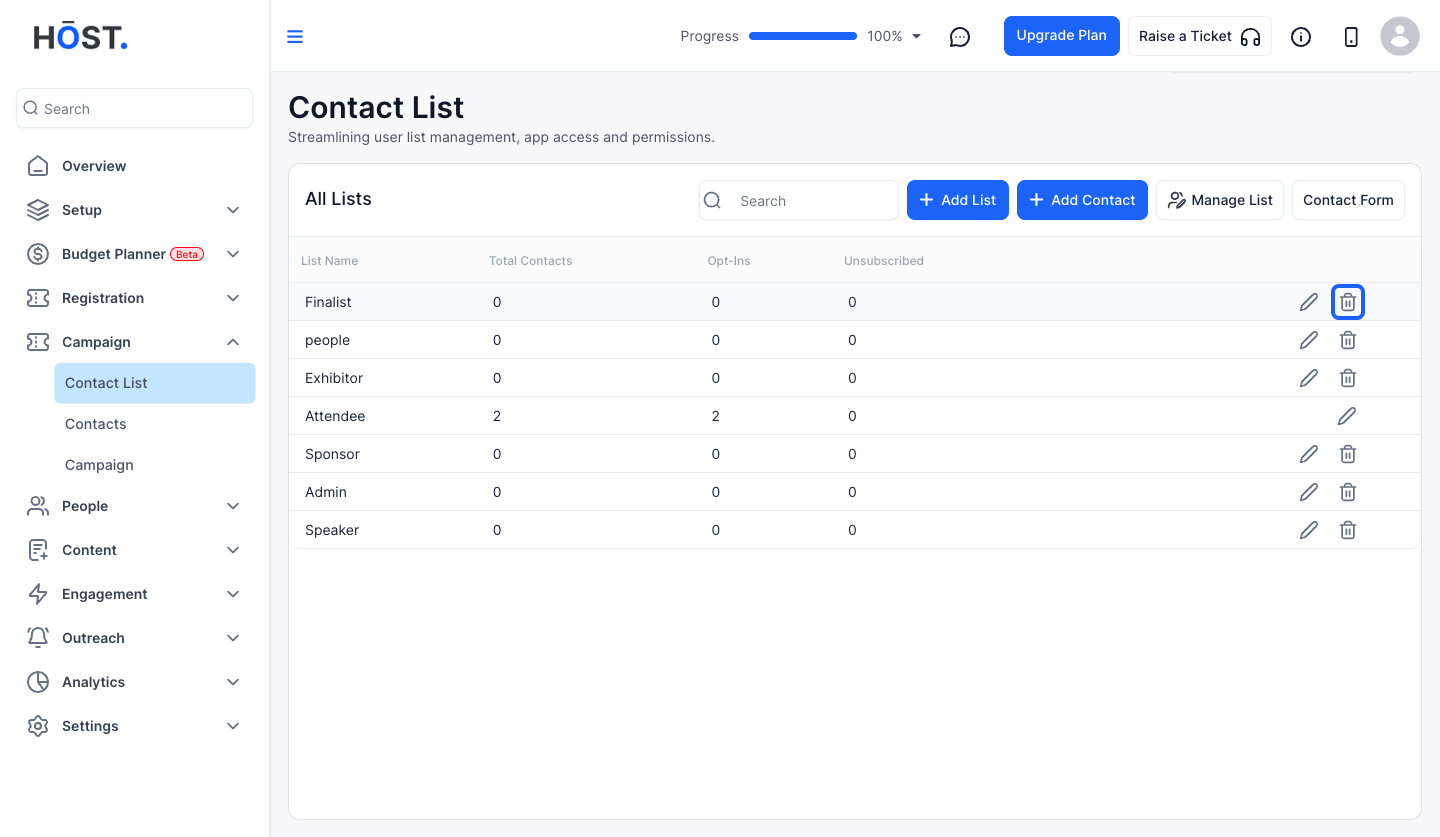
9: To add new contact, click the "Add Contact" button
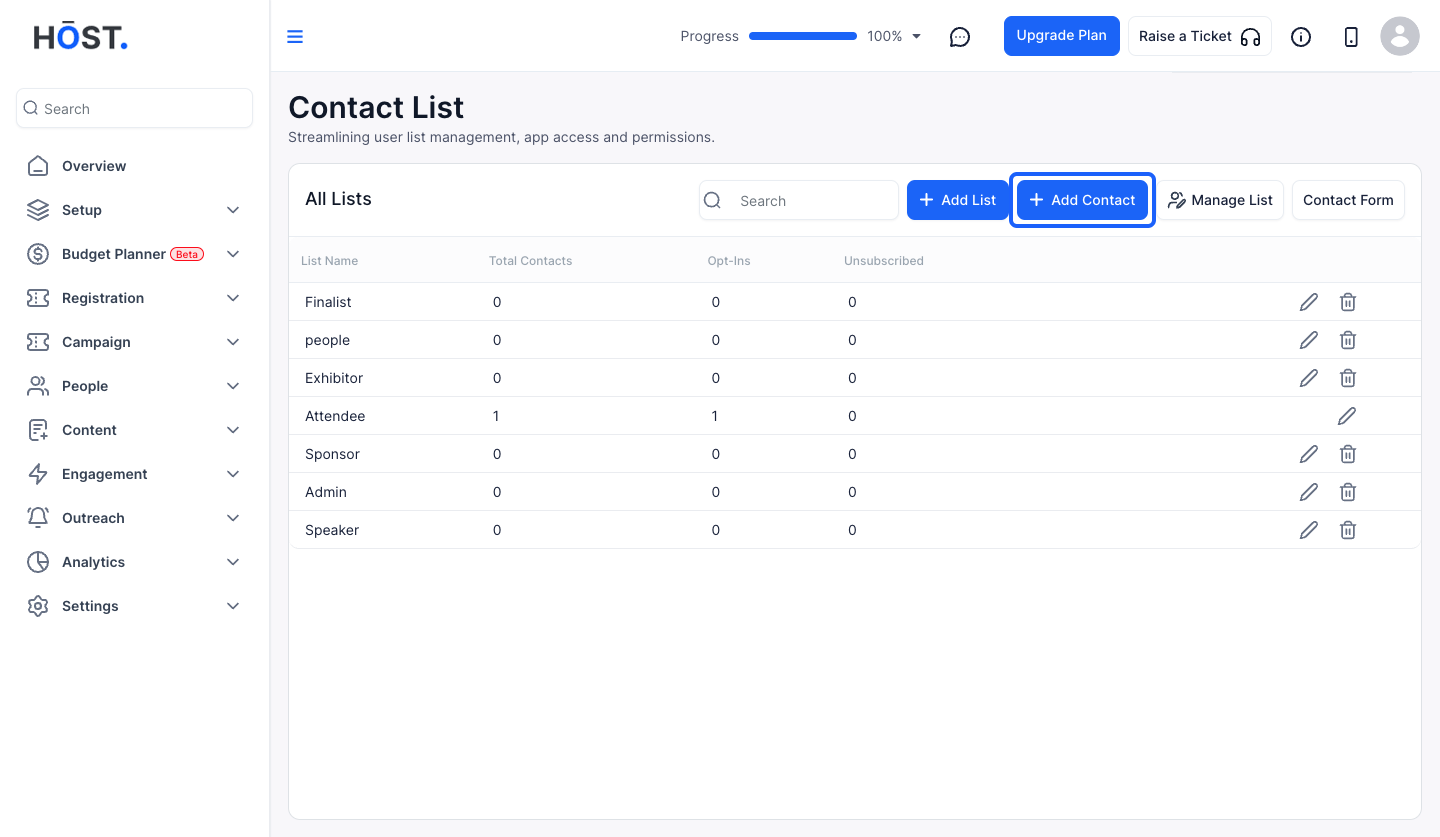
10: Enter the email address
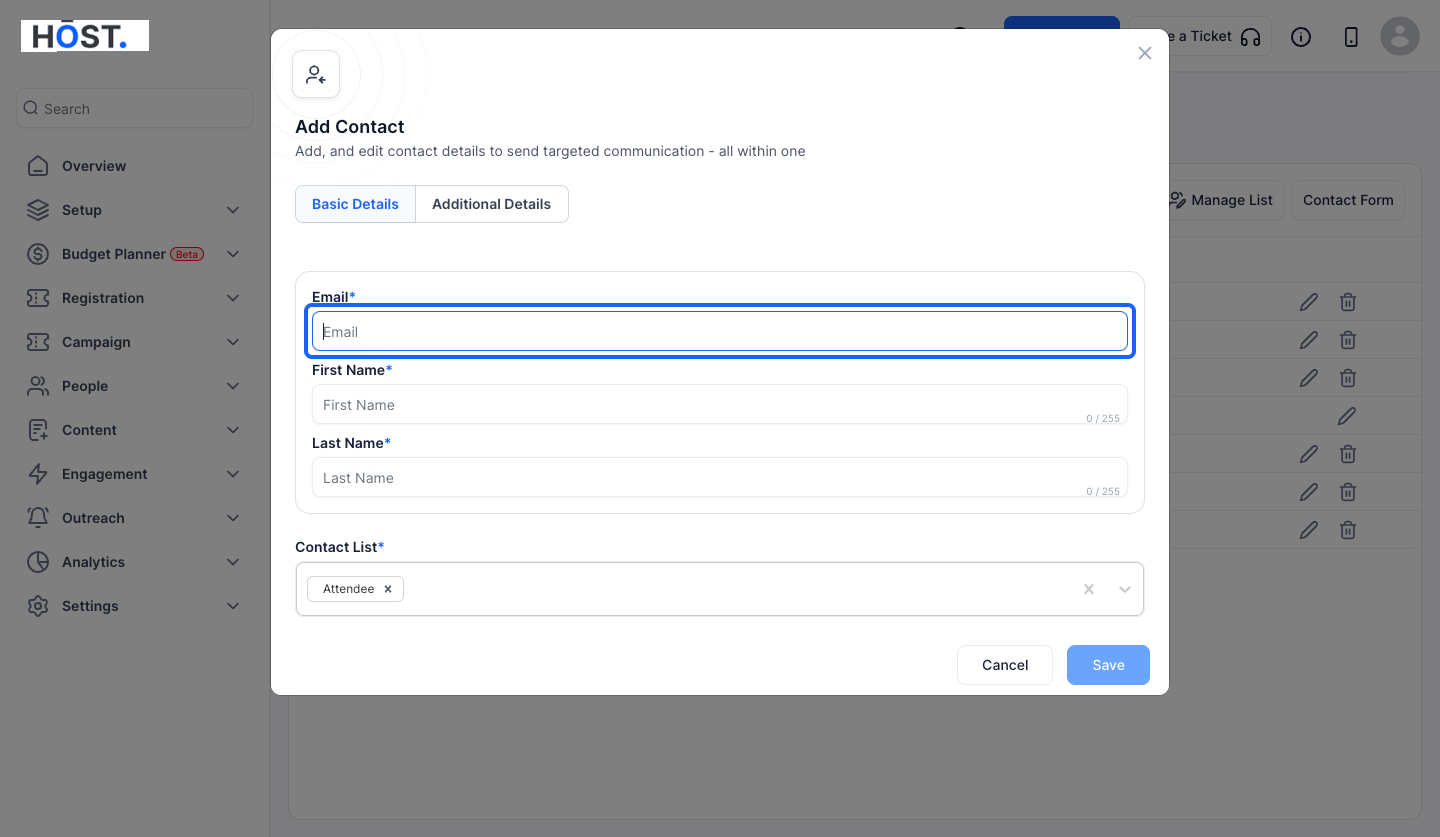
11: Enter First Name
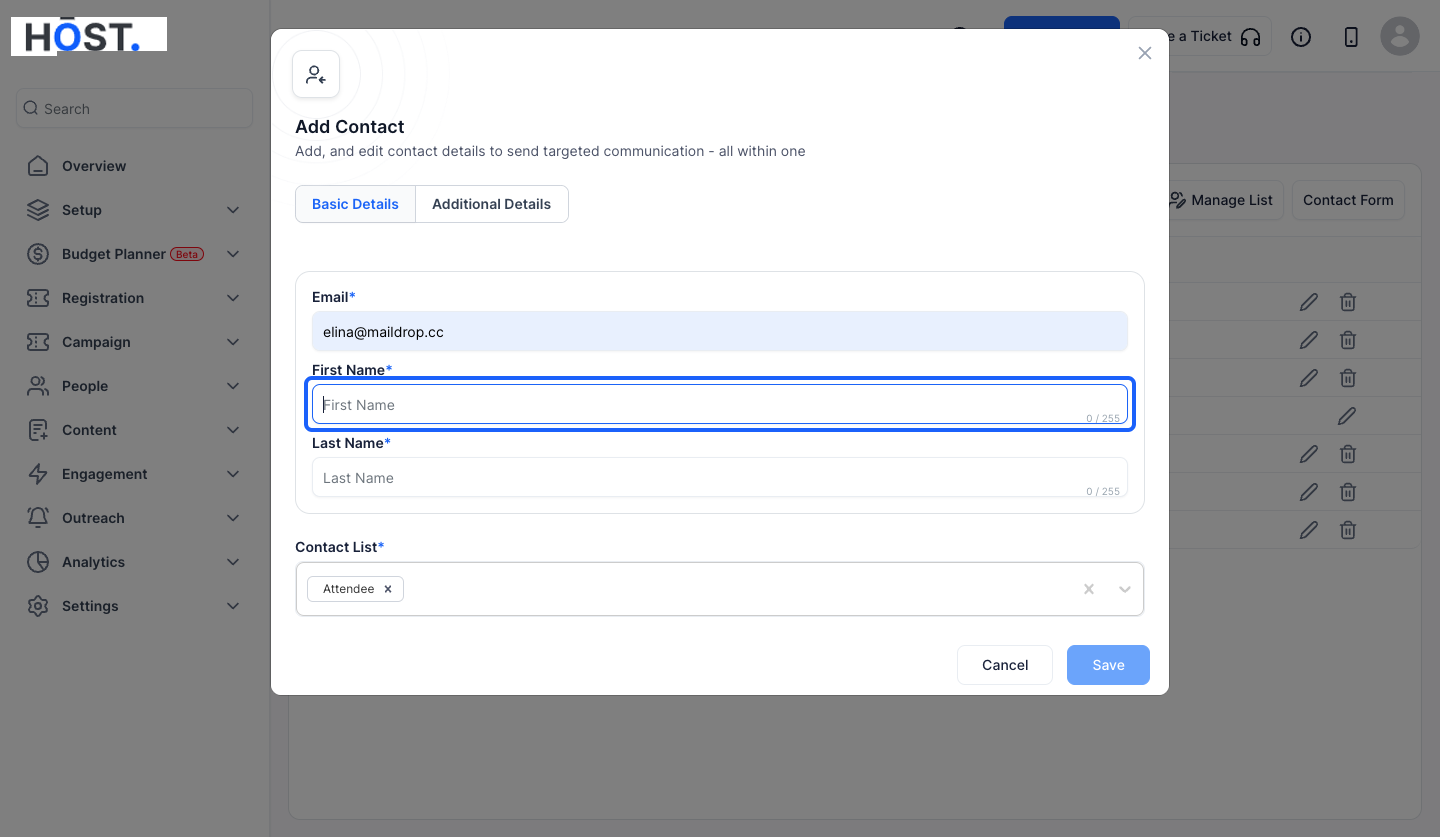
12: Enter Last Name
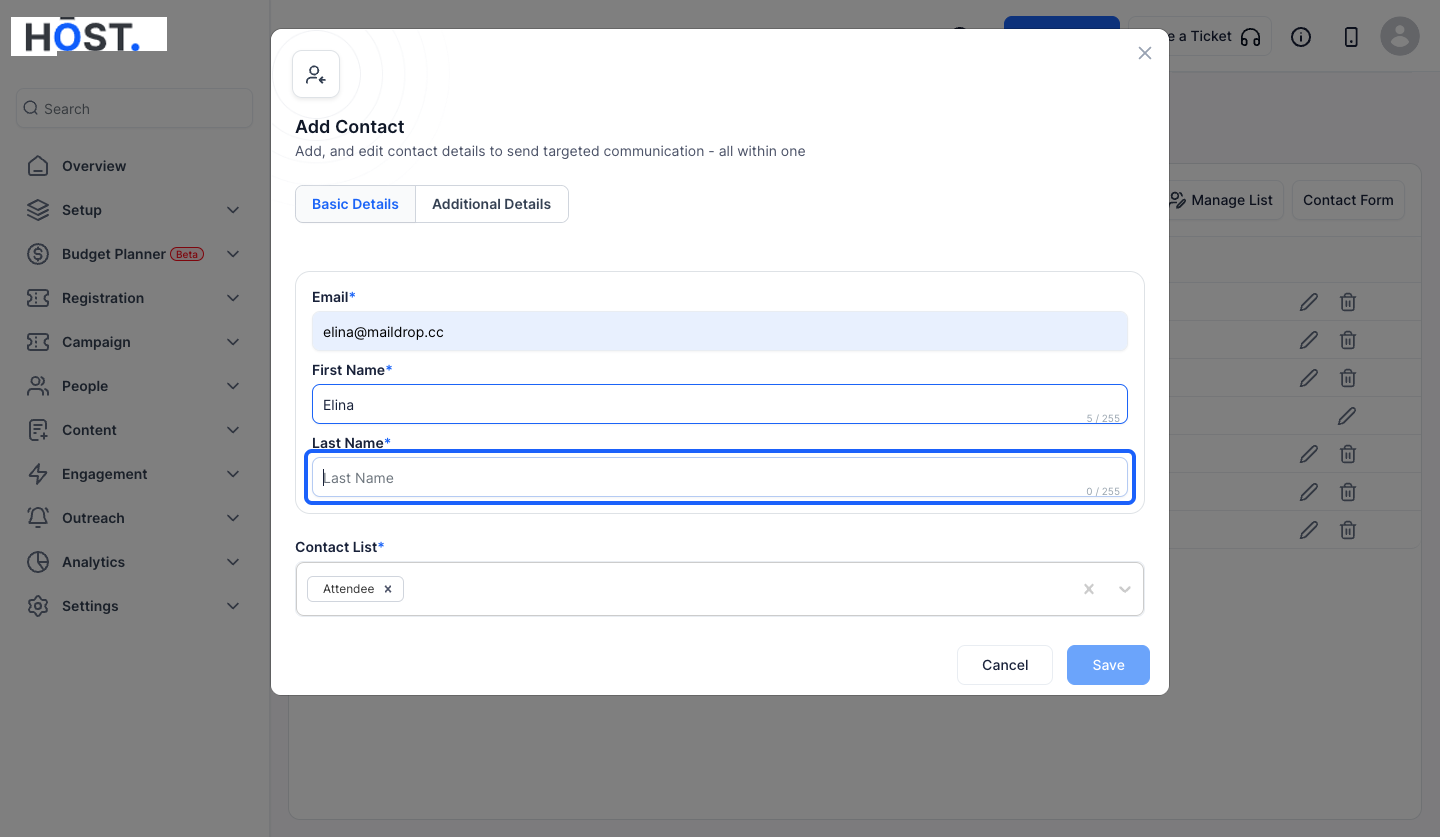
13: You can add one or more Contact Lists
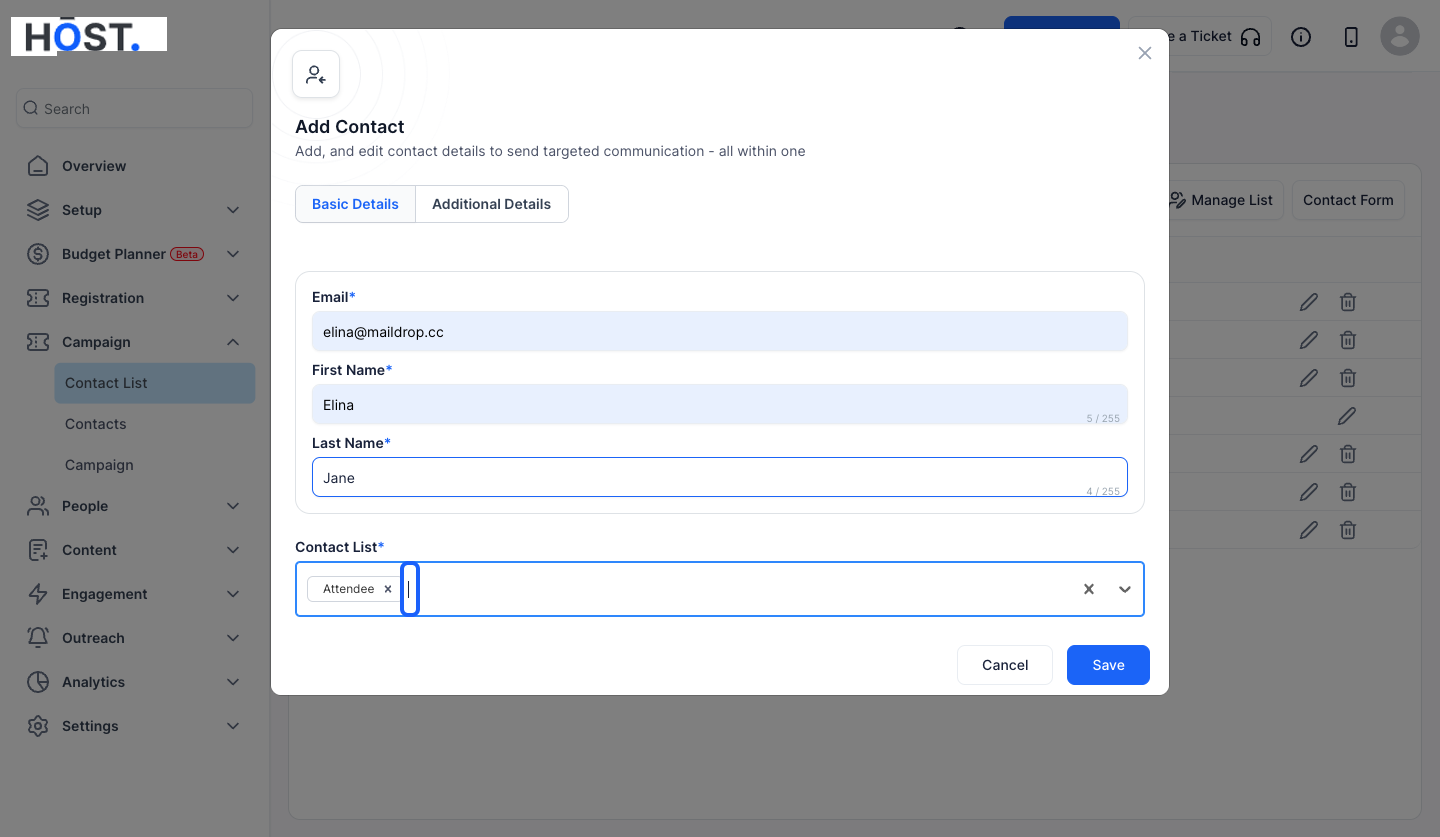
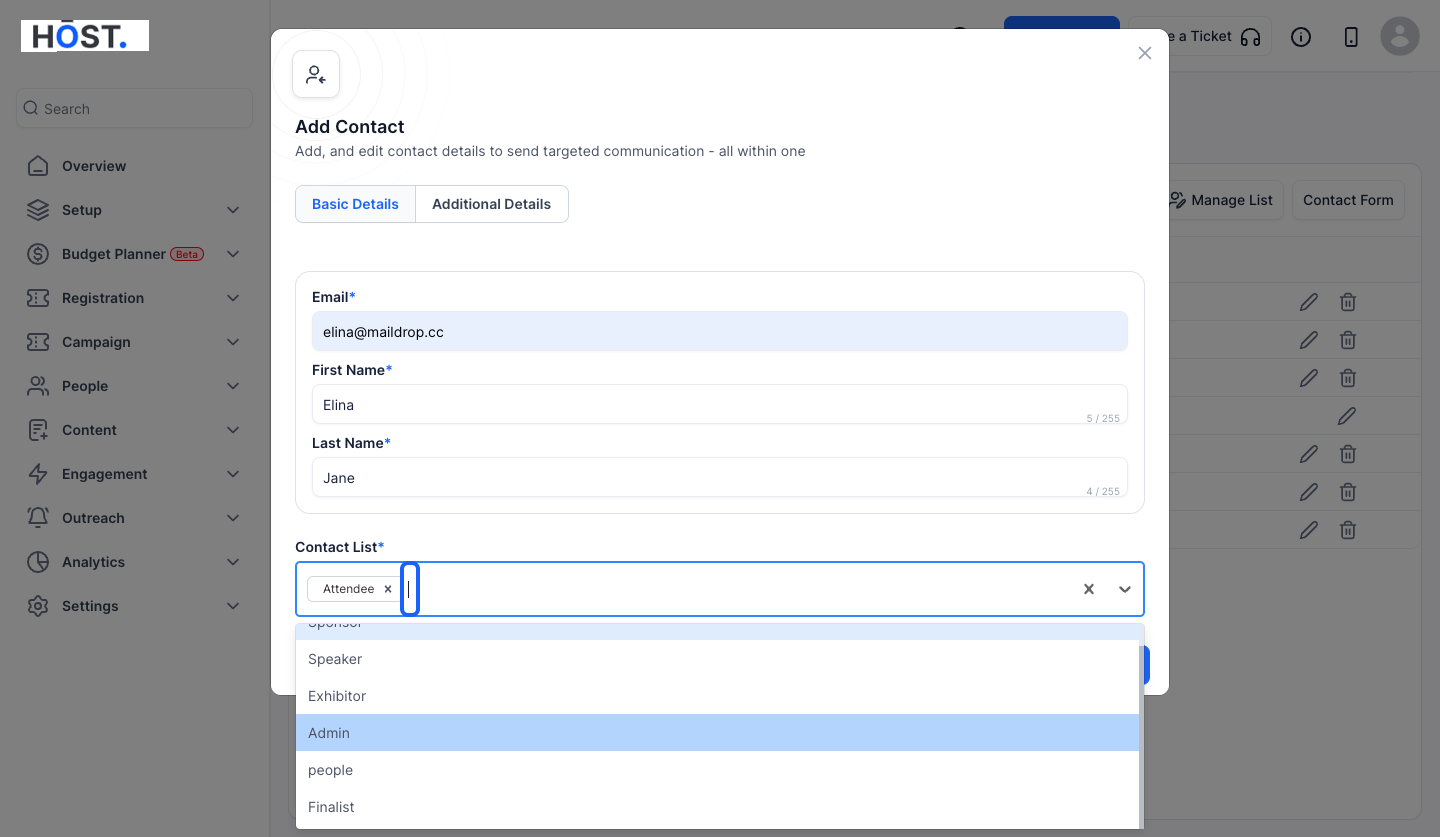
14: Select your desired Contact Lists from the dropdown
15: Click the “Save” button to create the contact or proceed to add Additional Details
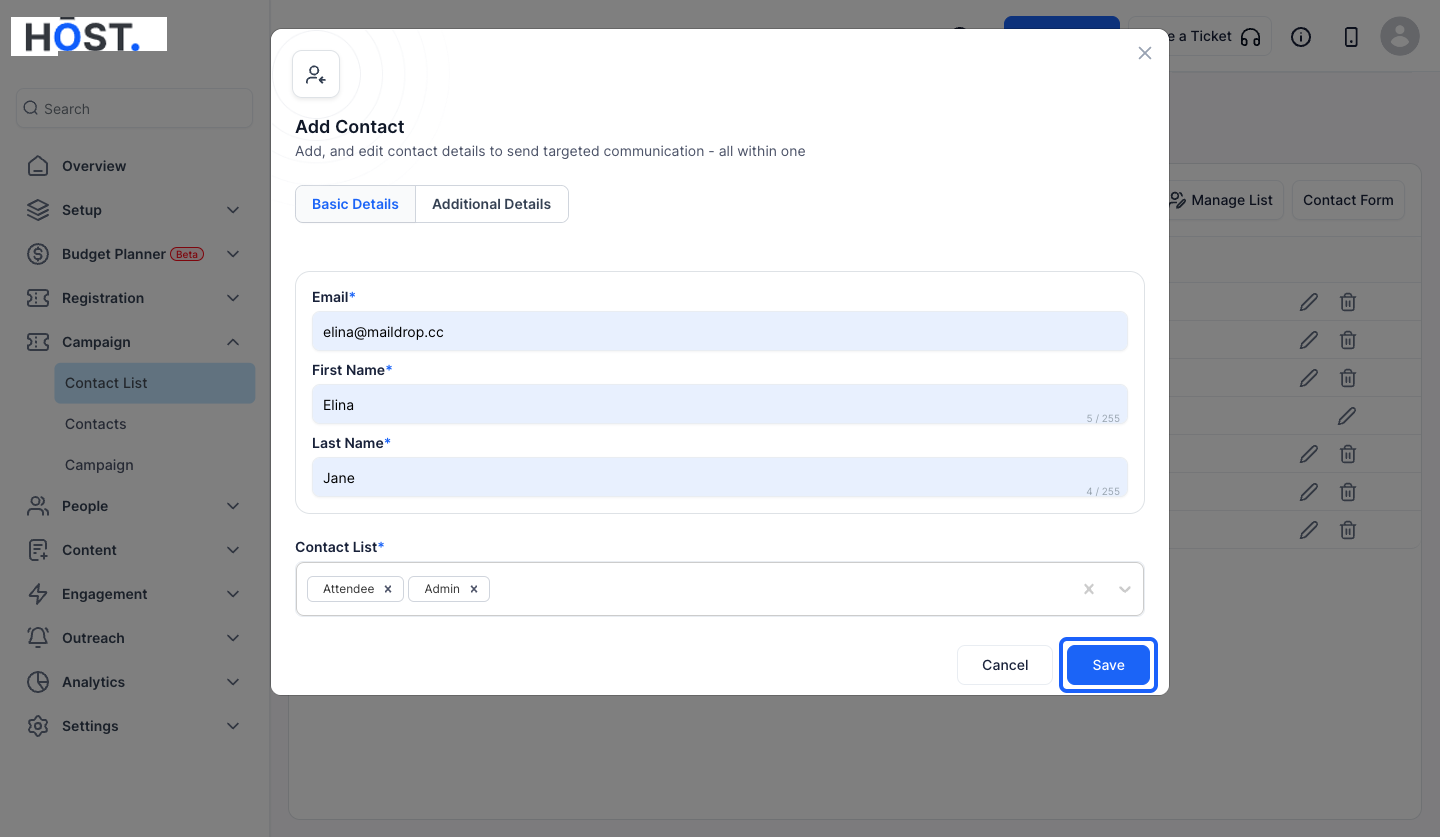
16: Click on "Additional Details" if you want to add more details
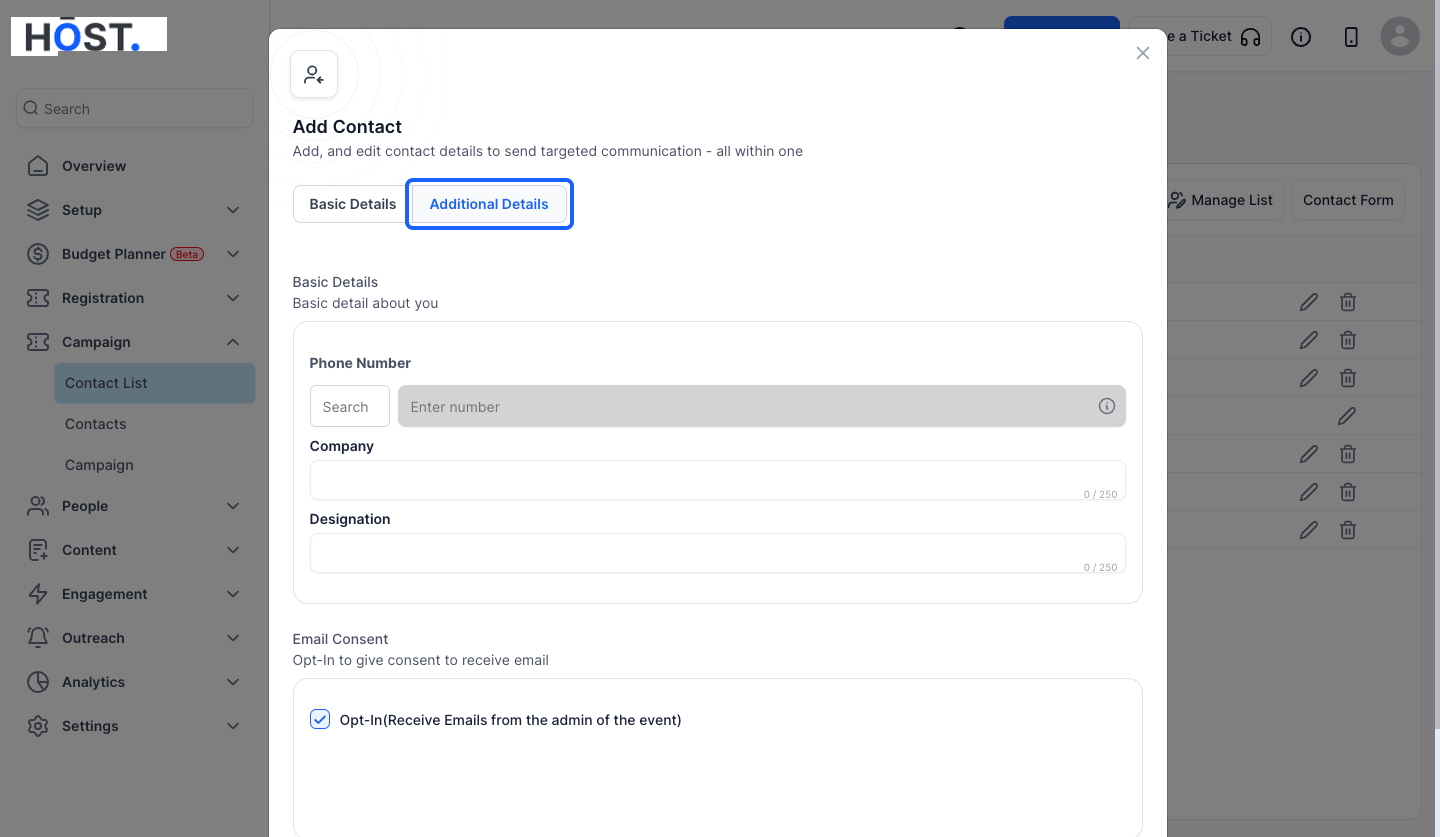
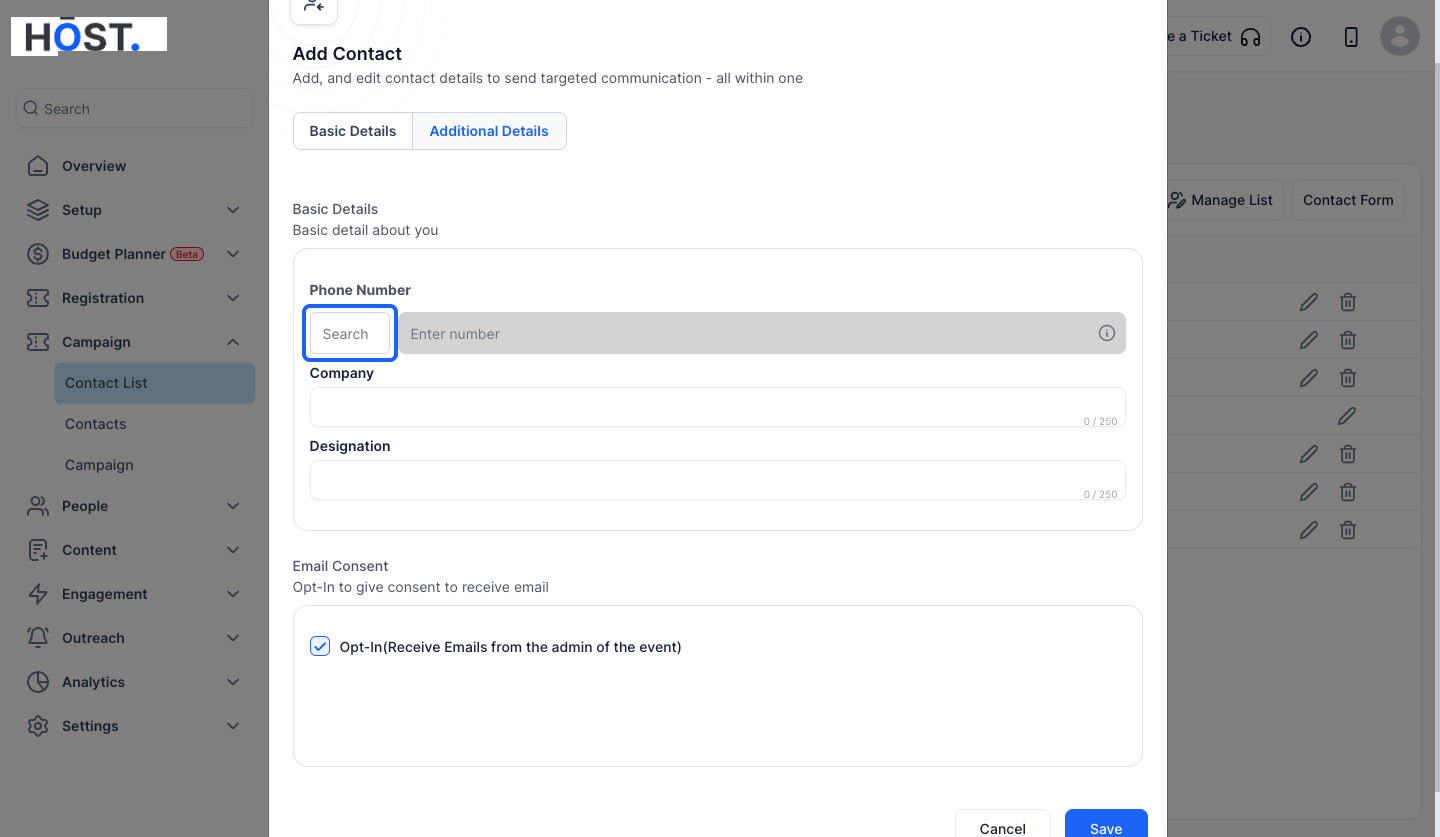
17: Click the “Search” button to search and select the country code
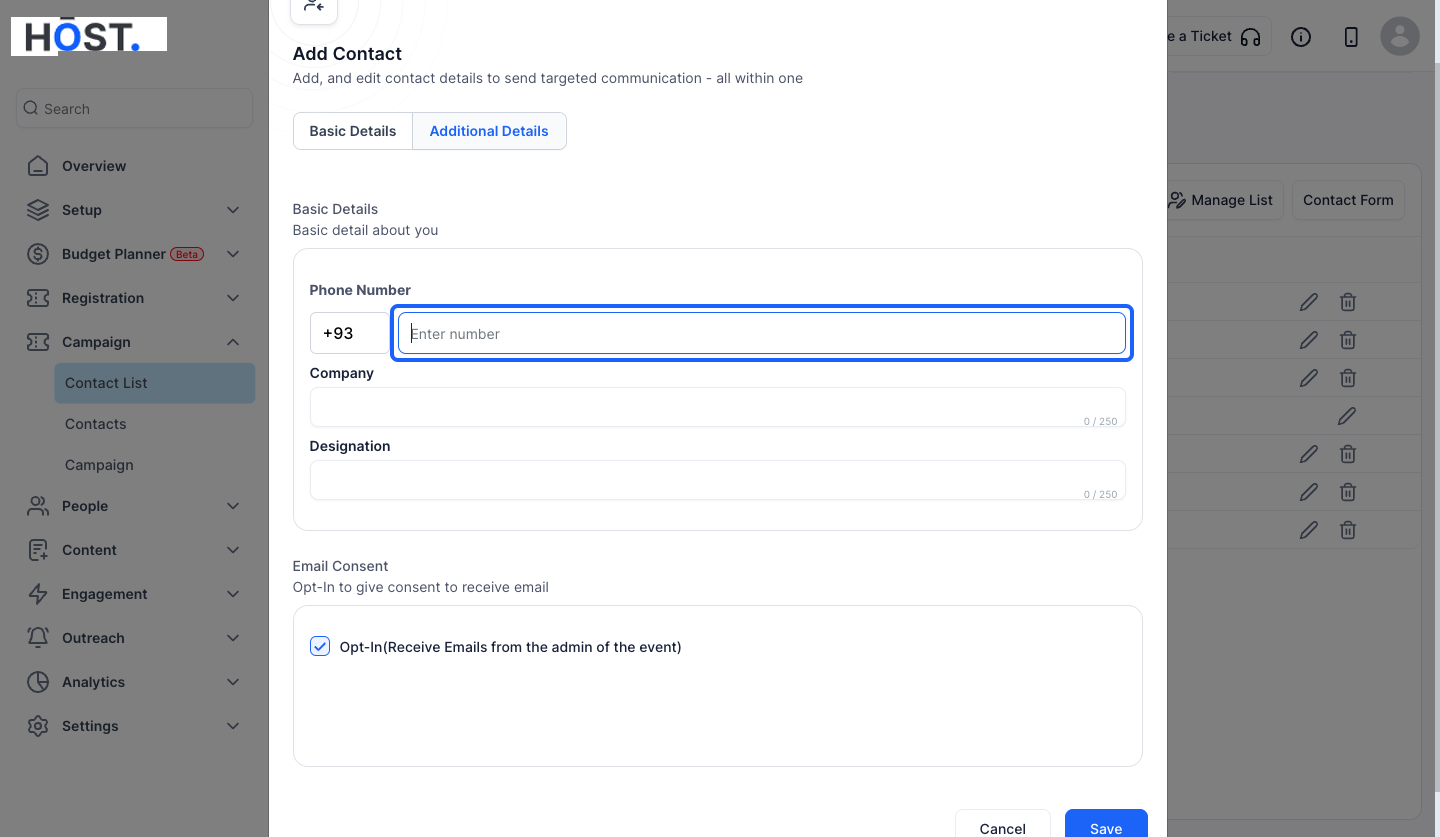
18: Enter the phone number
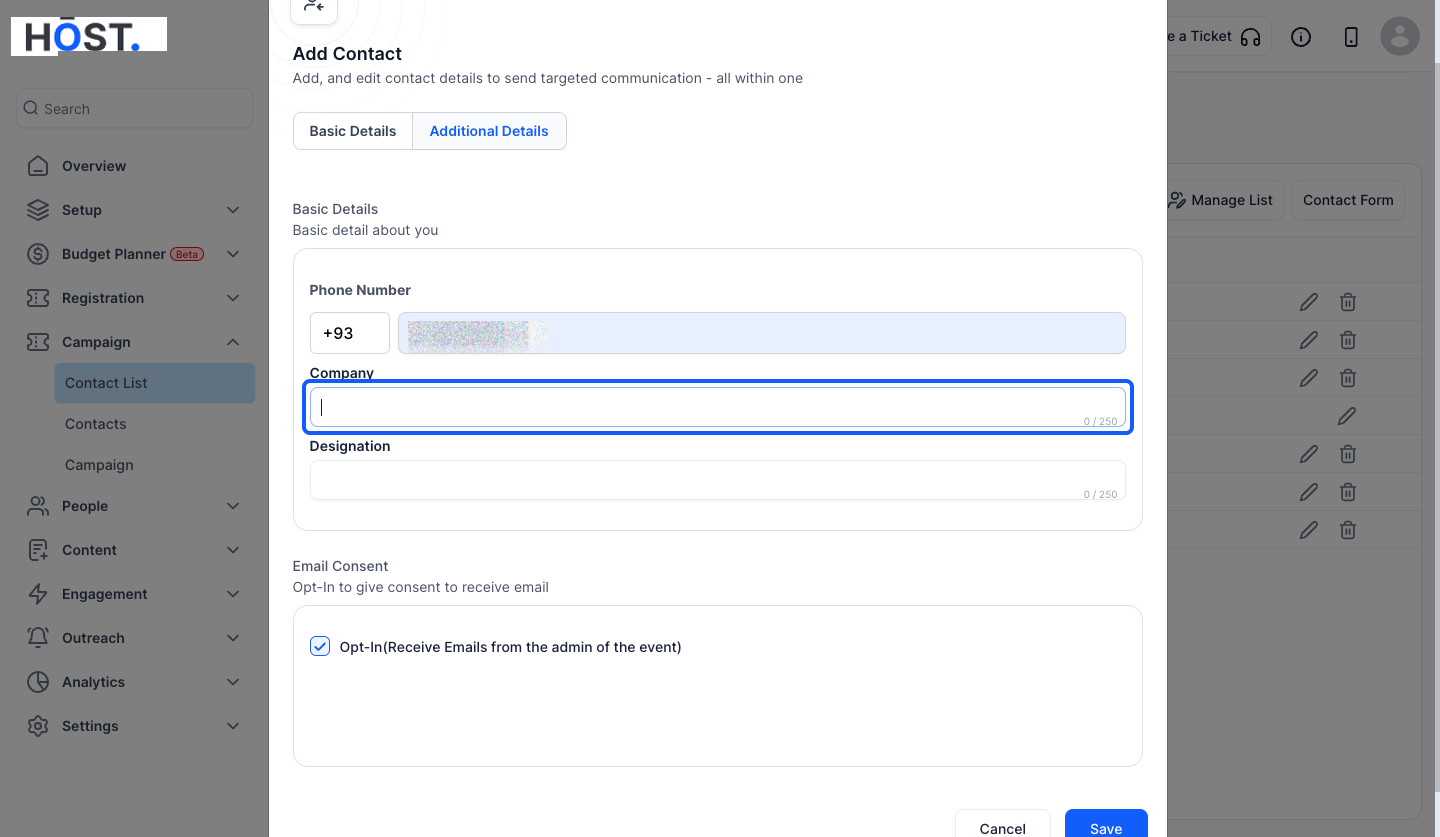
19: Enter the Company Name
20: Enter the Designation here
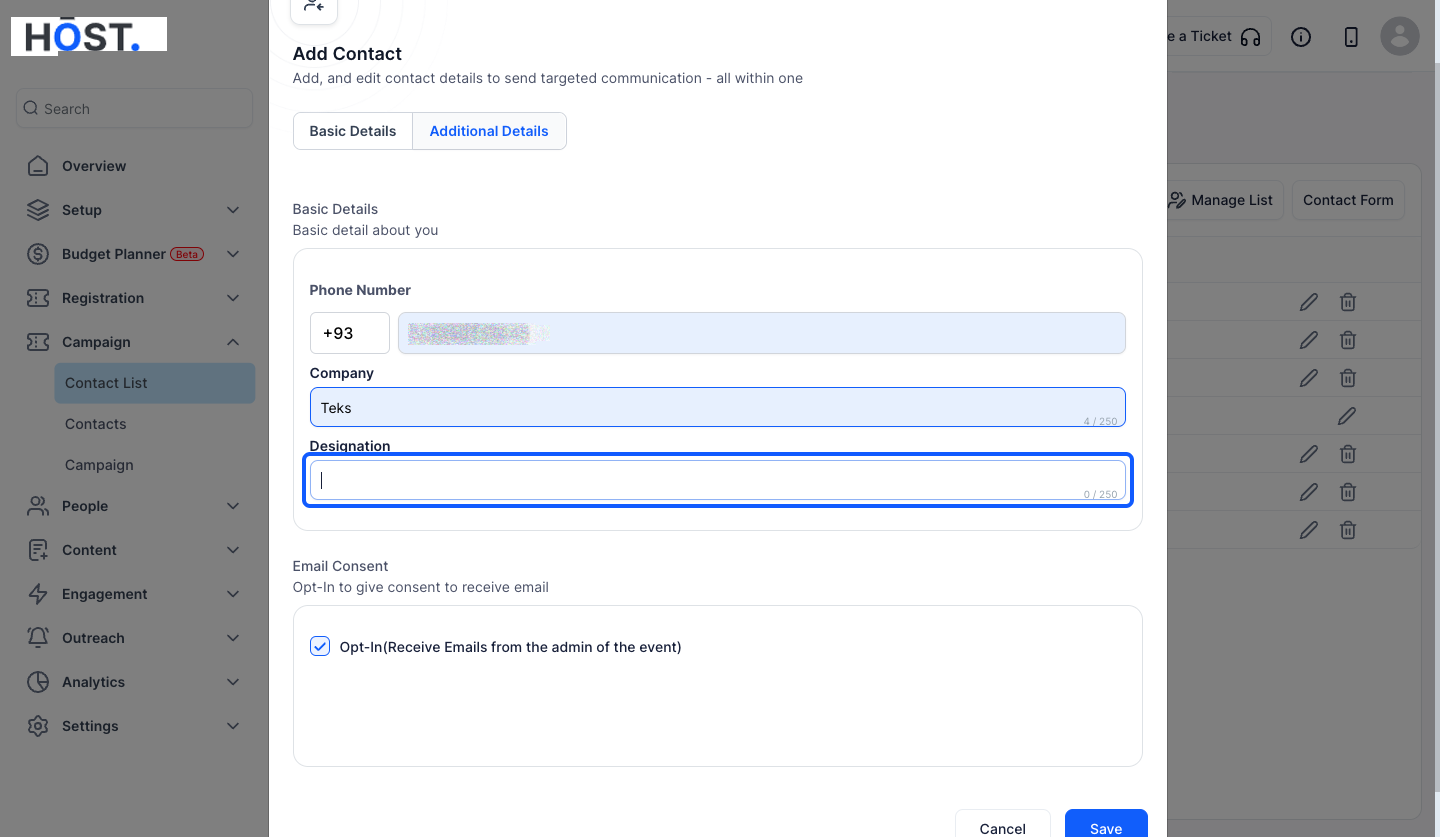
21: keep this checked, if you want the contact to receive emails from the Admin
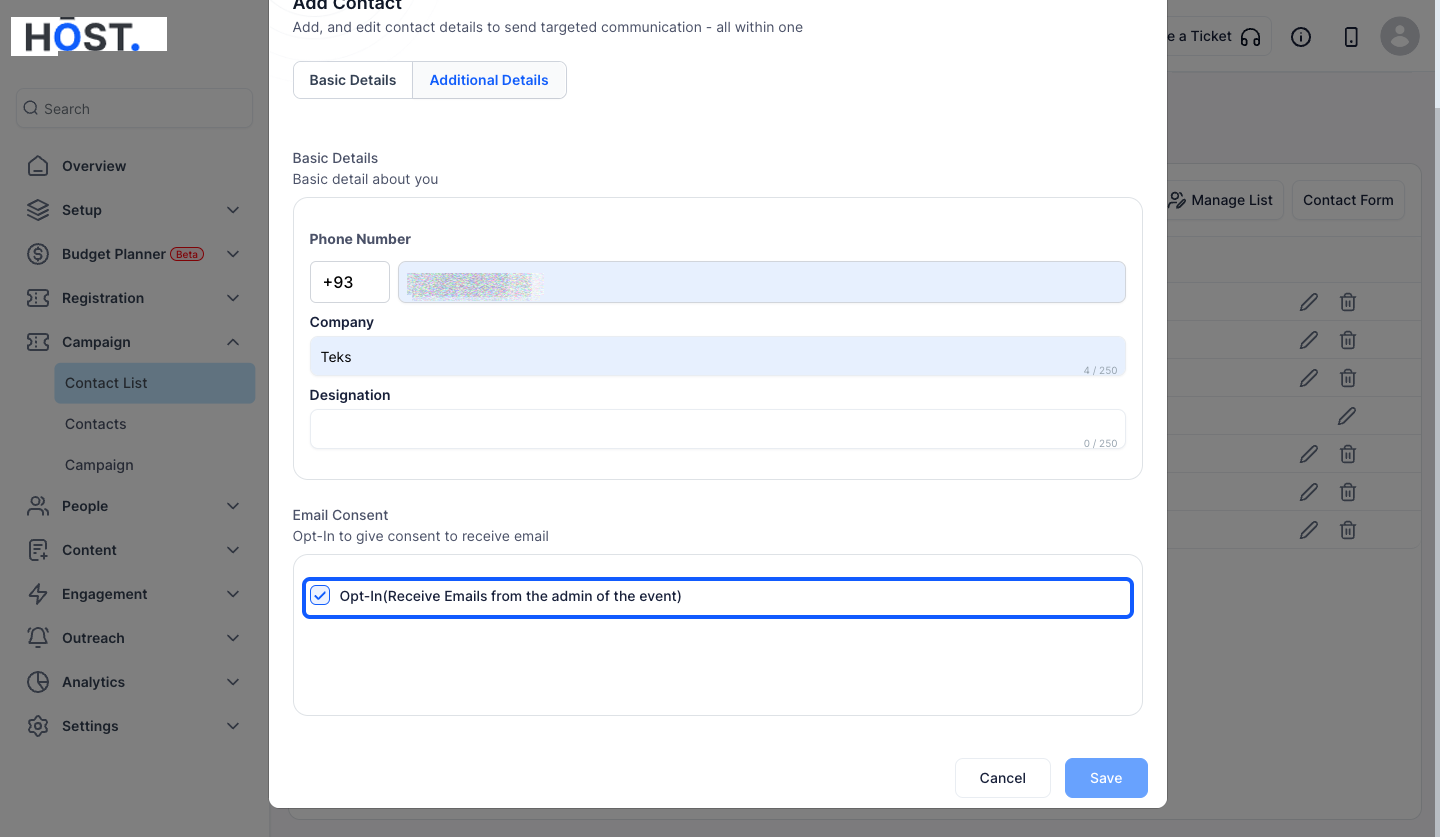
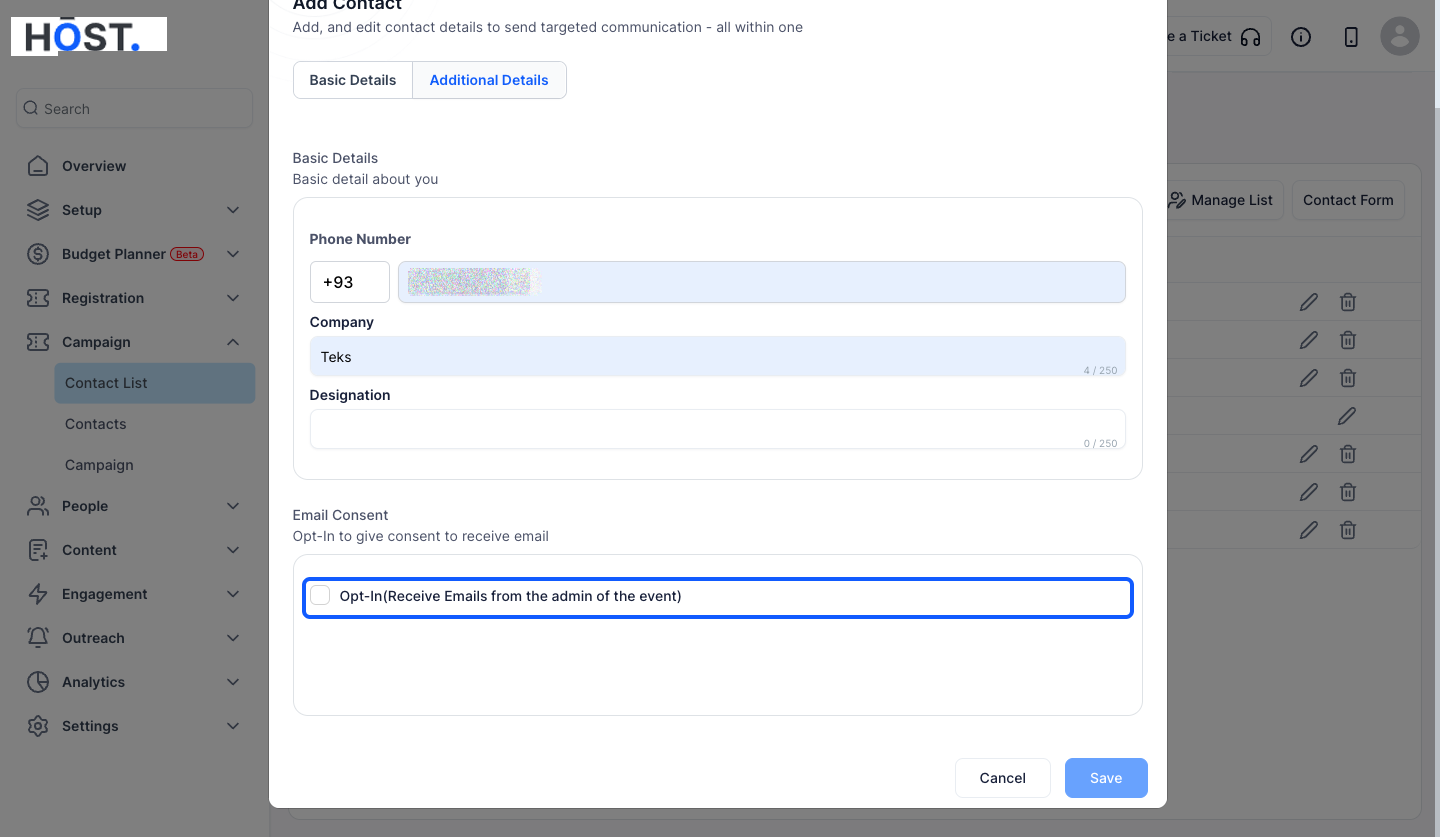
22: Uncheck this if you don't want the contact to receive emails from the Admin
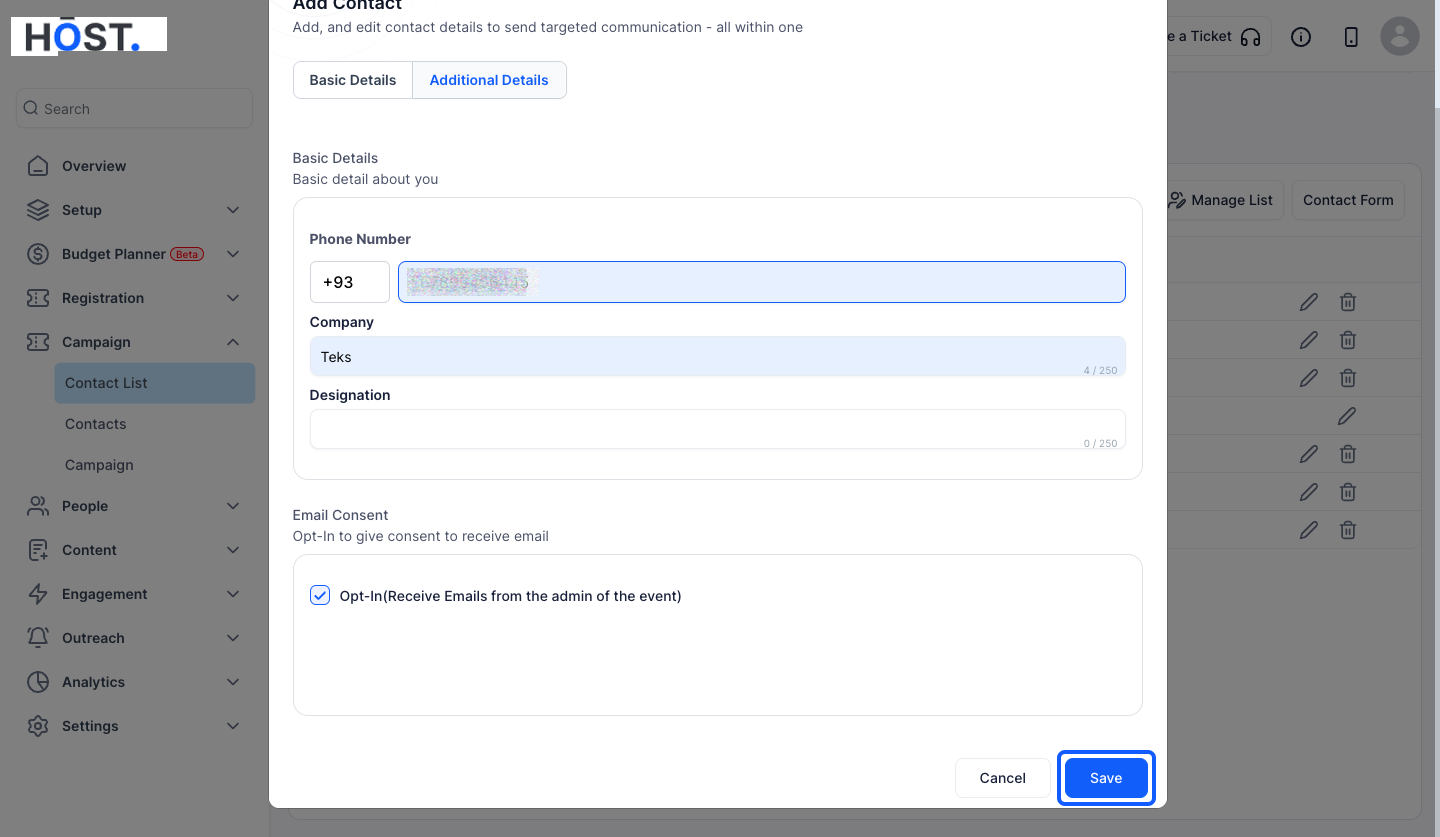
23: Click the “Save” button to save the details
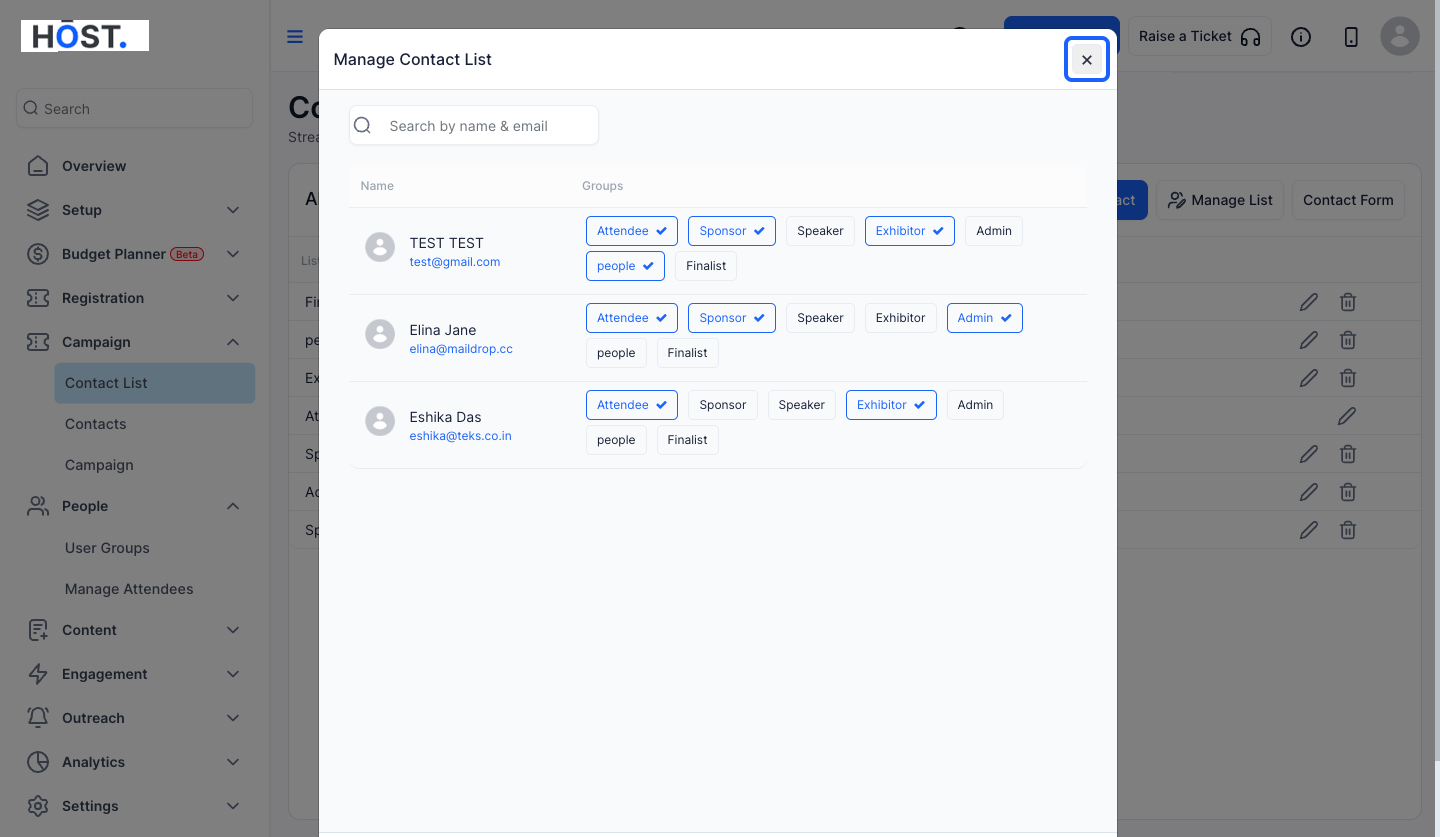
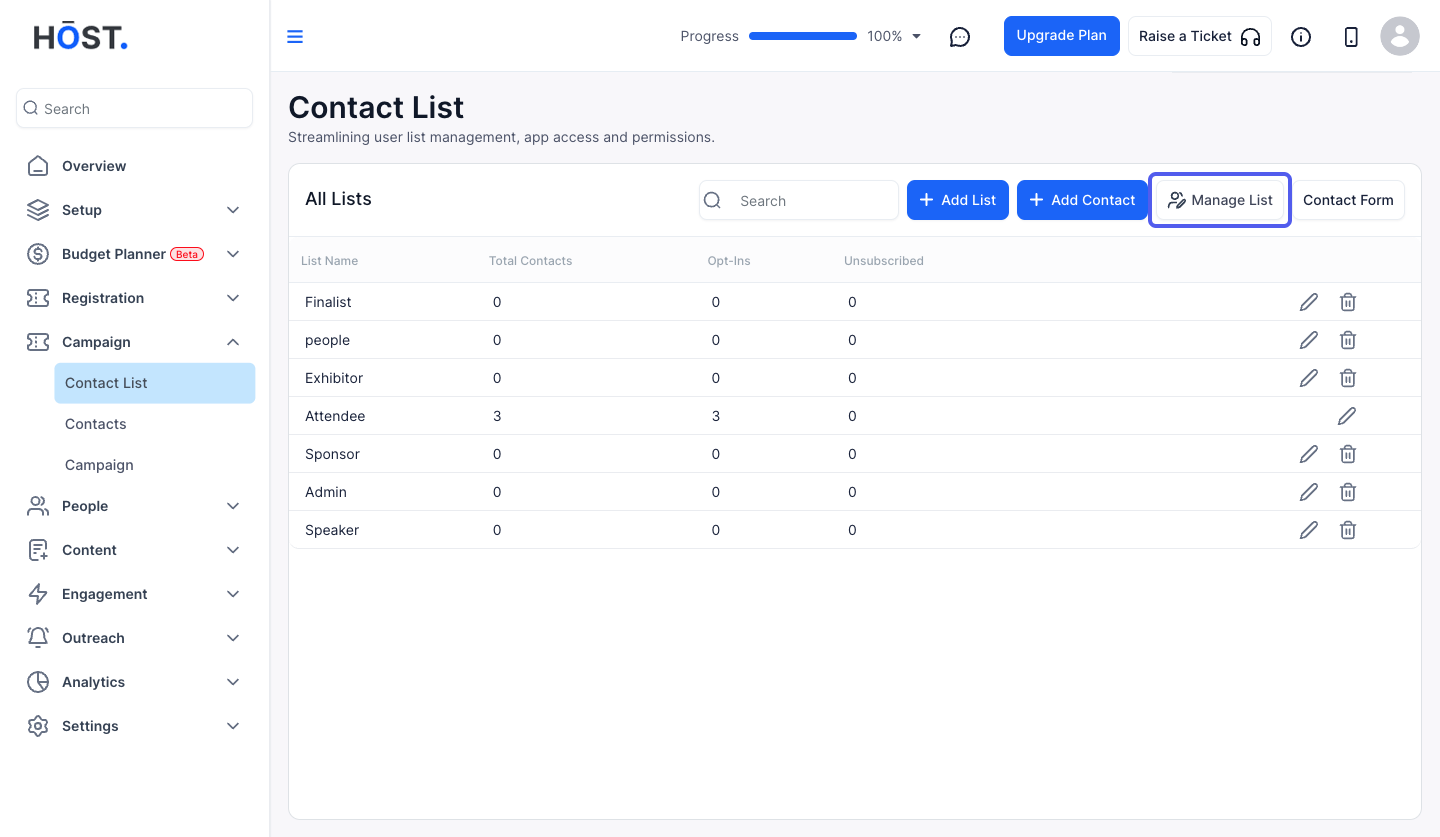
24: Navigate to Manage List to customize existing contact's contact list
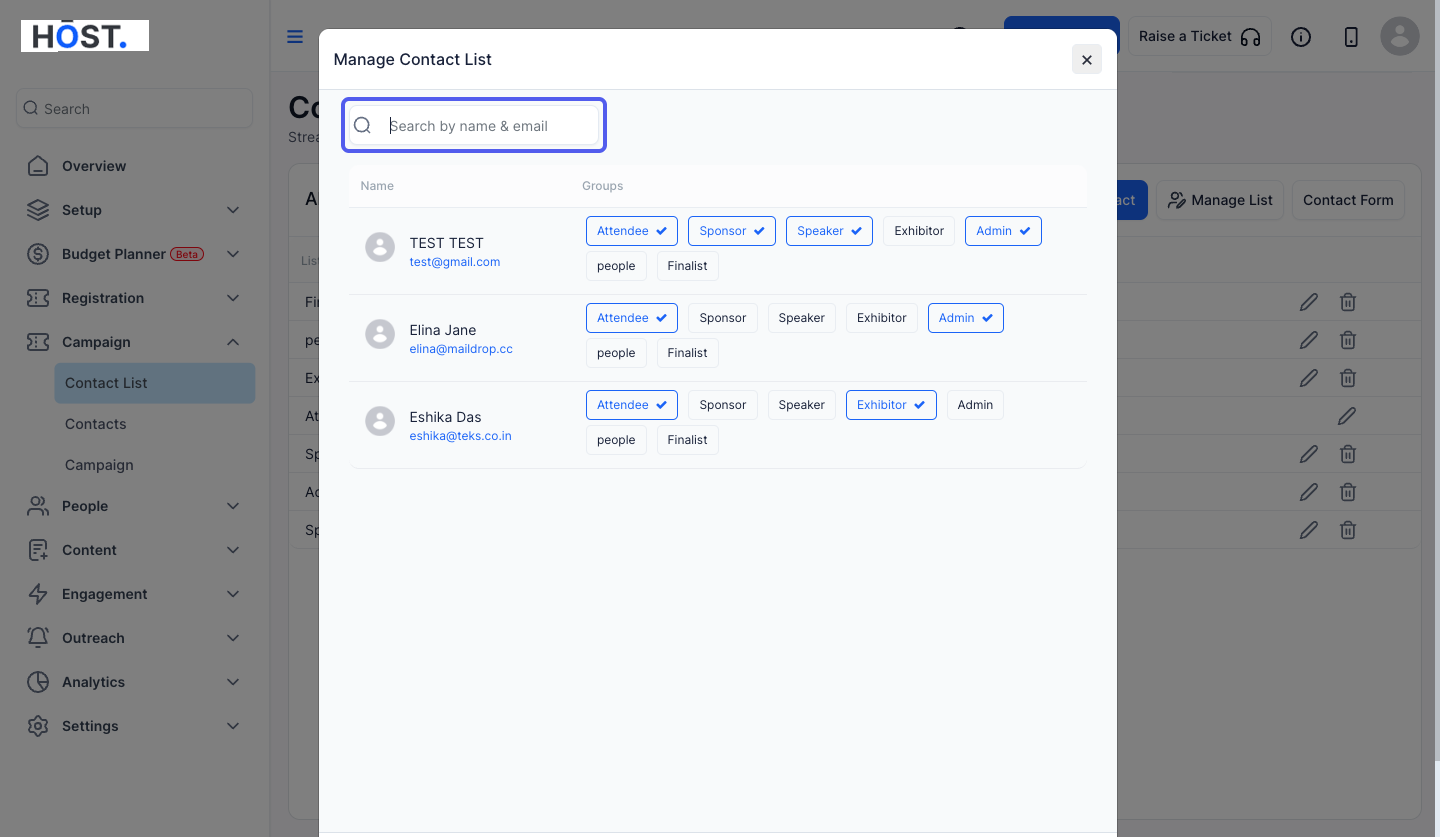
25: You can search the contact by their name or email
26: Edit the contact lists as per your need
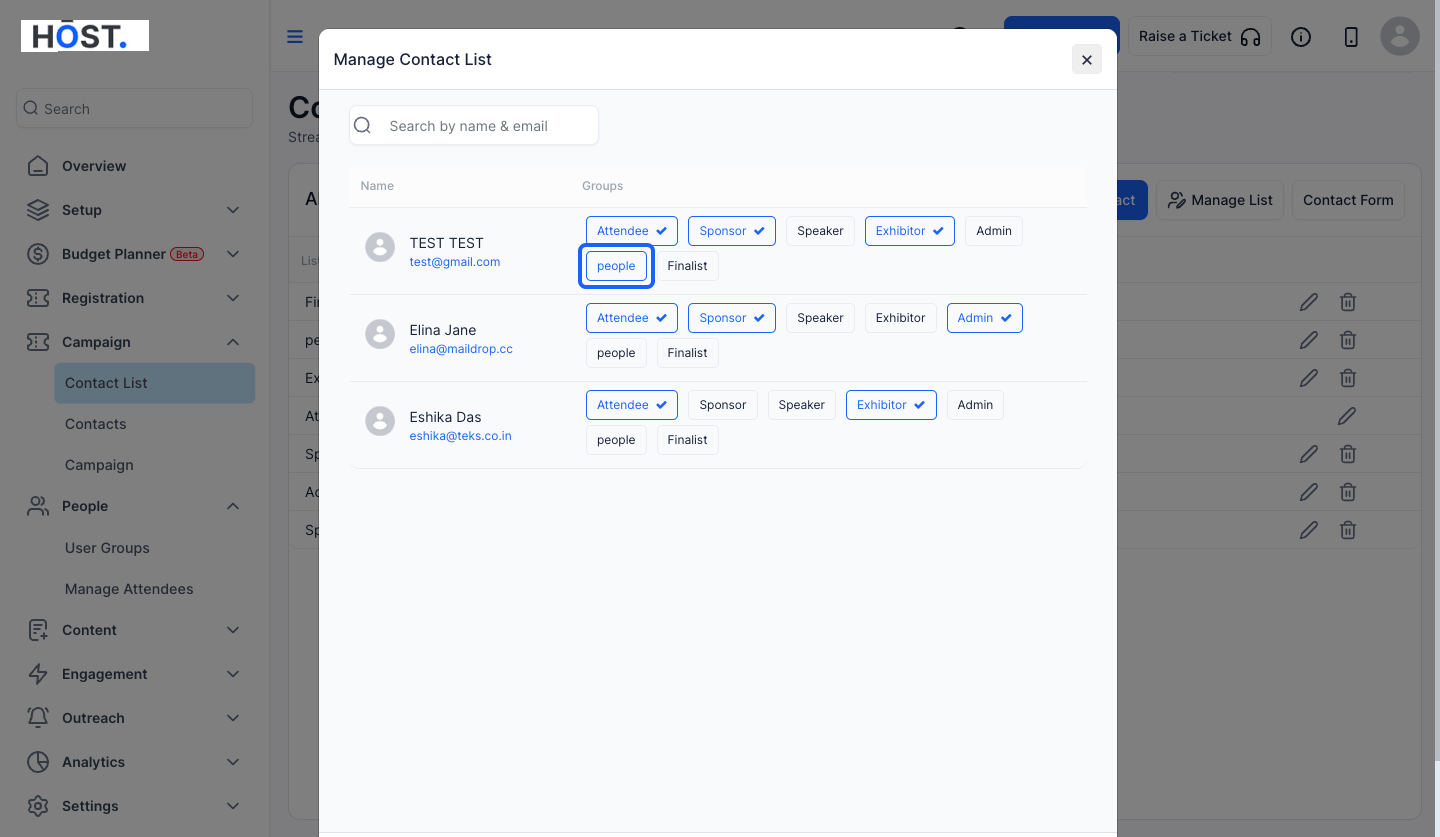
27: Click the close button to save the changes